
Uploading a Caption File to YouTube
A caption file is essentially a text file with timings added. If you already have a transcript or caption file of your video, or want to use a non-speech caption file, you can upload it directly to YouTube.
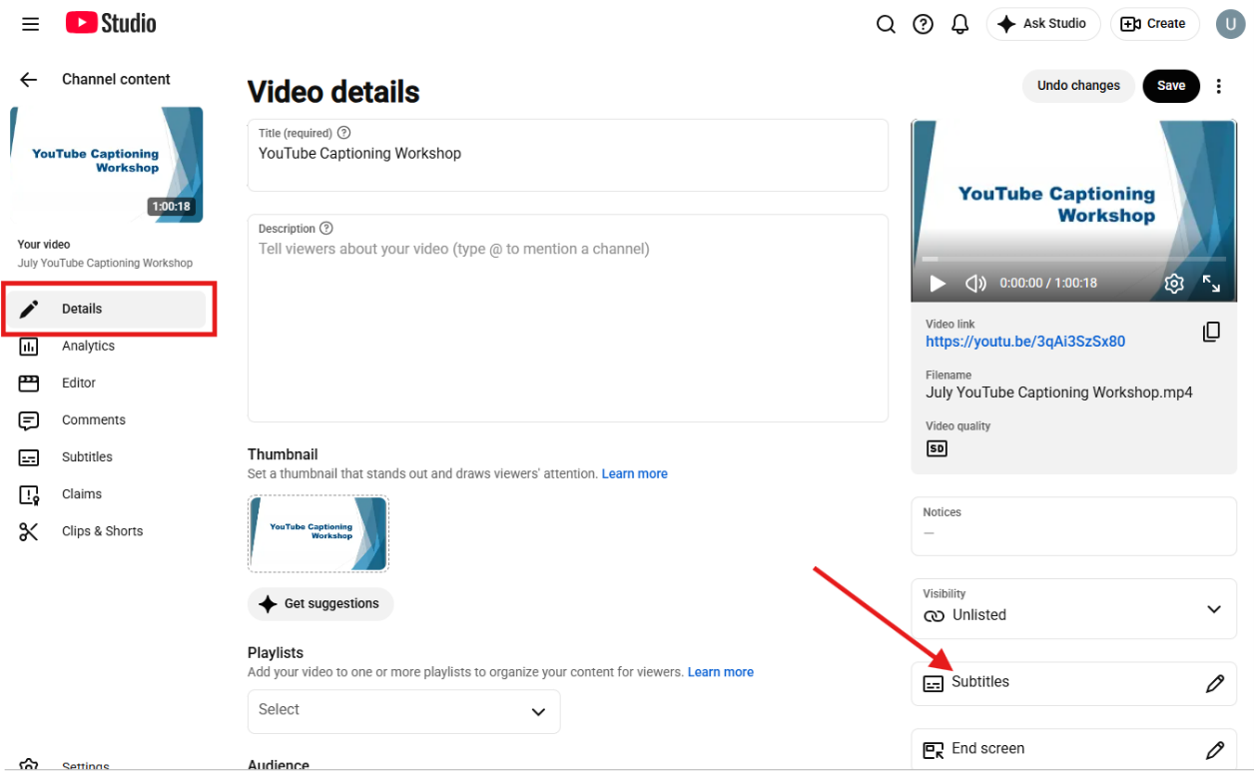
- When the video is opened to edit in YouTube Studio, choose “Subtitles” from the right-hand navigation in the Details section.
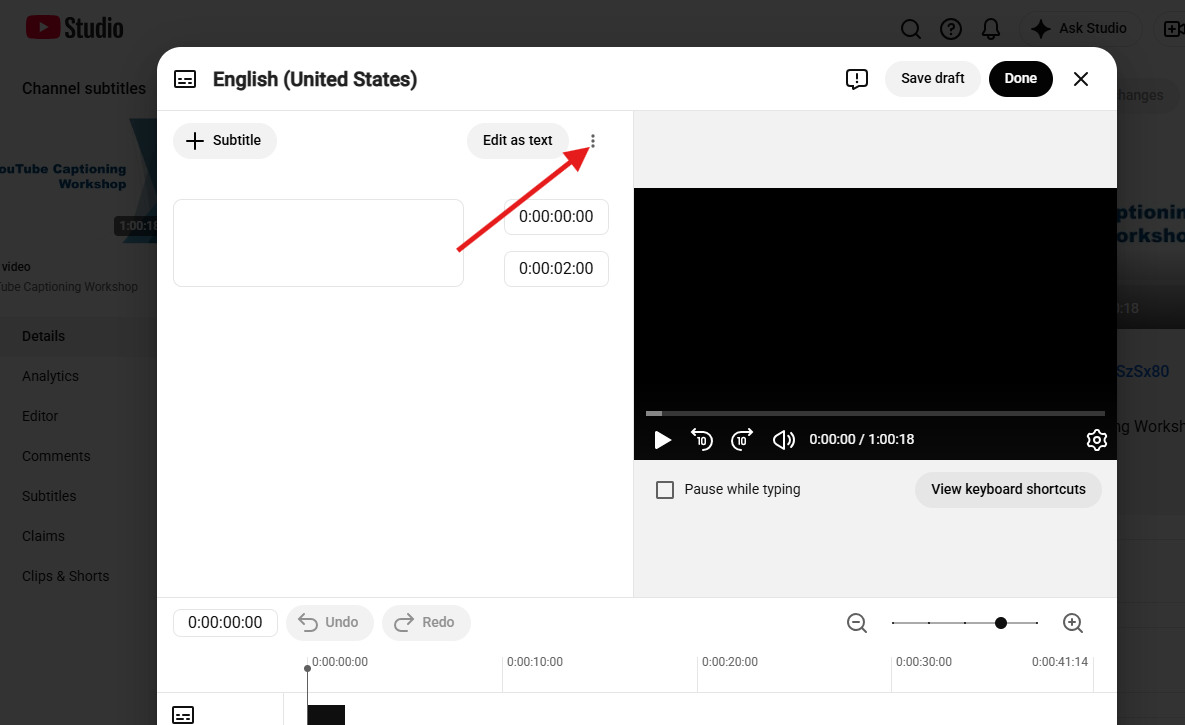
- From the Video Subtitles editor window, click the three dots next to “Edit Test for a drop-down menu.
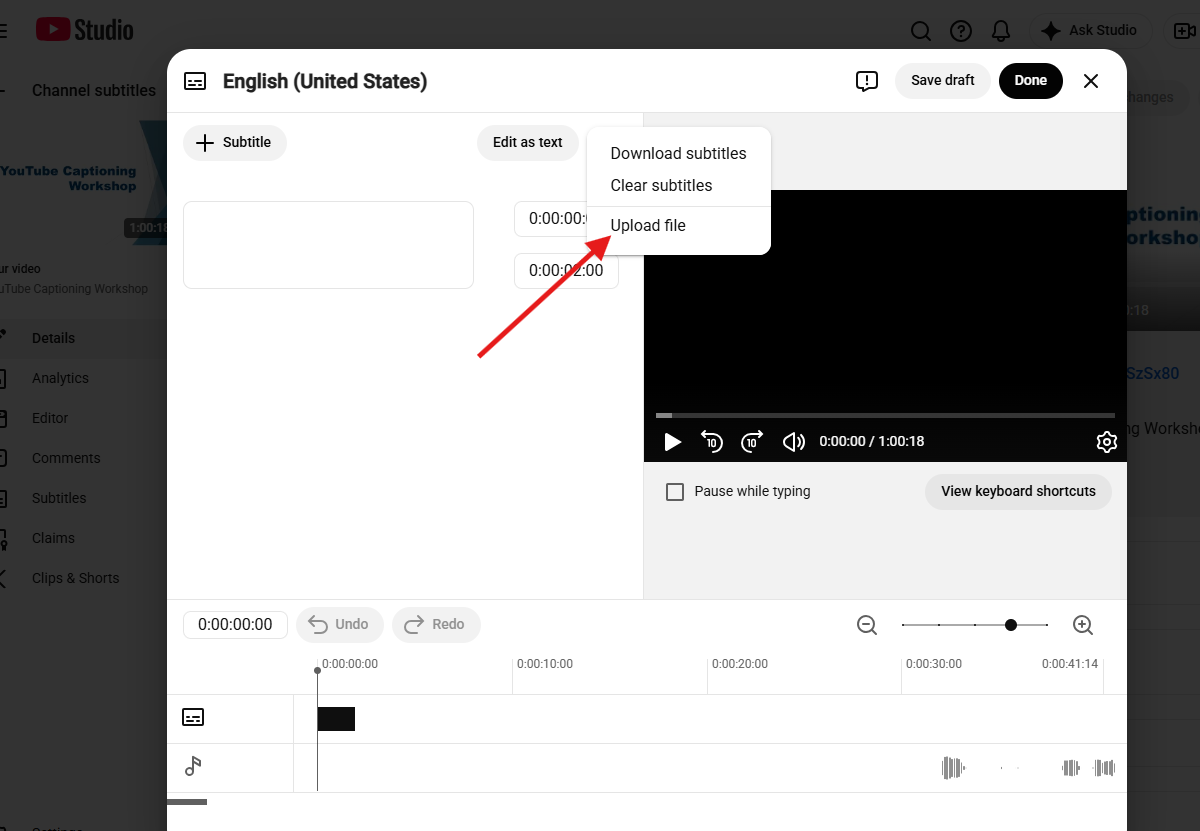
- Select “Upload file”from the drop-down menu.
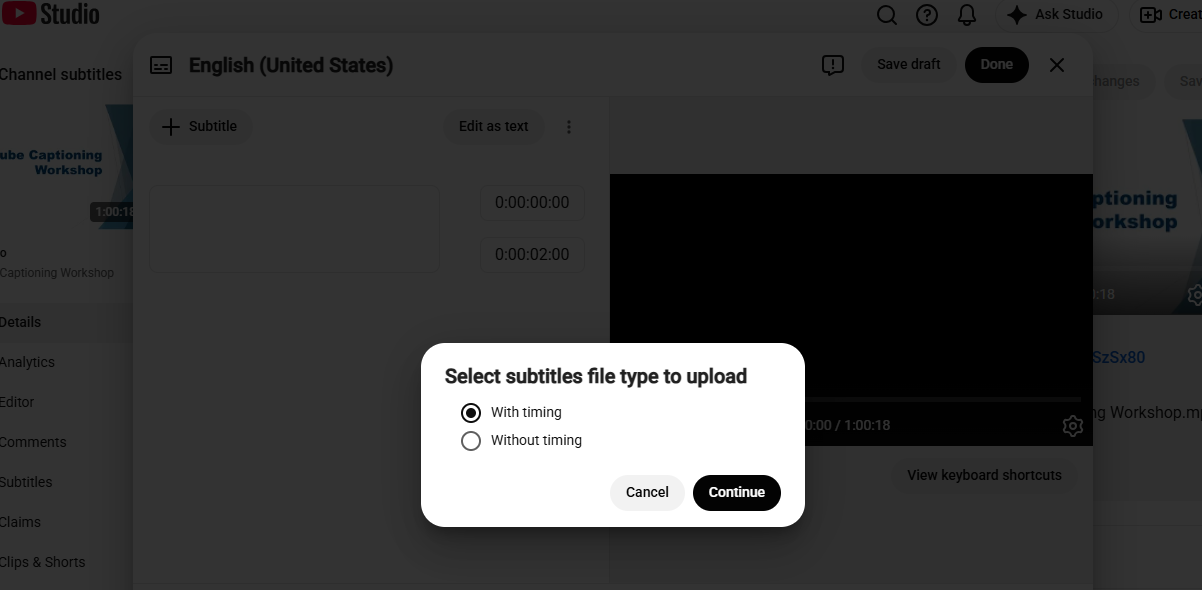
- A pop-up asking about subtitle file timings will appear.
- For caption files:
- Click “Upload file”
- Select "With timing”
- Upload your file.
- You will be taken to the caption editor, where you can review and publish.
- For transcripts:
- You can select “Upload File and select “Without timing” OR
- Select “Auto-sync” and paste the text directly. You will then need to review the caption timings.