
PDF Form Accessibility
Fillable PDF forms need extra attention beyond standard PDF accessibility. Form fields must be properly tagged, labeled, and structured so that screen reader users can understand and complete them. Use this guide to make an accessible PDF form in Adobe Acrobat.
Before You Start
Make sure the PDF itself is accessible before adding form fields. Review PDF Accessibility and resolve any tagging, heading, or reading order issues first. Form field problems are much easier to fix once the underlying document is already accessible.
Place Form Fields
- Go to All Tools > Prepare a Form.
- Acrobat can automatically detect and place some form fields. Review these and adjust them manually if they aren't placed or identified correctly. You can also manually insert the form fields.
Run the Accessibility Checker
- Go to All Tools > Prepare for Accessibility > Check for Accessibility.
- Look for a Tagged Form Fields – Failed result. This means the form fields haven't been tagged yet and need to be added to the tag structure manually.
Fix Tagged Form Field Errors
- Open the Tags panel in the Navigation Pane.
- Create a new tag to hold the untagged fields temporarily. Use a heading tag like H6 so it's easy to find and won't be mistaken for a permanent part of the document structure.
- Select the H6 tag.
- Open the options panel (three dots) and select Find.
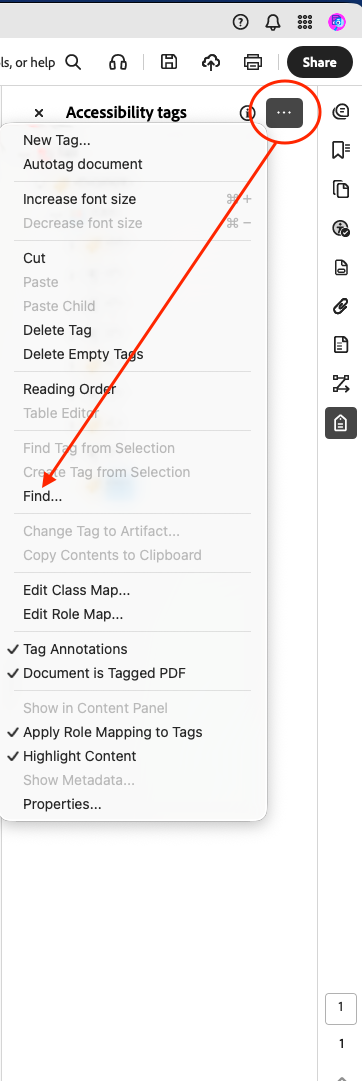
- From the dropdown, choose Unmarked Annotations, then set the search type to Search Document.
- Select Find, then Tag Element. Repeat this until every unmarked annotation has been tagged. Each new tag will be placed under the H6 tag you created.
- Move each tag out of H6 and into its correct location in the tag tree. If the form field is part of a list, make sure it's structured within the list.
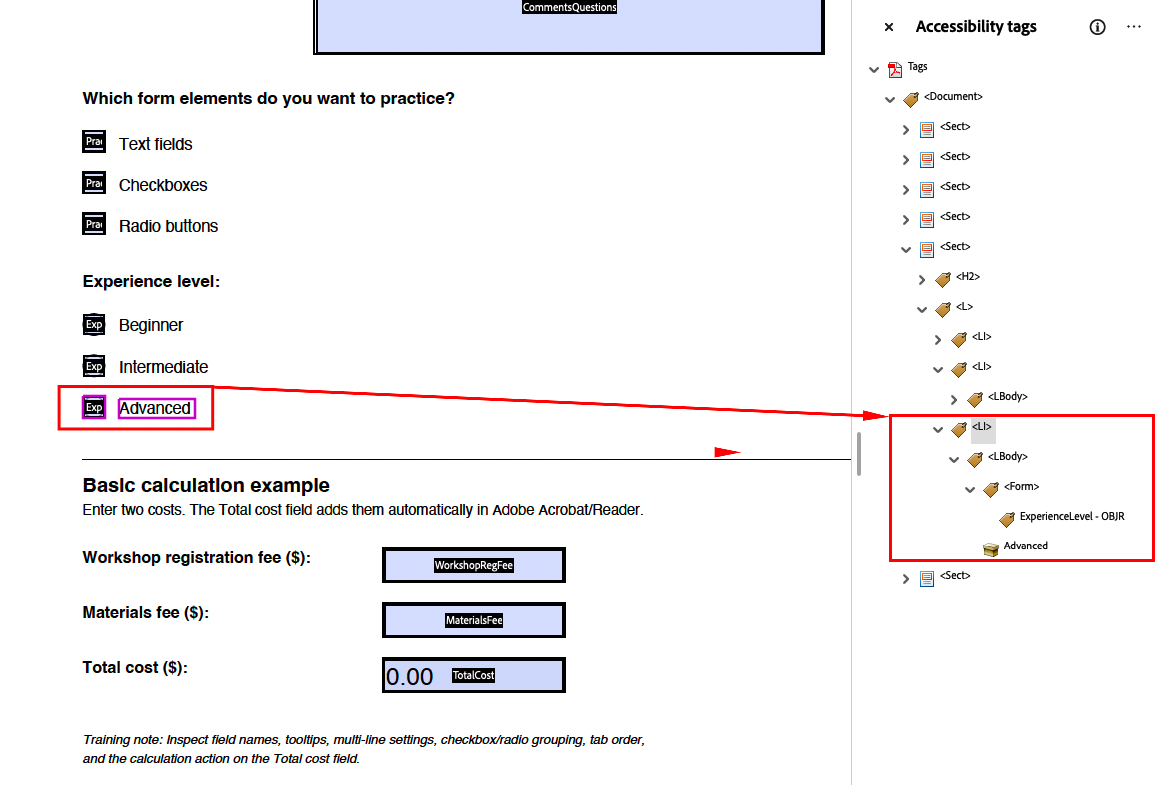
- Once every tag has been moved, delete the empty H6 tag.
- Make sure each form field is wrapped in its own Form tag.
Update Form Field Properties
- Go back to Prepare a Form.
- Right-click a form field and select Properties.
- Update the Name and Tooltip for each field.
- Tooltips are read aloud by screen readers, so they're essential for guiding users through the form. Be specific about what the field is asking for.
- For radio buttons, use a generic tooltip for the group as a whole, since the buttons are grouped together. Give each individual button choice its own specific name.
Format Multi-Line Text Fields
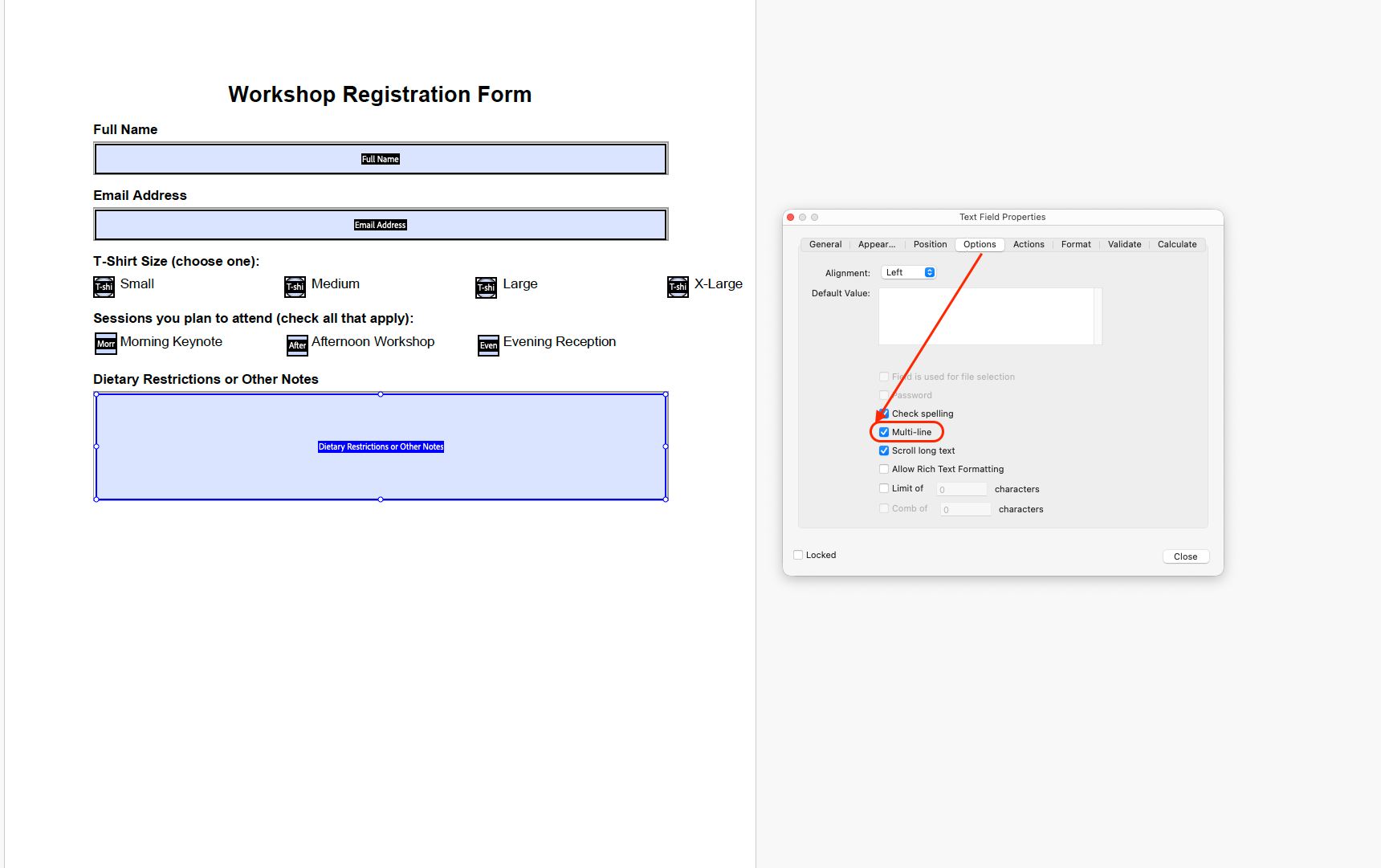
If a text field needs to accept multiple lines, open its Properties, go to the Options tab, and enable multi-line entry.
Adjust Text Input Font Size
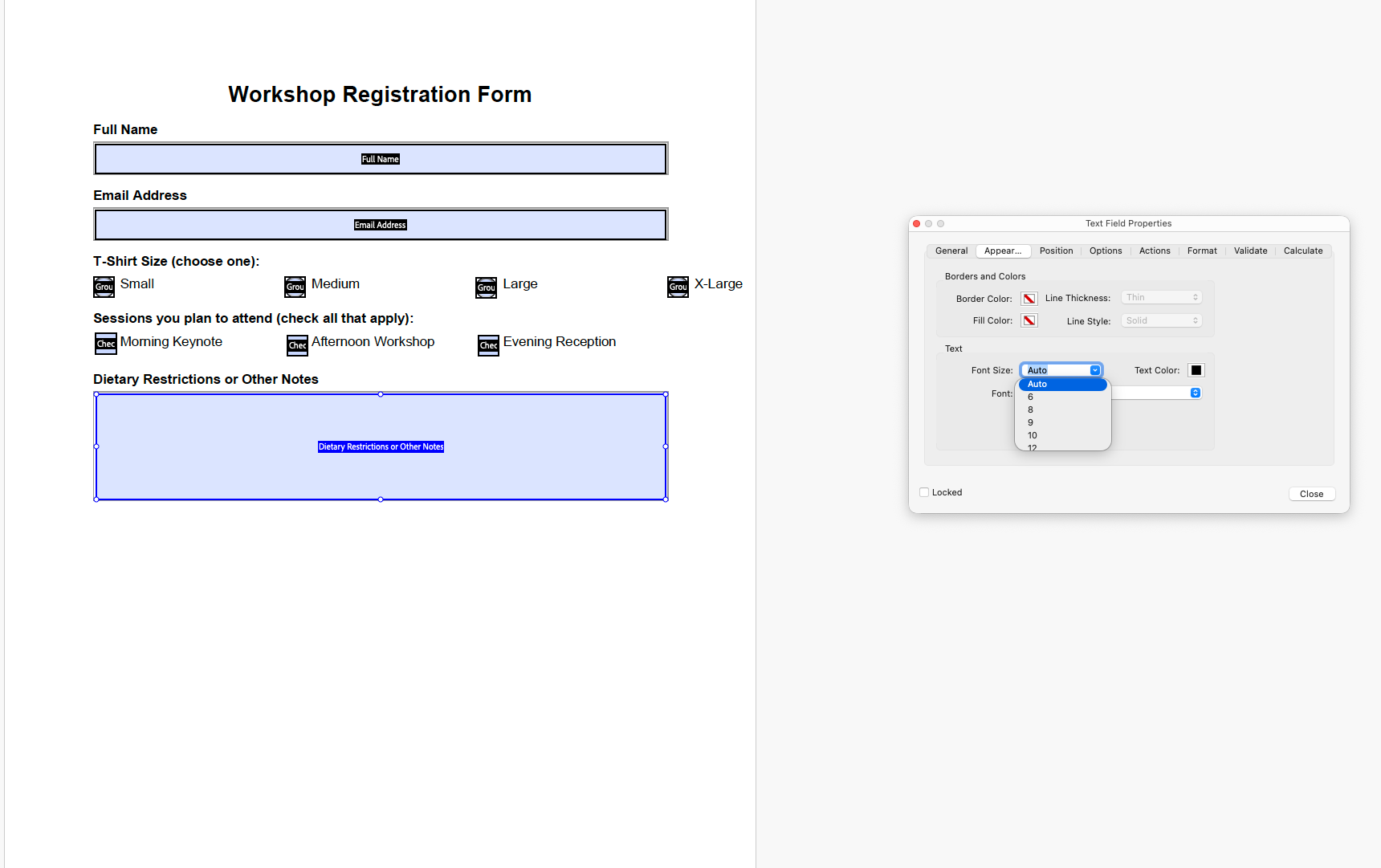
Open the field's Properties and go to the Appearance tab to change the font size. Auto is recommended, since it adjusts the text to fit the field at any zoom level.
Calculations
If a form includes fields that perform calculations, follow these steps:
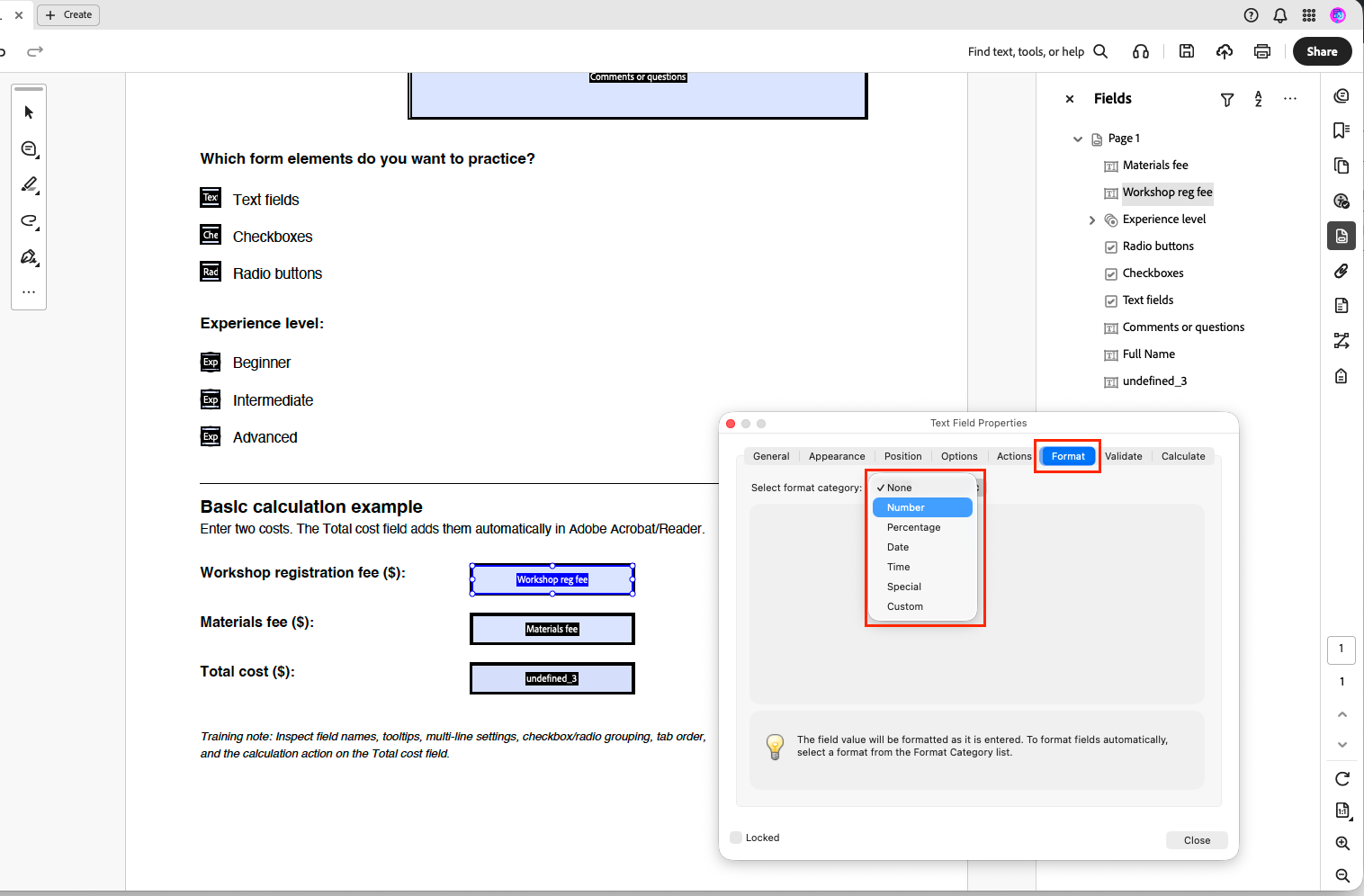
- Set the Format of all fields used in the calculation to Number.
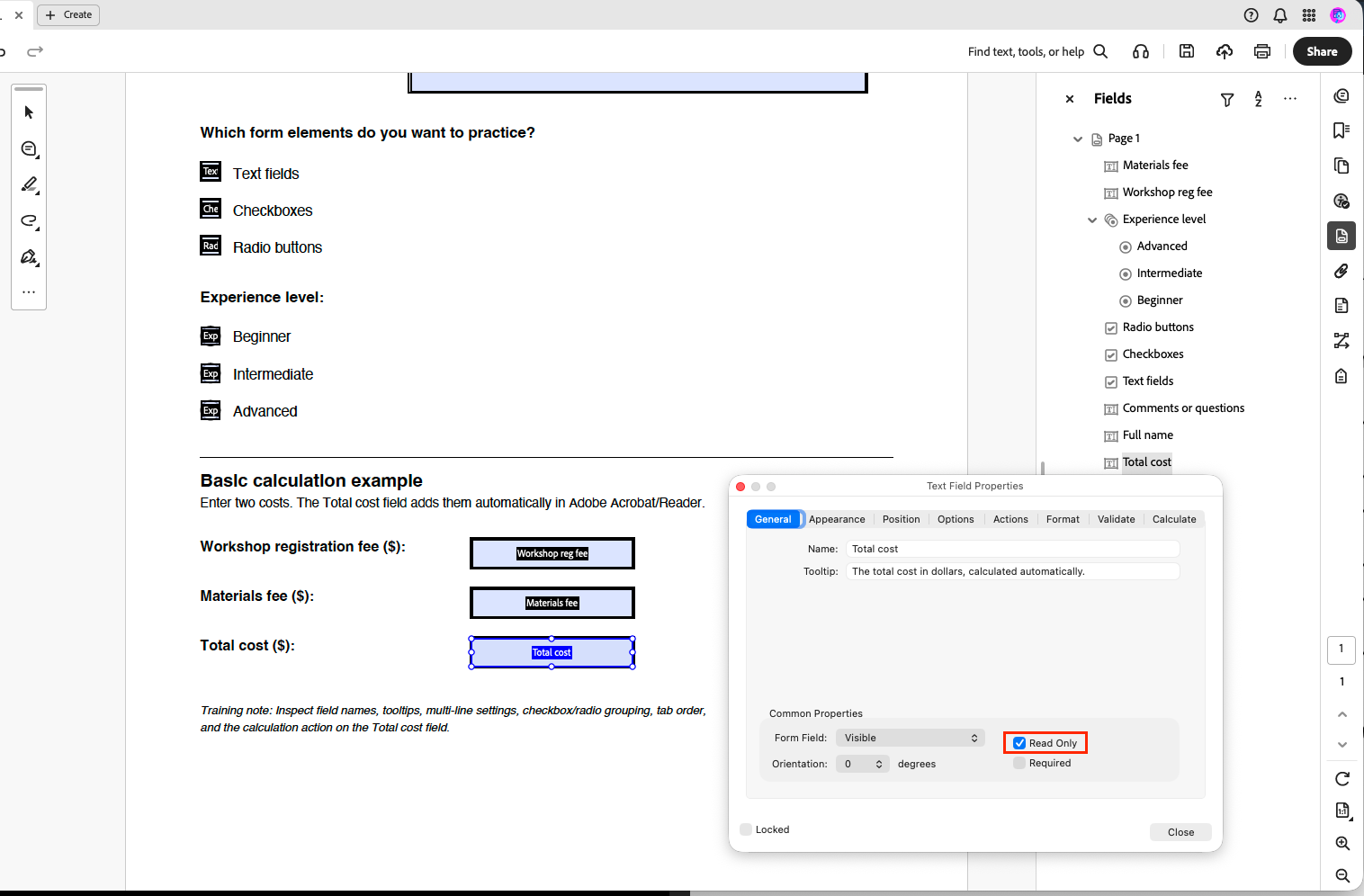
- Set the calculated result field to Read Only so users cannot manually change the calculated value.
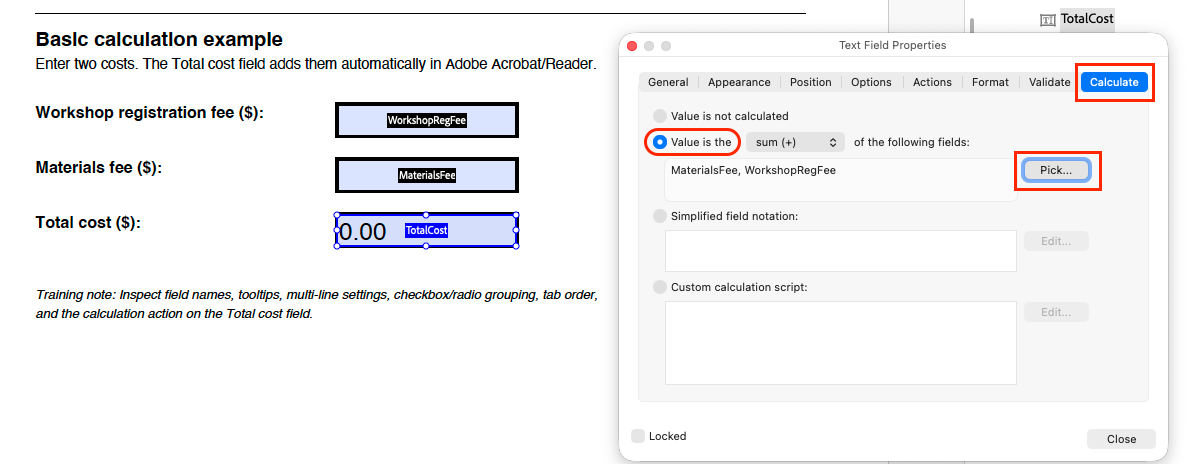
- Open the Properties of the calculated result field and go to the Calculate tab.
- Select Value is the.
- Choose the calculation type from the dropdown menu: Sum, Product, Average, Minimum, or Maximum.
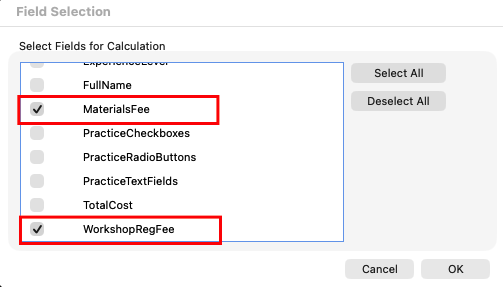
- Select Pick and choose the fields that should be included in the calculation.
- Select OK to save the calculations settings.
Save and Recheck
After updating the form fields, save the file, then re-run the Accessibility Checker to confirm the Tagged Form Fields error is resolved.