
Use TidyUP to Delete Unused Course Material
TidyUp is a tool designed to identify unused images, files, and pages in Canvas courses. By removing unnecessary content, we can more easily make the remaining content more accessible. These instructions will help you set up TidyUP in your course. We recommend using TidyUP while using the Canvas Accessibilty Checker. Using these tools together will help you review your course content before removing materials you may no longer need.
Once you set up TidyUP and scan your course, a report will show you all the files in your course and whether they are being used.
- New Quizzes: If you are using the New Quiz feature in Canvas and have files or images in your quiz, TidyUP will not show these files as in use. Double-check any files that may be in a New Quiz before deleting them.
- Courses Where Students are Directed to the Files Section: Some instructors direct students to the Files section of the course to read the course material. Since these files are not embedded on a page, TidyUP will show them as unused.
- Third-Party Tools in Canvas: If files are used inside third-party tools like Hypothes.is, TidyUP may label those files as unused.
The filters in the upper right-hand corner allow you to change the report to show only unused files.
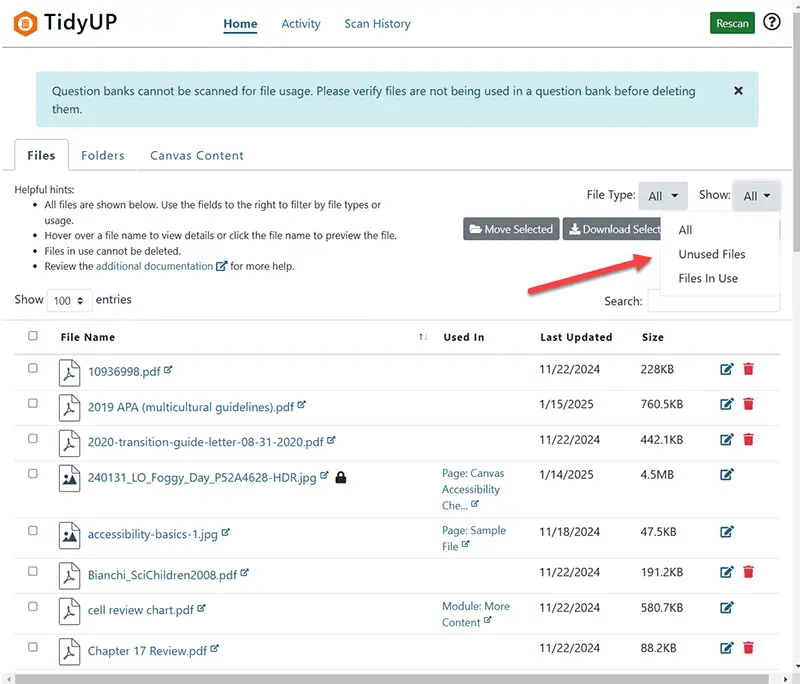
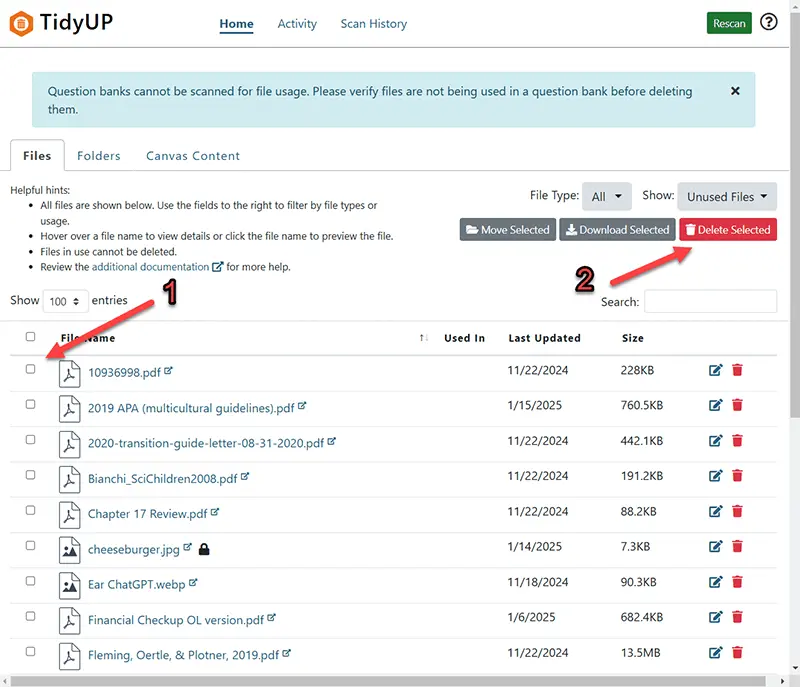
There are two ways you can use TidyUP to delete unused course files. The first is to select the boxes next to each file and then select the button “Delete Selected”. You can also select the box next to File Name, which will select all unused files.
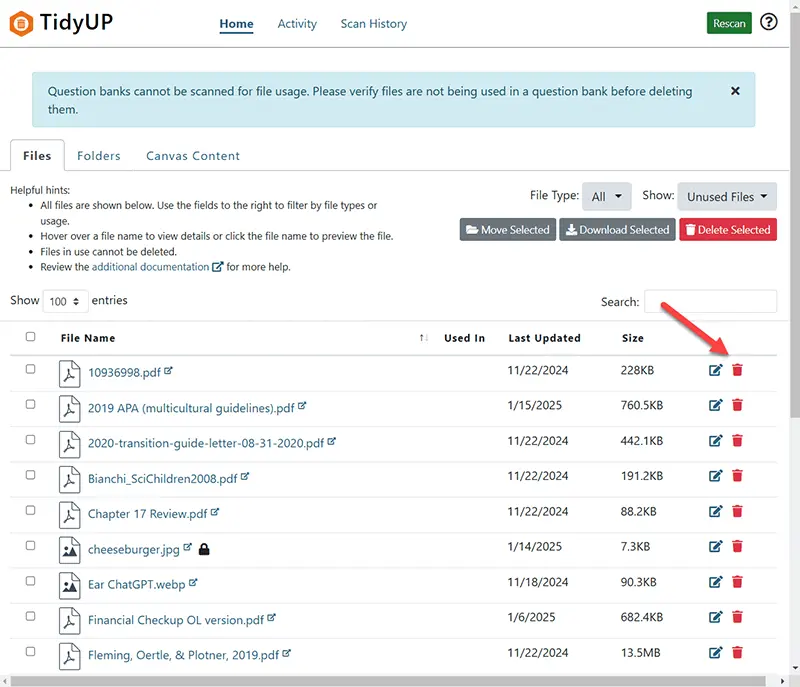
The second option is to select the trash can icon after reviewing each file. This option is better for deleting files one at a time.
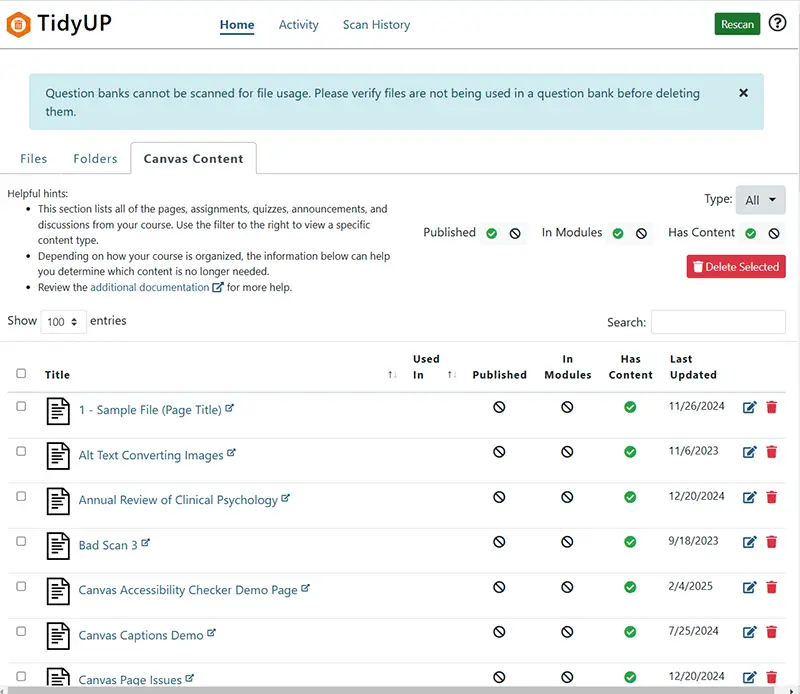
After reviewing and deleting unused course files, you can also review Canvas Content that is unused. Toward the top of the TidyUP report, there is a tab labeled “Canvas Content”. This option shows you all of the pages, assignments, quizzes, announcements, and discussions in your course. It will also show you if that content is published, if it is in a module, and if it has content. Review this report and delete any pages or other Canvas content you’ll no longer be using.
If you have any questions or need help getting started, please contact us!