
Box Module Component
The Box Content Map is a quick and easy visual layout that displays the entire course content at a glance. You can customize this component to make it easier for your students to navigate the course.
Note: The modules in the Box Content Map are interconnected with your Canvas course modules. By creating a module in Delphinium, it will create a module in Canvas. If you want to make any edits or delete a module from Delphinium, you will have to do so in Canvas.
For more information on editing modules, see How Do I Edit a Module? Opens External Page
Add a Watermark Image
Delphinium allows for you to customize your Box Module component by adding subtle watermark images to give your course a more aesthetic look. The image below gives an example of what that could look like.

To create this effect, do the following:
Go to Settings

Navigate to the Module Meta-data Tab

Click on the edit image icon

Click Select Image

Choose the desired image in your files
In the preview, adjust the image to your liking
Click Save Image
Enter Alt text
Click Save Alt Text
Close out of the window and repeat the steps for the other modules
If your edits don't appear once you've completed all of your edits, refresh the page.
Configure View
This component has 2 views: Grid (left) and One Row (right).

We recommend that you use the Grid view, but if you prefer the One Row view, do the following:
Go to Settings
Navigate to the Settings Tab
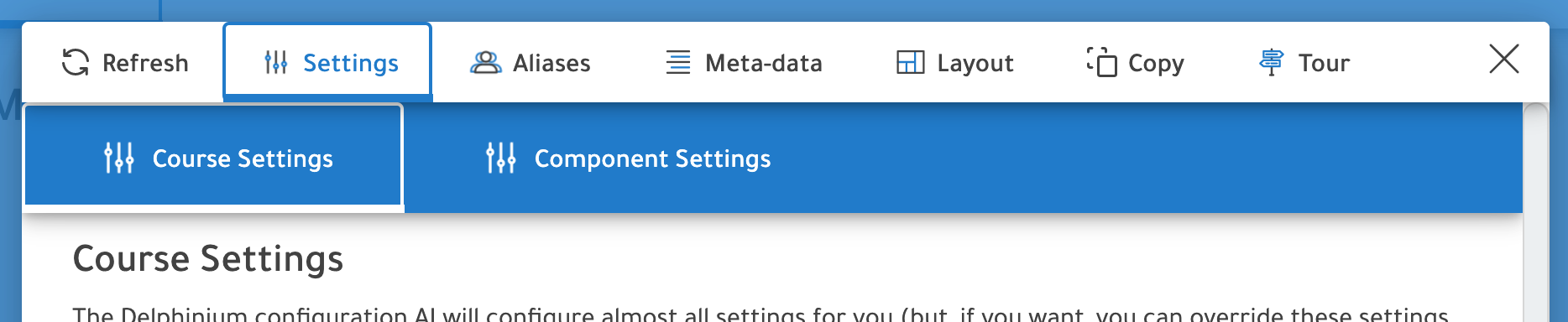
Select Component Settings

Locate and click on the Box Module Component

Click on the dropdown and select One Row

Click Save
Organize with Tabs
Delphinium has the capability of grouping modules under tabs like the image below.
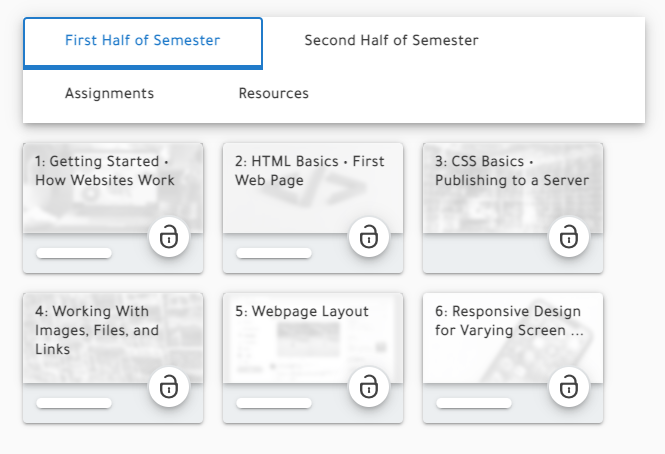
If you are interested in this option, check out the Box Module Component Advanced Settings page to learn how to set this up.