
Copy a Canvas Course that Uses Delphinium
If the content for your current course will be copied from another course that uses Delphinium, we recommend you follow these steps:
Import the content from the source course
Refresh the page when the import is completed
Click on Delphinium in the side navigation
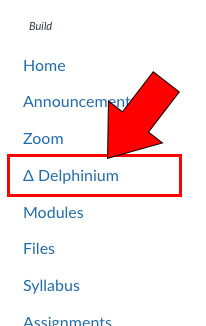
Click Authorize
Delphinium will take a few minutes to load as it calibrates all of your course information. After your initial use, the loading times will improve significantly.

Select the first option
Which says “Copy the layout from … This Canvas course was copied from here, copy the Delphinium settings too”
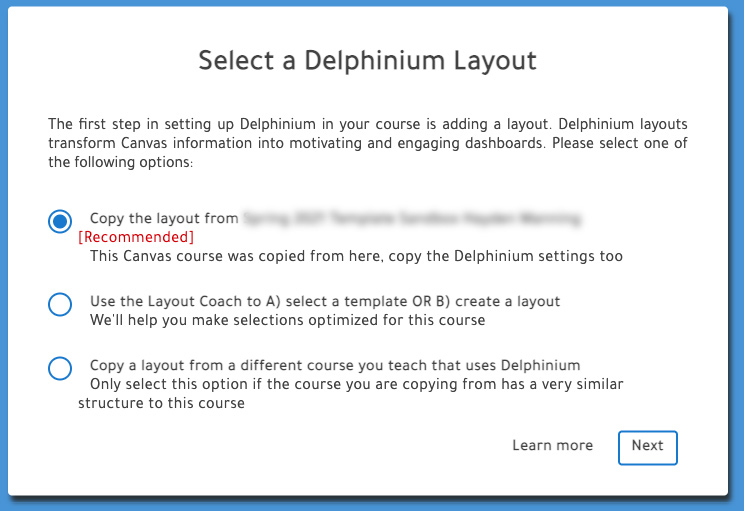
Click Next
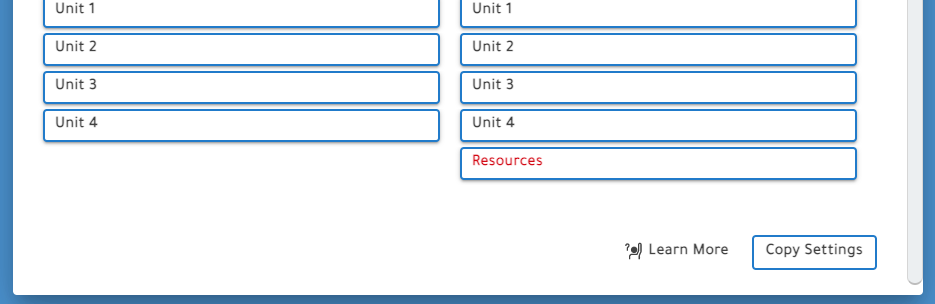
Scroll down to the bottom and click Copy Settings
Delphinium will attempt to copy over each module’s meta-data, including tags, images, parent-child relationships, and due dates. If the modules from the old course doesn’t match up with the new modules, it will appear in red. Unless the modules aren’t aligned and you need to make adjustments, you can disregard this and continue by clicking Copy Settings.
Make any desired edits in your current Canvas course
Refresh the LMS Data in Delphinium