
Assessments Settings Overview
Atomic Assessments has more settings options for both questions and the overall assessment than Canvas quizzes. This allows instructors more customization, but also may require more time to ensure settings are correct.
This tutorial reviews commonly used assessment settings as well as our recommended Atomic Assessment settings. For more settings in Atomic Assessments visit Question Settings Overview.
Gradebook Entry — Scoring
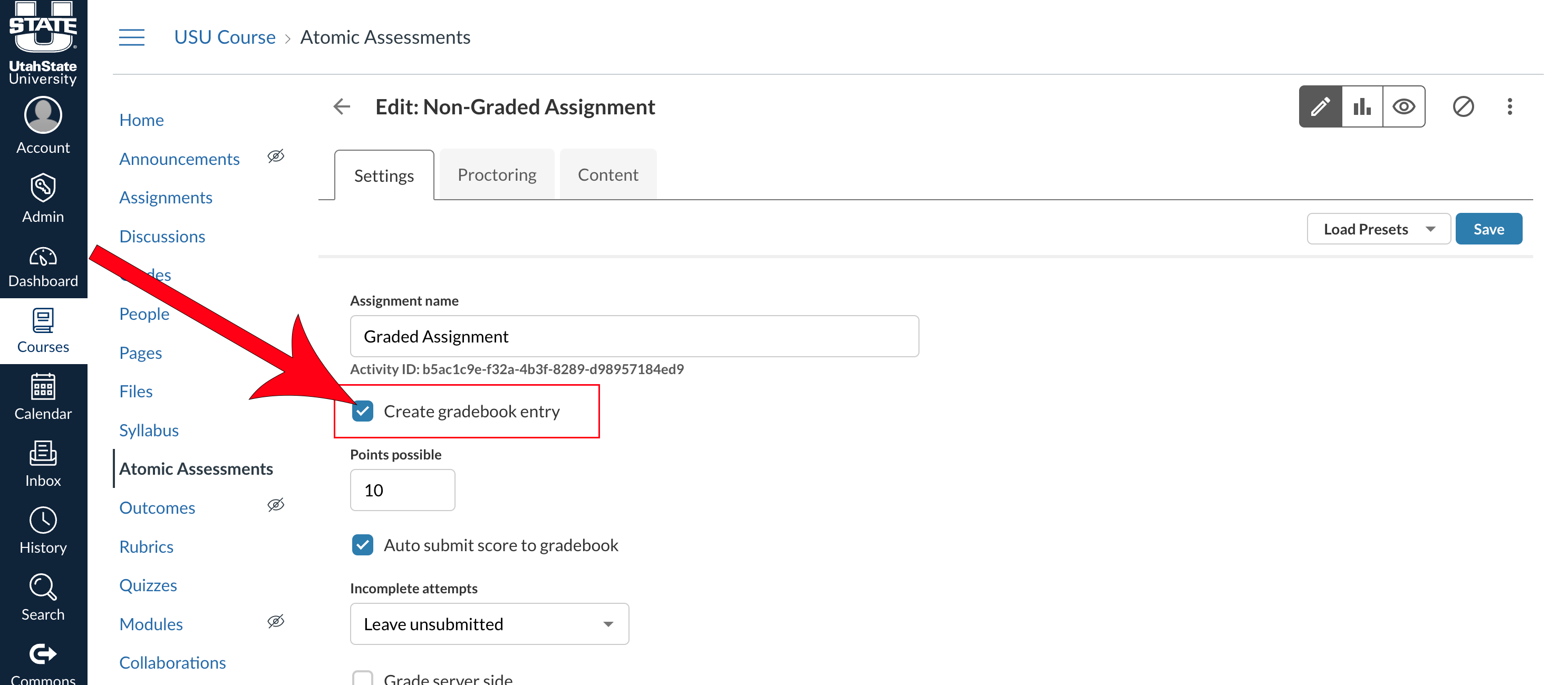
In the Settings tab of an assessment, the check-box Create gradebook entry controls whether there is an associated gradebook column created in Canvas for the assessment.
This setting is only temporarily available and cannot be changed after the assessment is saved.
Auto Submit Score to Gradebook
The "Auto submit score to gradebook" option should only be checked if the assessment is a graded assignment, quiz, or exam with the "Create gradebook entry" checked AND the assessment contains only automatically graded items. If you are using question types that require manual grading (i.e. essay, drawing, file upload, etc.), leave this unchecked.
Student Accommodations
To set time extensions or extra attempts for one or several students, find the Assign section in the assessment Settings tab.
In this section, set the general number of allowed attempts, availability date, and time limit.

To add accommodations for one or more students, select Add Override.

Add the alternate settings and select Save. (In the event that you have a student with a time extension accommodation documented through the DRC, this will be done for you automatically each night after the assessment is created.)
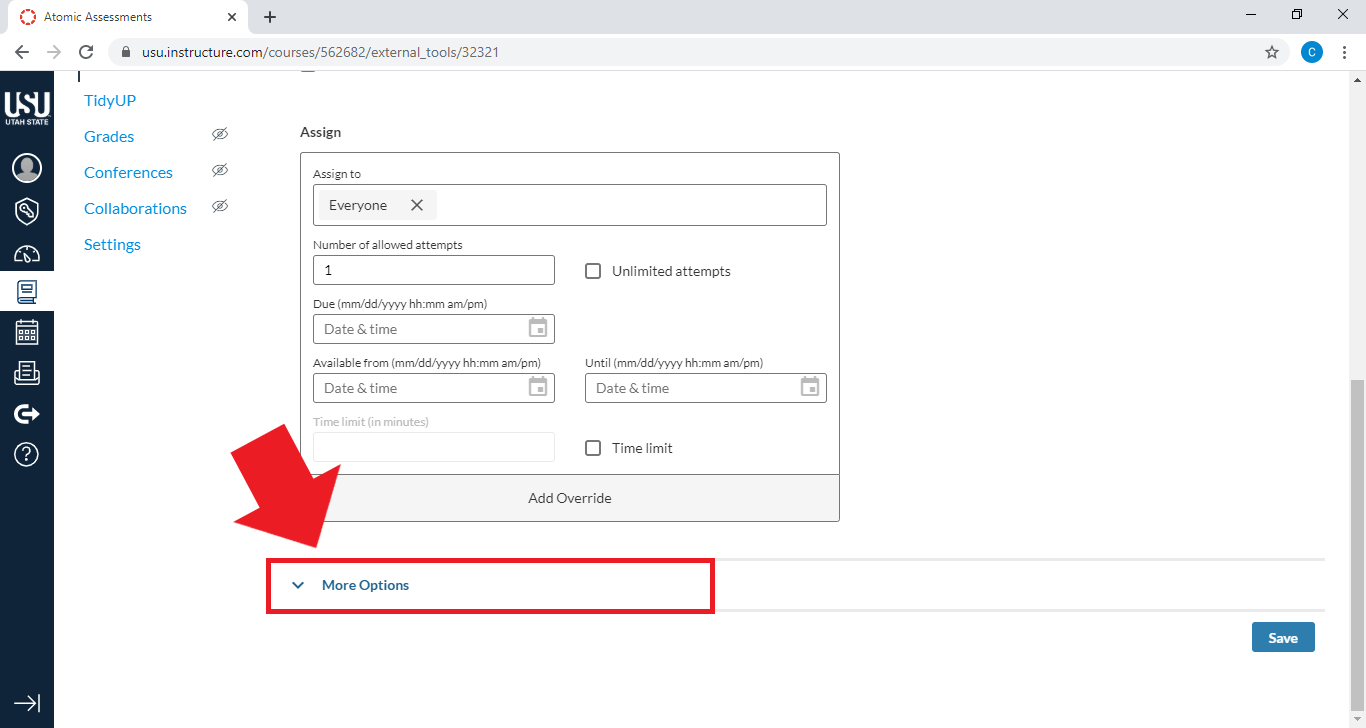
More Options
Under the main listed settings, More Options includes additional settings for the appearance of the assessment, scoring, questions, feedback timing visibility, item (question bank) selection, and student access restrictions.
For help setting up a Logan Testing Center or proctored exam in Atomic Assessments, see our Proctored Testing tutorial.
Manually Graded Assignments
If you have question types that require manual grading (i.e. essay, drawing, file upload, etc.), we recommend that you uncheck the following:

Show Summary: By leaving this option unchecked, your students won't see the exam summary when they are finished. This will prevent confusing the students with an incomplete and inaccurate summary due to questions that have not yet been manually graded.
Allow Student Review: By leaving this option unchecked, the students won't see their responses for the exam questions.
Note: This option may be beneficial for reflection purposes so that the student can view their previous submission answers.
When both of these options are unchecked, when your students return to review the assignment from the gradebook, the screen will appear with "Looks like you are out of attempts."

Add New Default Settings
Assessments are created with some automatic settings enabled. If you would like these default settings to be different when a new assessment is created, open the Settings tab of your assessment and change all settings to your preferences.
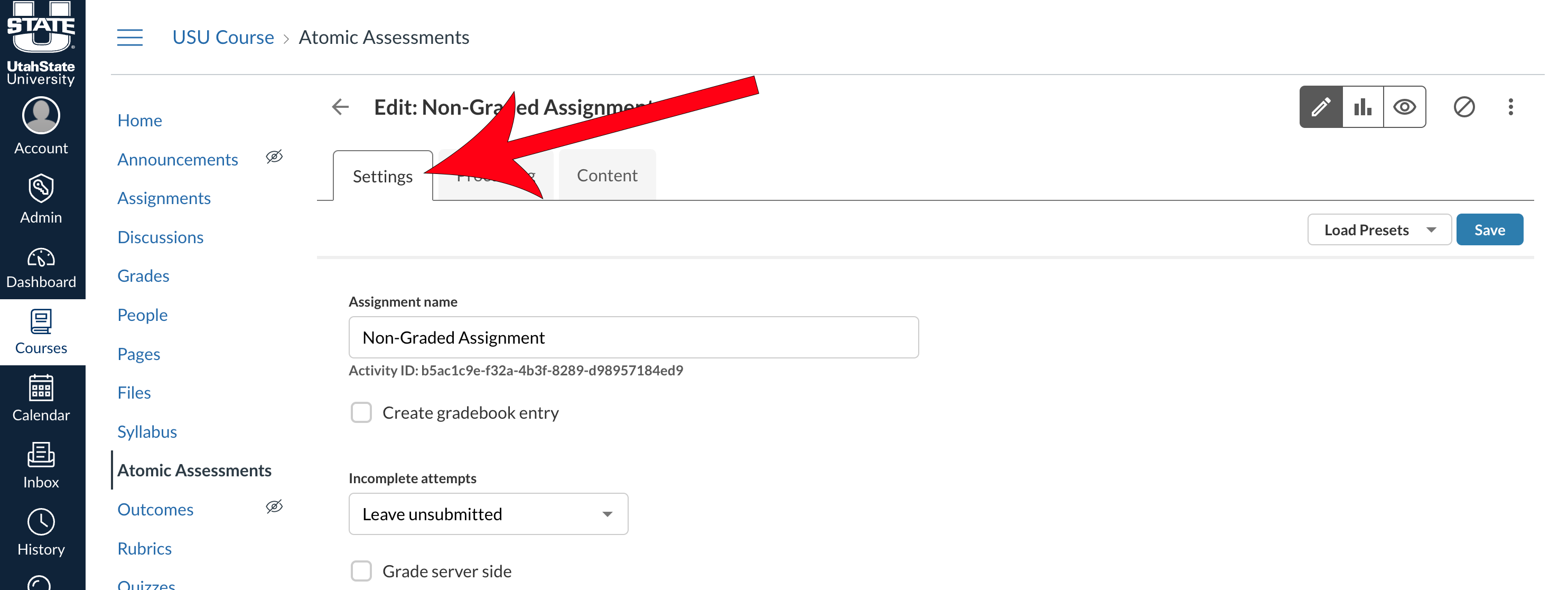
Then, select the Load Presets dropdown.

If you would like to save your configured settings as an option for future quizzes, select Save new preset. If you would like your configured settings to apply automatically to new assessments going forward, select Set default.
Both options will provide several customizable settings.

Once your preset is created, remember to select Save in the current assessment.
Recommended Settings for Quizzes
Details
When you first create the quiz, be sure to check the option Create gradebook entry so that you have a place to enter the score in the Canvas gradebook.
The points possible do NOT have to match the number of points designated on the questions within the activity. Atomic Assessments will determine the percentage of points earned versus points possible and will assign points for the quiz based on the percentage.
If there are essays or other question types that cannot be auto-graded, be sure to leave the Auto submit score to gradebook option unchecked.
For incomplete attempts select Automatically submit at close date so that you can grade any partial attempts.
Assign
In the Assign section, be sure to include a certain number of allowed attempts. Enter available from (start date), due date, and until date. The due and until date should match if you do not accept late quizzes. Be sure to set a time limit.
More Options
If you are allowing more than one attempt, you can choose which score to keep: highest, latest, or average. Be sure to put in the number of allowed attempts.
If you would like questions to display in random order for each student, check the option to Shuffle items.
Check the box to Show remaining time if you want students to see a countdown timer showing time left on the quiz.
Check the box to Hide Canvas module navigation to reduce the likeliness that students will go to the next item in the module rather than going to the next item in the quiz. (If you aren't using Canvas Modules, you don't need to worry about this setting.)
If you don't want students to see their score upon submission, uncheck the Show summary option.
Uncheck Allow student review to prevent students from seeing the quiz after they are finished.
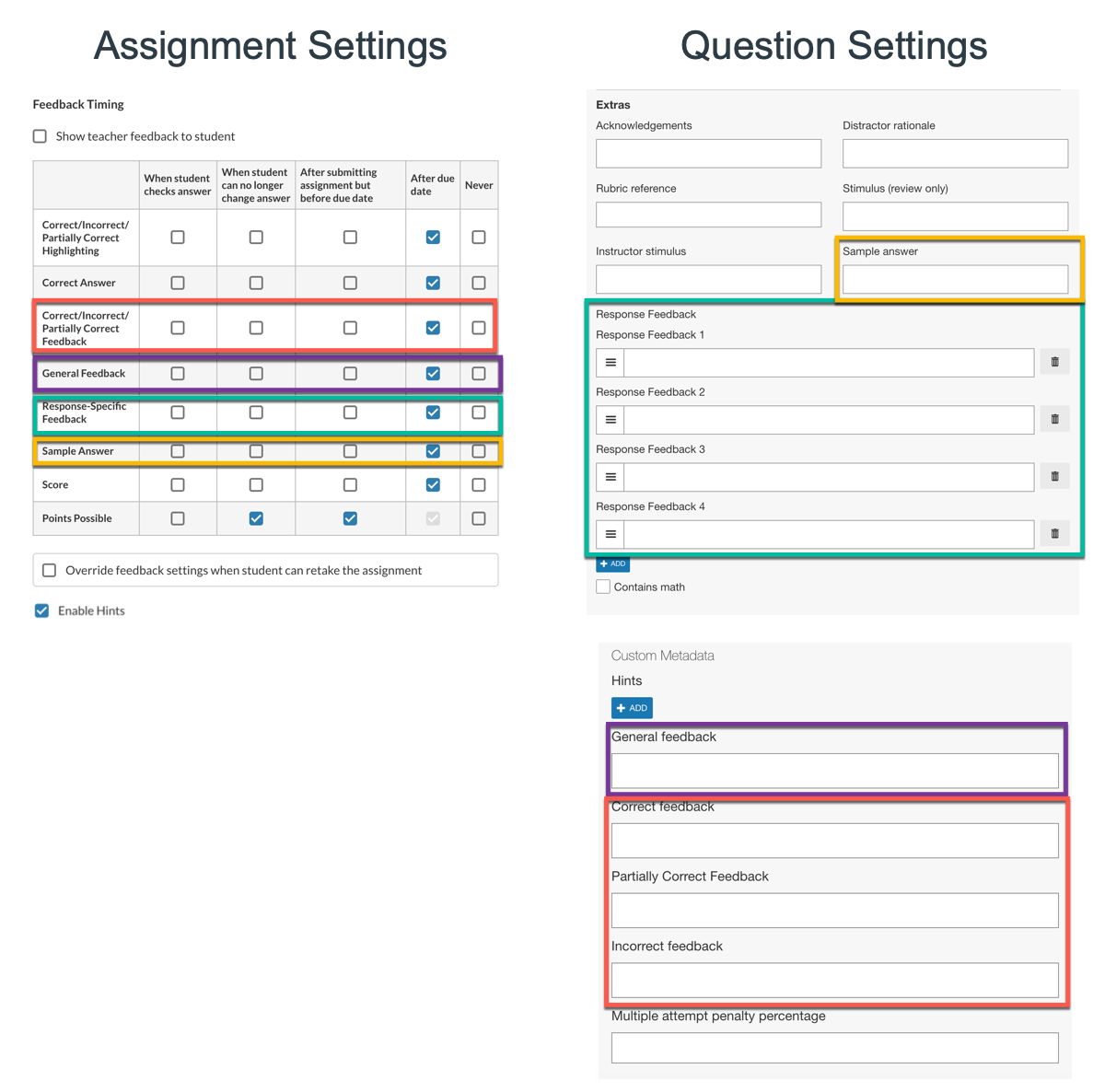
Feedback Timing
Feedback timing is associated with selections and inputs on each individual question. The labeled rows on the grid correspond with similarly labeled fields on each individual question. For a quiz, you may want to choose Never for each of these options, but that choice will be based on the purpose of the quiz. If you are using the quiz as a learning activity, you may want to allow students to check their answers and show correct/incorrect/partially correct highlighting and response-specific feedback after the student checks their answer. If you would like students to see the feedback after the due date so they can't share with others in the class who haven't taken the quiz yet, use the After the due date option as shown below. (If you can't add feedback in the question settings, you don't need to worry about these settings.)
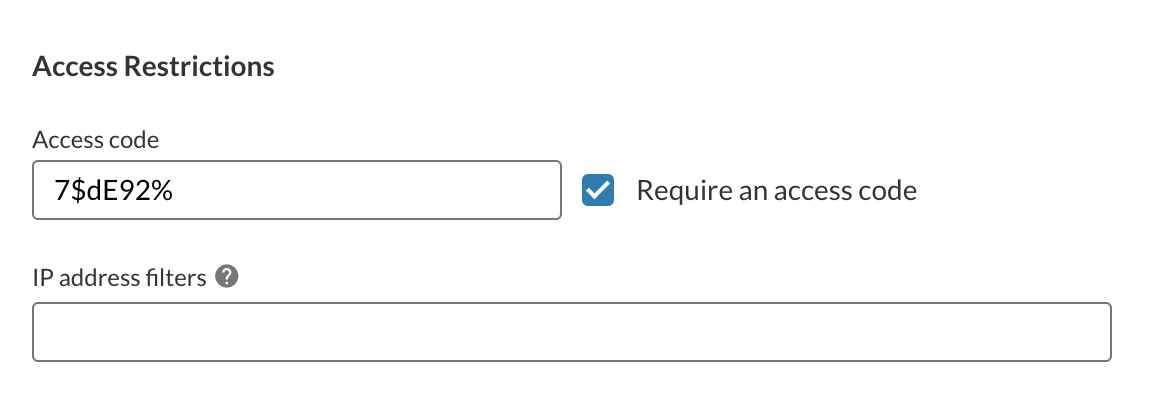
Access Restrictions
If you want the quiz to be proctored, be sure to add an Access code that you will provide to the Academic Testing Center or other proctors.
Questions?
For more specific help in Atomic Assessments, contact us.
Also see: University of Wisconsin’s documentation Opens External Link
Atomic Assessments - Get Started
The following list of pages will guide you through getting started with this tool. The current page is listed in bold.