
Create an Atomic Assessment Quiz from a Canvas Classic Quiz
These instructions are to import a Canvas Classic Quiz as an Atomic Assessment. If you don't see the Canvas quiz in Step 5, it is probably a Canvas New Quizzes format quiz that cannot be imported.
Please note that general feedback on questions or correct/incorrect feedback on answer choices will NOT import using this process. You will need to edit the questions in Atomic Assessment to copy and paste the feedback from the Canvas quiz.
Importing Canvas Quiz to Atomic Assessments
Step-by-step:
Go to the Atomic Assessments link in your Canvas course.
If it is not available, see the Atomic Assessment set-up page.
Click the menu button

Click Content Manager

Click Add Activities
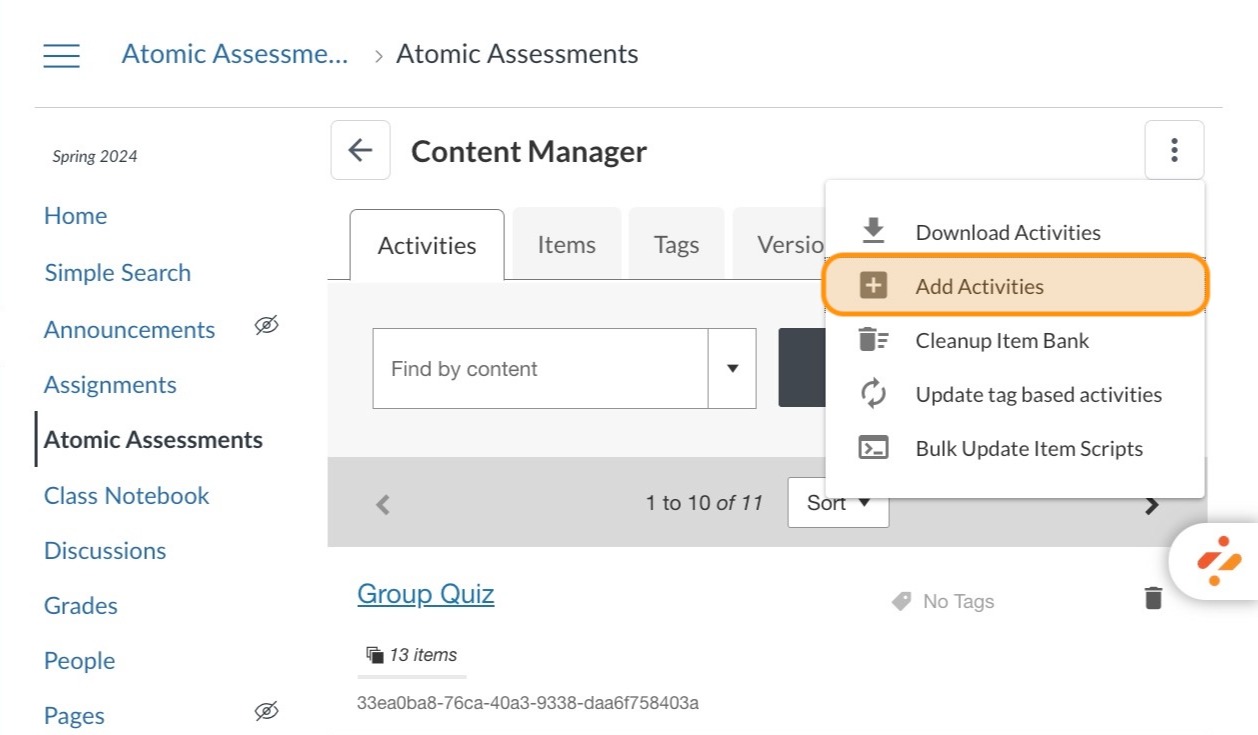
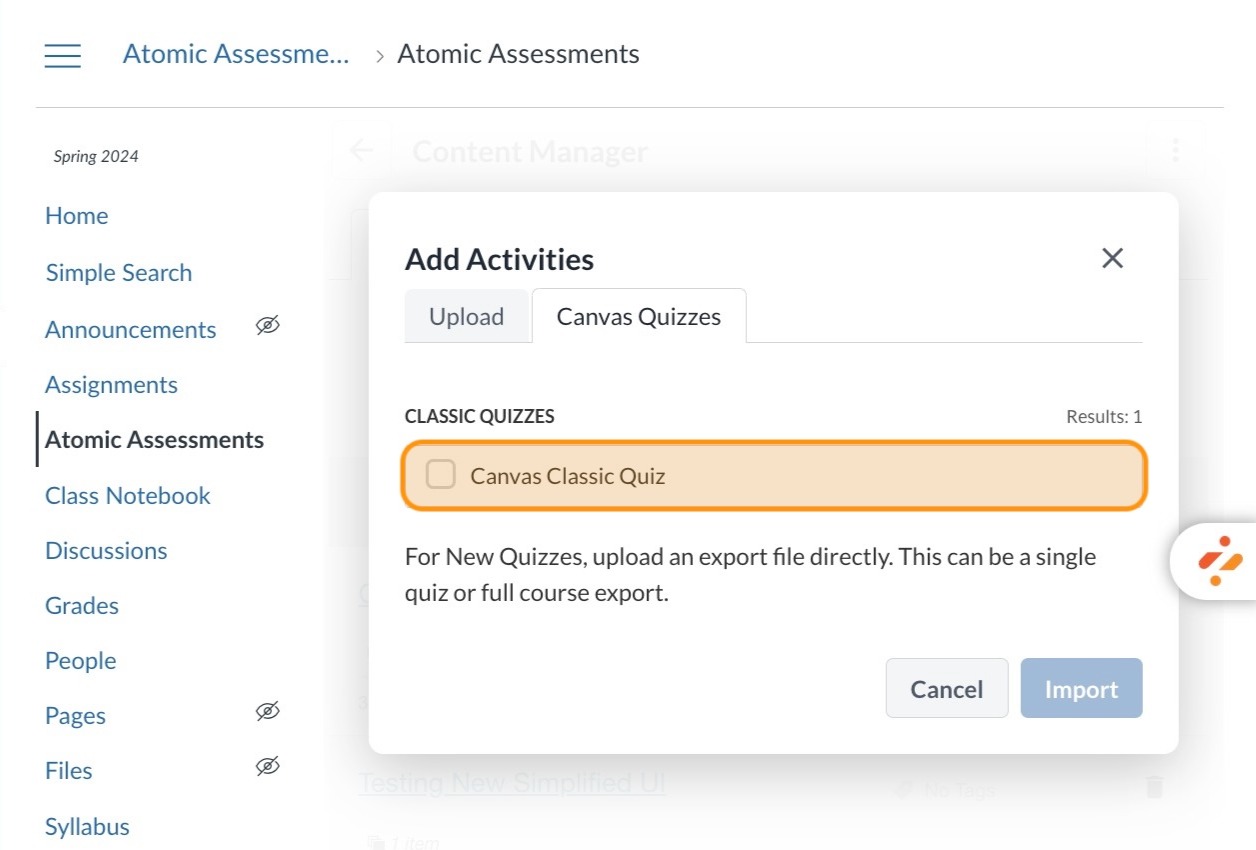
Click the checkbox next to the title of the Canvas classic quiz you want to import
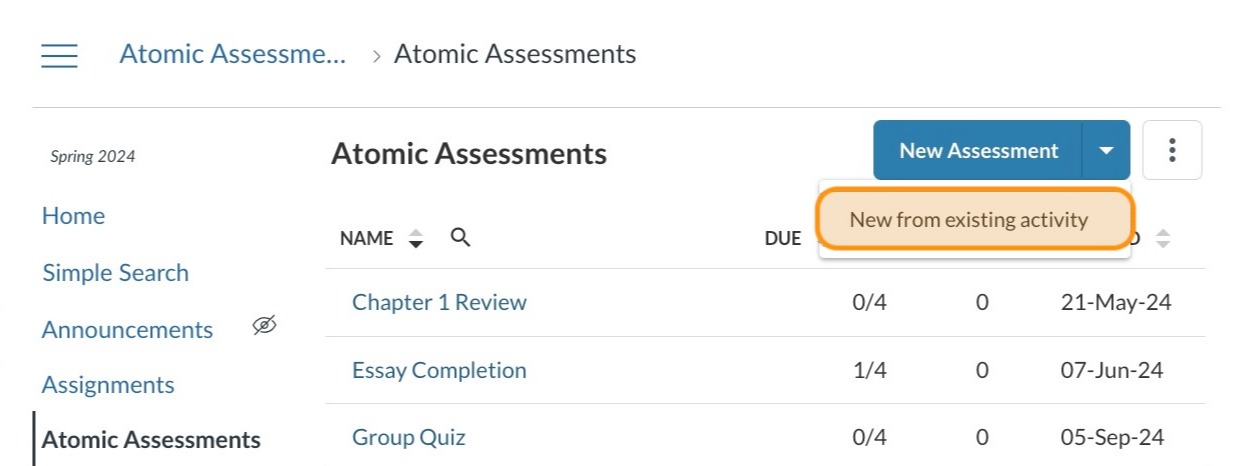
Click the dropdown menu next to the New Assessment button

Click New from existing activity
Click the name of the Canvas classic quiz that you imported

Click the gear icon to check or adjust the quiz settings
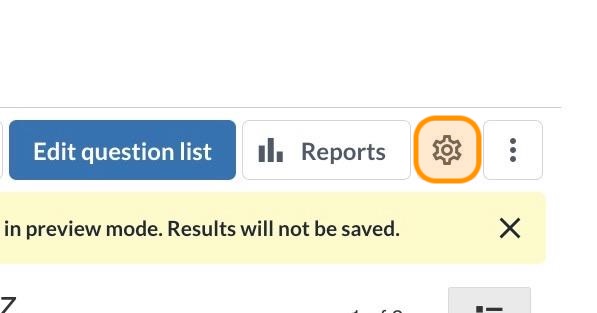
Check General Settings

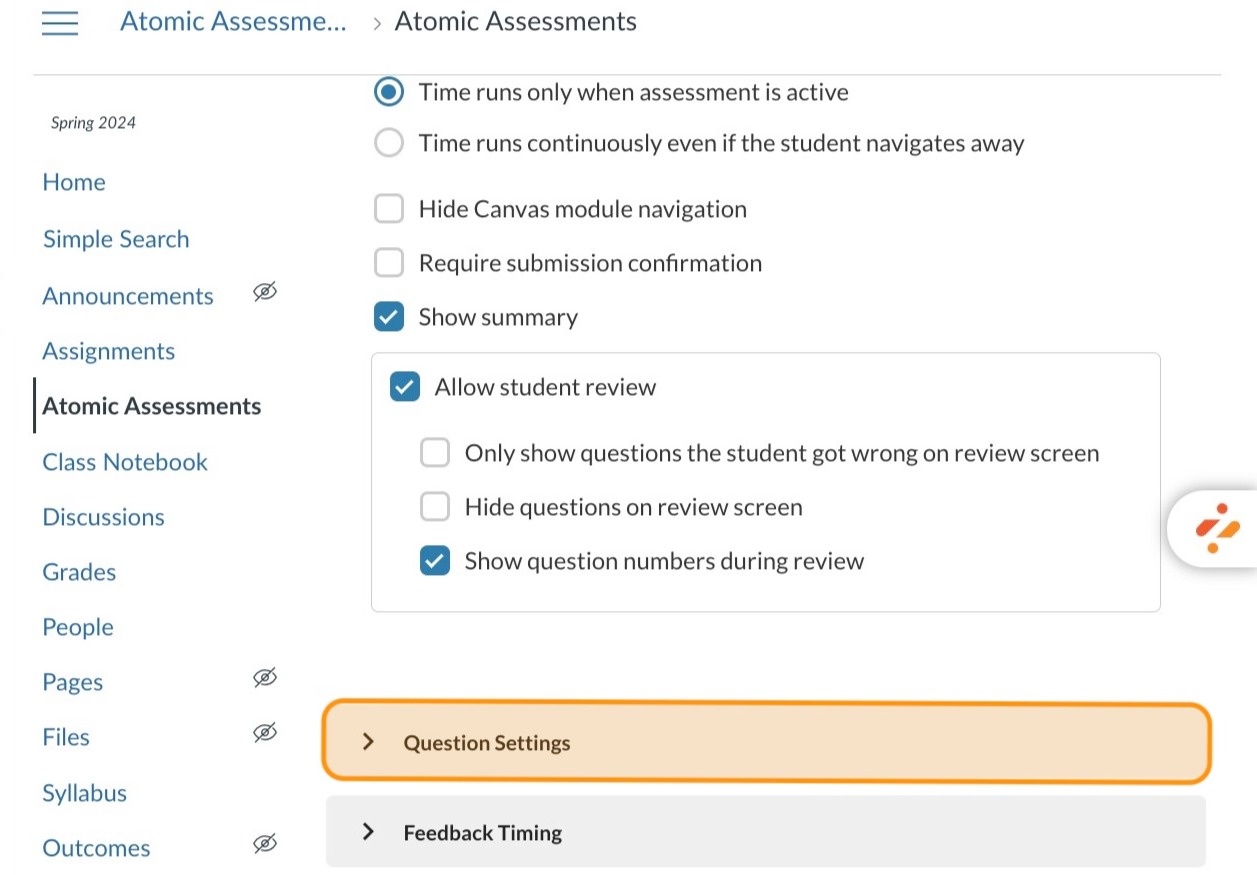
Check the Question Settings
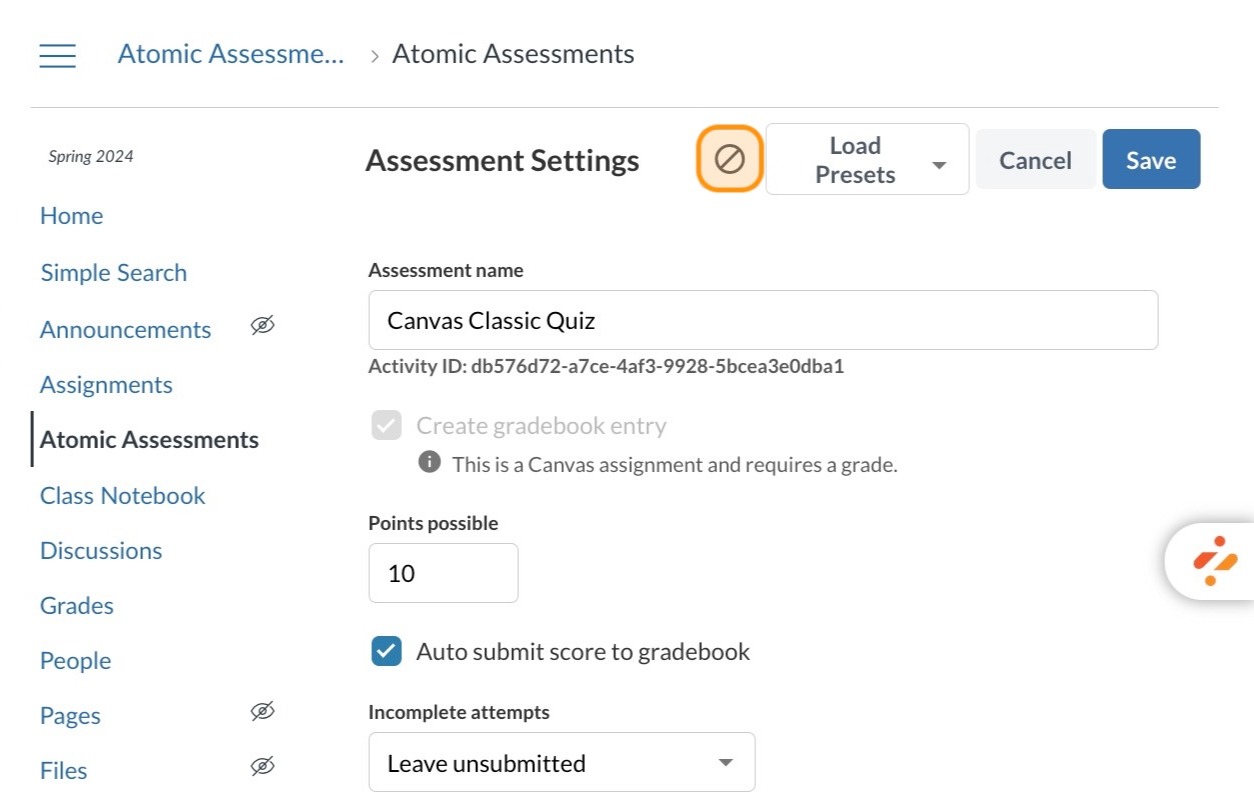
Click the cancel button to publish the quiz
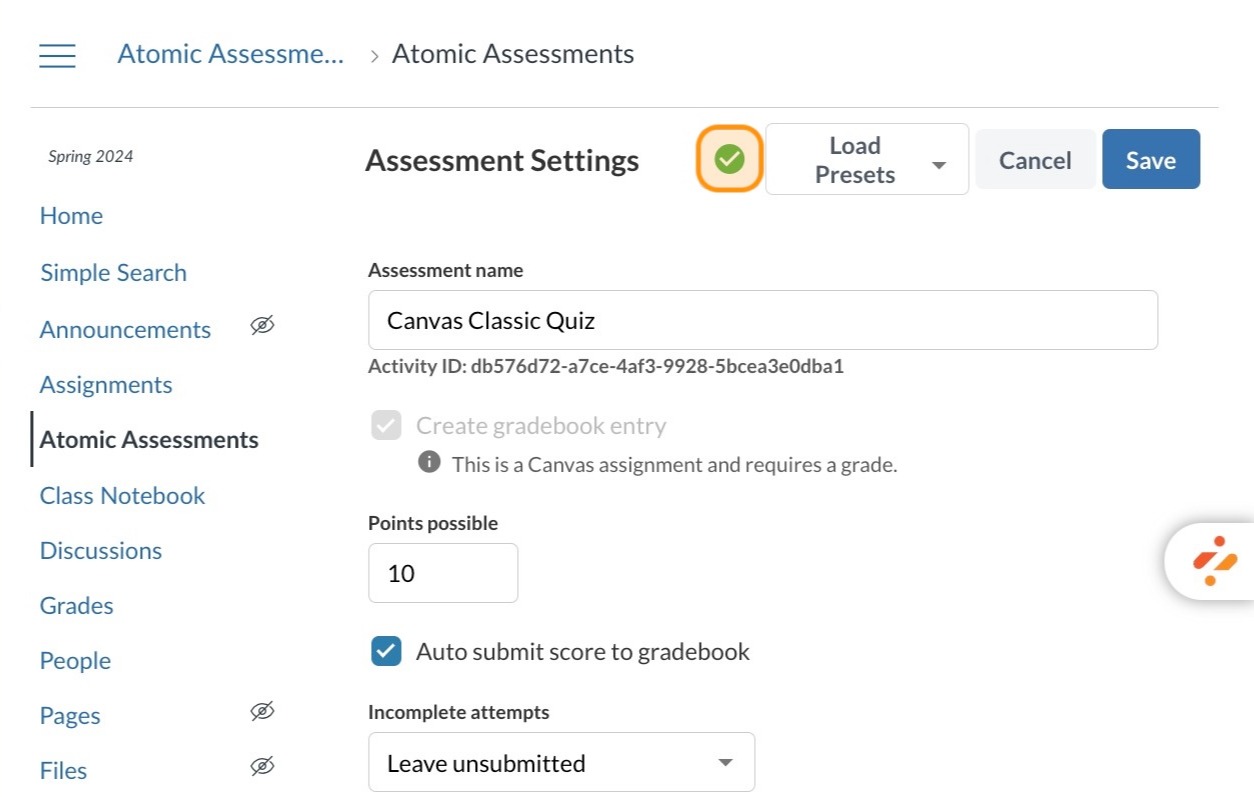
The green circle with a checkbox means the quiz is available to students from the Canvas Assignments page
Creating an Assignment
Once you have uploaded your Canvas quiz content into your Atomic Assessment Activities, you must create an assignment for your students to take the quiz.
Expand the New Assignment dropdown and select New From Existing Activity

Locate and select the imported quiz
Review your quiz carefully to ensure it has transferred correctly
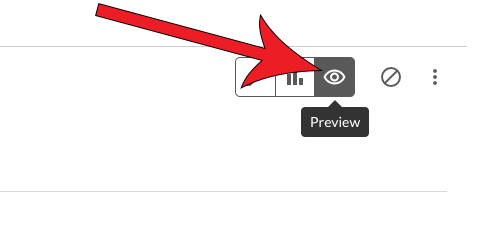
Ensure that your assignment and question settings are correct. Some questions or items may need to be edited for the Atomic Assessments format. Preview the quiz by selecting the eye icon in the top right of the editor.
Atomic Assessments may generate a string of numbers and letters for item titles in the editor. This is not visible to students, but can be changed for easier at-a-glance editing by selecting the item and adding a title.
Click Save

Import Errors
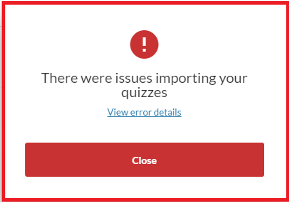
If you encounter the notice “There were issues importing your quizzes,” your quiz may include an unusual element, such as a file, that Atomic Assessments could not import.
In order to import the quiz successfully, some elements may need to be removed from the Canvas quiz and built manually within the Atomic Assessments engine. If you are encountering this issue, feel free to contact us for troubleshooting.
Source
- “Import/Export.” Atomic Assessments – Documentation. Atomic Jolt. Accessed 25 March 2020.