
Recommended Learning Activity Settings in Atomic Assessments
Atomic Assessments can be an effective resource for designing learning activities that aid students in understanding key concepts from your course. Below lists some suggested settings you might consider implementing to assist your students.
Enable Recommended Settings
You can adjust each question individually with the recommended settings mentioned in the subsequent sections, but to apply the settings to the entire activity, you will want to access the settings through the following method:
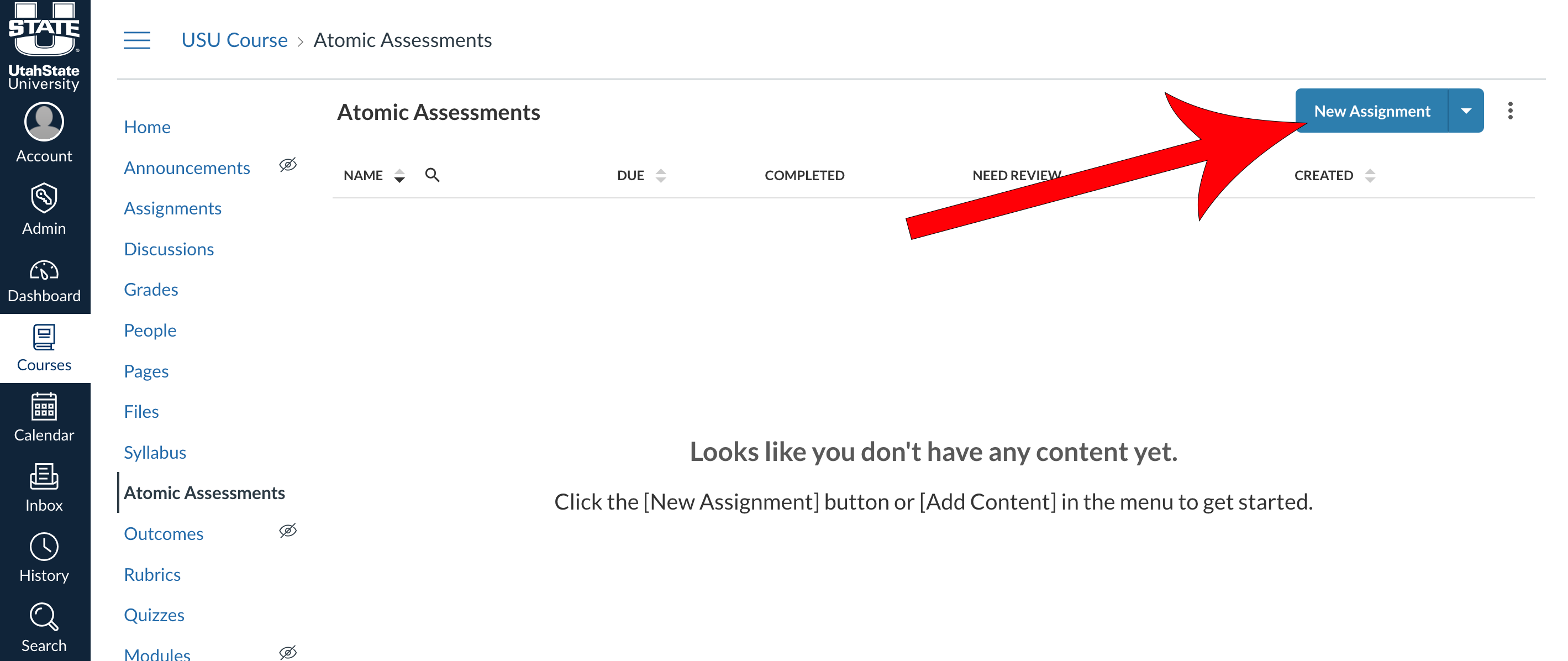
Navigate to Atomic Assessments

Click New Assignment, give it a name, and click Create Assignment
If you have already created an assignment for your learning activity, navigate to that assignment.
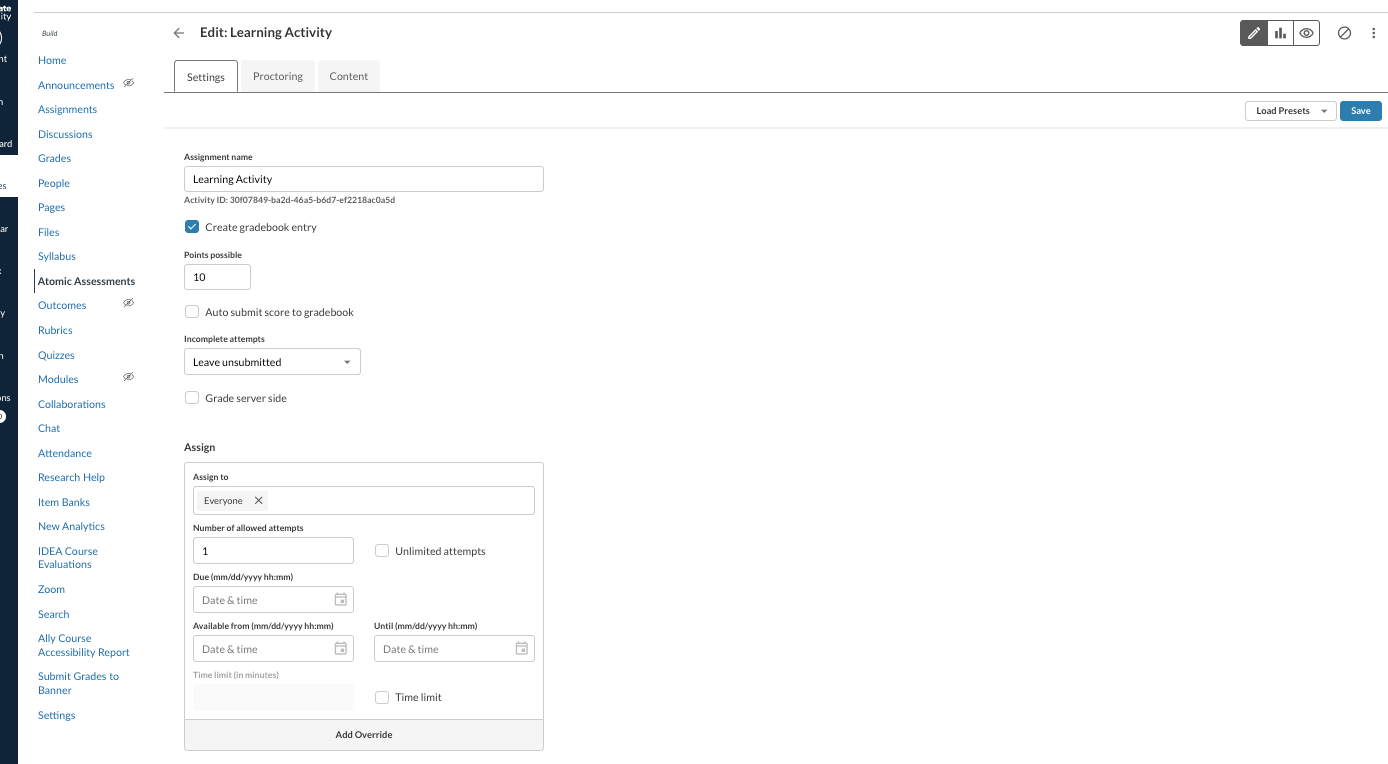
Give the assignment a name, decide on the point value, and fill out the info up until the Assign fields
Decide whether you would like to create a gradebook entry for the activity, how many points the assignment is worth, whether you would like it to be auto submitted to the gradebook, etc.
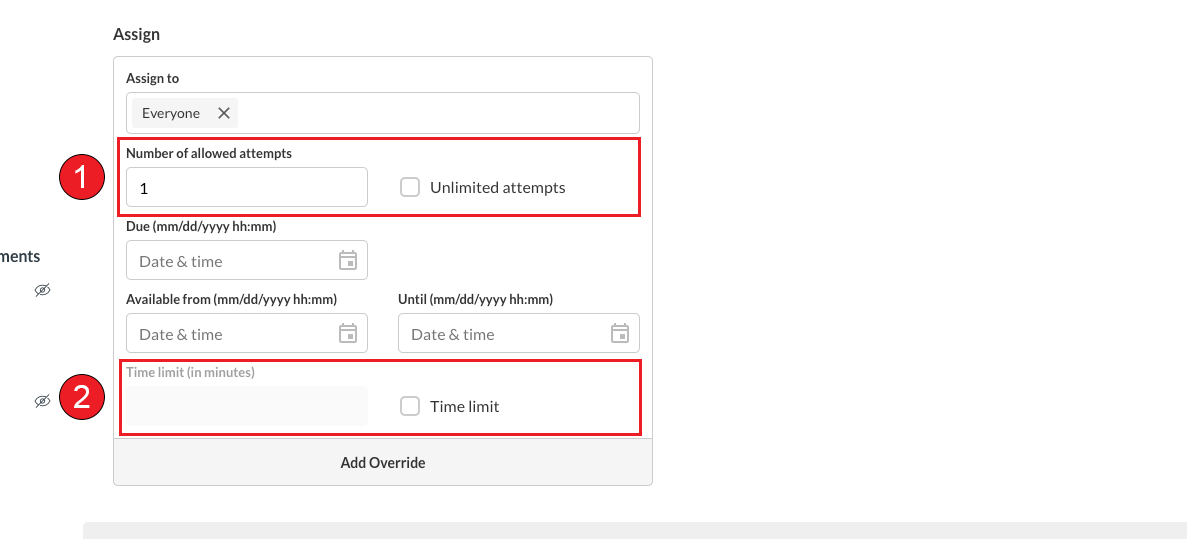
Complete the Assign section
For a better understanding of the importance of giving your students multiple attempts for a learning activity, see the Allow Multiple Attempts for the Assignment section.
- Select the number of allowed attempts you would like to provide your students, or enable the Unlimited attempts checkbox.
- If you decide to set a time limit, have it be an extended time frame, giving your students plenty of time to complete the learning assignment.
Scroll to the bottom of the page and expand the More Options dropdown

Locate the Question Settings section

Enable settings to allow students to check their answers and have multiple attempts
For more information about the importance of enabling this setting for students, see the Allow Students to Check Their Answers and Have Multiple Attempts section
- Enable multiple question attempts: Always Show
This setting ensures that you don't have to designate how many attempts are allowed for each question individually. - Number of allowed question attempts: (However many attempts you want your students to have per question)
- Enable the following settings:
- Show remaining attempts for questions
- Show "Try Again" button after an incorrect "Check Answer"
- Use the option for the "Give Up" button if you want students to be able to move on without correctly answering the question

Allow Students to Check Their Answers and Have Multiple Attempts
According to the behaviorist learning theory, providing immediate feedback is an essential component of helping students learn new concepts and principles. This immediate feedback can act as a reinforcement mechanism that encourages the repetition of correct responses while invalidating incorrect choices.
This immediate reinforcement is far more effective in altering learning than feedback that is delayed, as the learner can make a direct connection between the action (answering a question) and the outcome (feedback on correctness).
In correspondence to allowing students to check their answers, it is also important to allow for the student to have multiple attempts so that they can correct their mistakes.
Allow Multiple Attempts for the Assignment
Learning activities, in contrast to assessments, primarily aim to aid students in retaining information for upcoming assessments. These activities focus on reinforcing knowledge and skills, ensuring students are well-prepared for formal evaluations.
By permitting multiple attempts in these activities, students are afforded the chance to thoroughly grasp the required material. This approach emphasizes learning and understanding over immediate performance, reducing the pressure of achieving a perfect score on the first try. Multiple attempts encourage a learning process where mistakes are seen as part of learning rather than as setbacks.