
Question Banks in Atomic Assessments
Typically the purpose of using question banks is to re-use questions on multiple assessments, randomize the order of questions, display a random sub-set of questions from a set of like items, or to assess whether specifically articulated outcomes are being met.
Atomic Assessments provides the same functionality but approaches it a little differently.
Re-using Questions
It is very easy to reuse questions on a variety of activities or assessments.
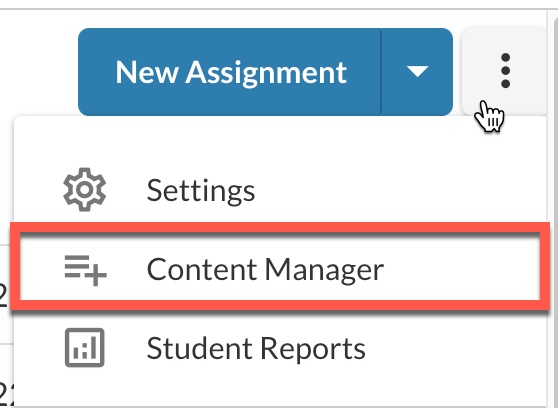
Click on More Options (the three dot menu) and select Content Manager
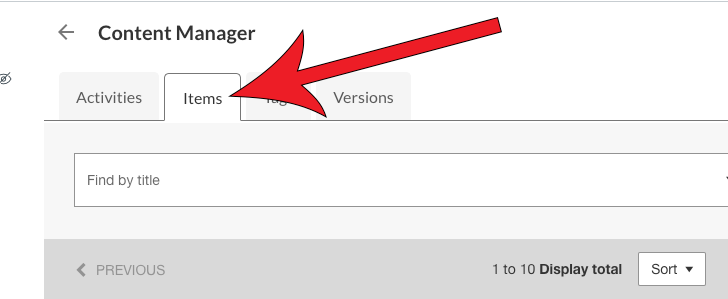
Navigate to the Items tab
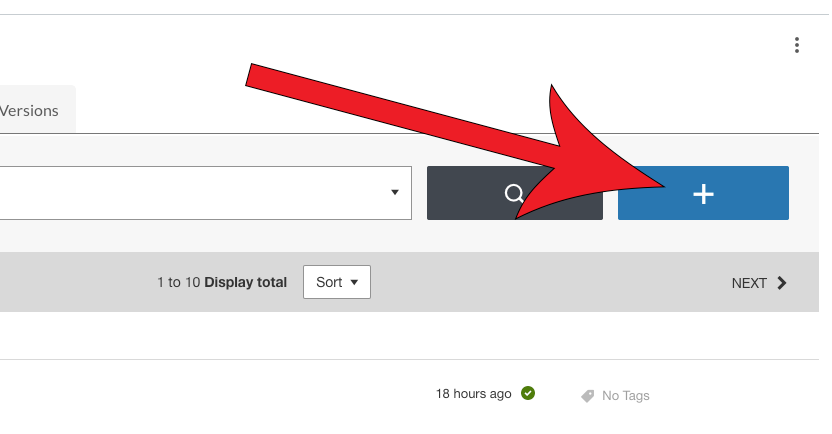
Click on the blue + button
Create the Items
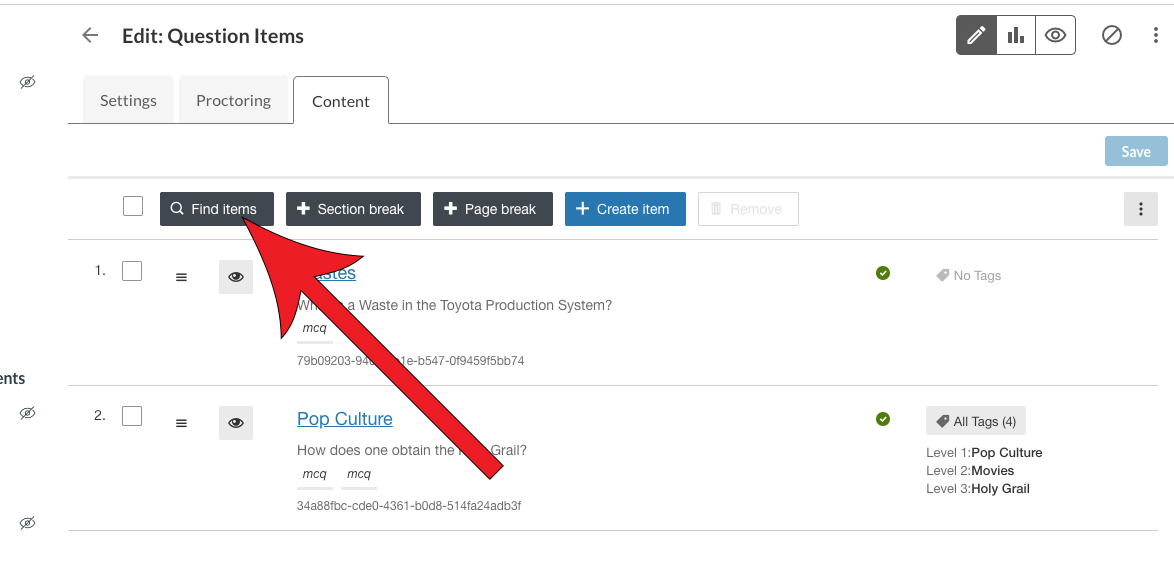
The process is the same as creating items to be added to an assessment.Once you have created the Items in the content manager, you can re-use it in any assessment or activity that you create. To do so, simply click on the Find items button and search for the items that you would like to add to the activity.
Randomize the Order of Questions
Atomic Assessments provides this functionality as an option for any activity or assignment. This will randomize the order of all items within the activity or assignment, but it will not randomize the order of the questions found within each item.
Select Atomic Assessments then select the assessment you would like to edit

Navigate to Settings

Scroll to the bottom and expand the General Settings dropdown and enable Shuffle items

Randomly Display Sub-sets of Similar Questions
There are two ways to randomly display similar types of questions: 1) select a designated number of questions from the entire activity/assignment, or 2) label specific questions by using tags and sample questions based on the tags.
For additional information, see Atomic Jolt's tutorial on Item Pools Opens External Page .
Go to the Edit tab of the activity
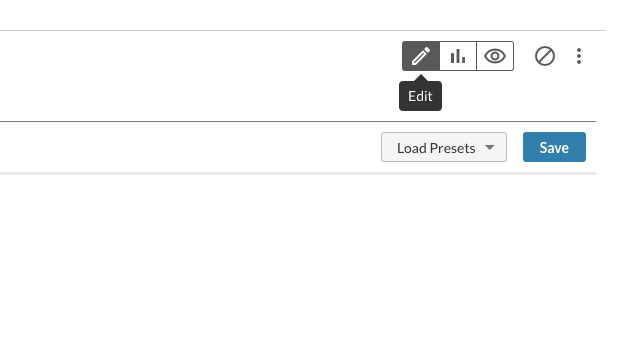
Navigate to the Settings tab
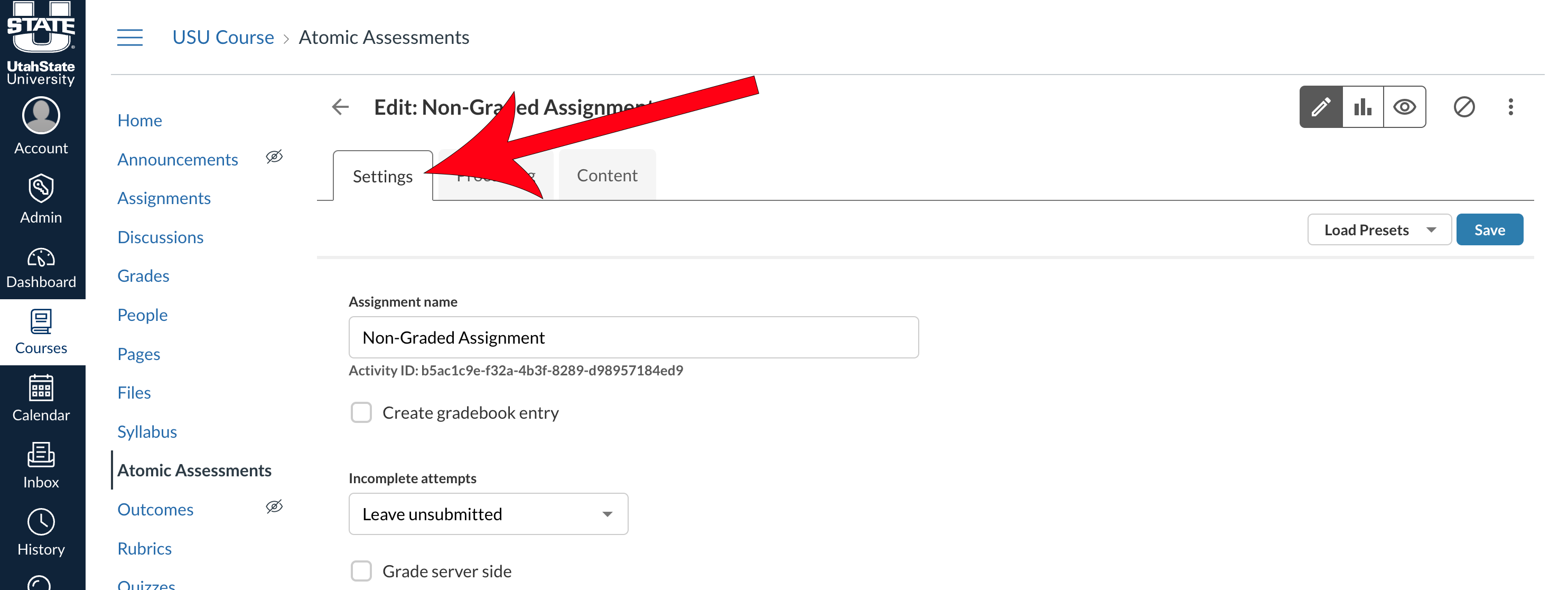
Expand the More Options dropdown and locate the Item Pools section

Decide how you want to sample the items
Sample from the Entire Activity or Assignment
- Enter the sample size in the Number of items to randomly select field

Sample based on Tags
Up to three levels of tags may be used. (Items must be tagged prior to enabling this feature.) "Don't sample based on this tag" means that all items with that tag will be included
- Click on the Sample items based on tags checkbox
- Choose the number of questions from each tag that should be sampled

Assess Outcomes
Outcome assessment is also based on tags. By adding tags to each question, you can pull a report to see whether students have met the outcome(s). For more details, see Atomic Assessments User Guide.