
Using Videos in Atomic Assessments
This tutorial is for faculty who would like to include a video from YouTube in their assessment. (Please see Use Kaltura My Media Video to use a video that you have previously uploaded to My Media.) Students can answer questions in relation to the embedded video.
Adding a Video
How to add videos into your Atomic Assessments quizzes:
Click More Options then select Content Manager

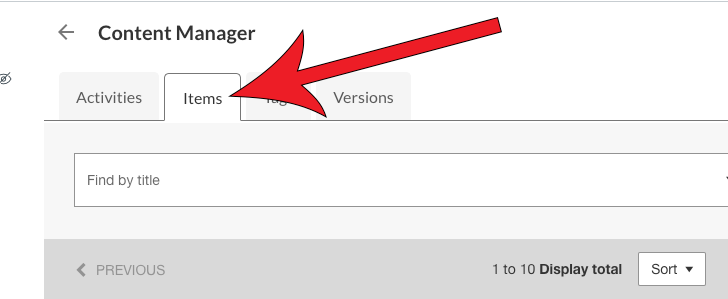
Select the Items tab
Click + Create
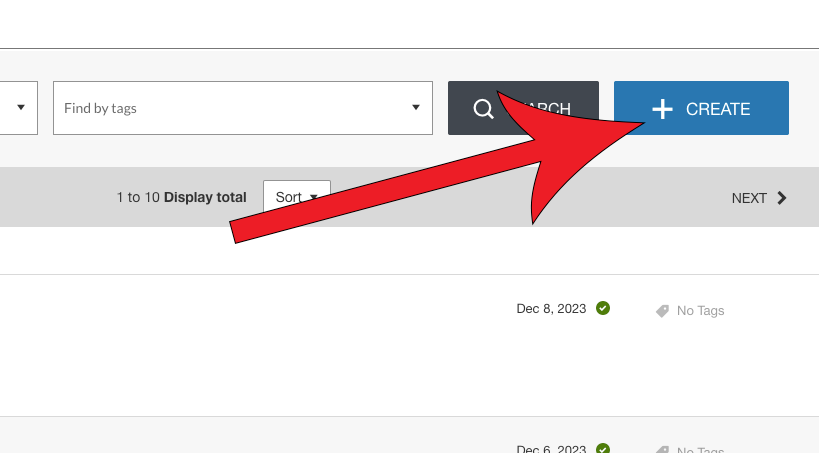
Click + Add New

Select Features

Select Video player

Select a video type
If you would like to use a Kaltura video recording, go to mymedia.usu.edu Opens External Link and set up a public video link or download your video. Then, use the option Hosted video to add your link or upload the downloaded video (See Add a Hosted Video section).

Add a Hosted Video
How to add a Kaltura video or a downloaded video:
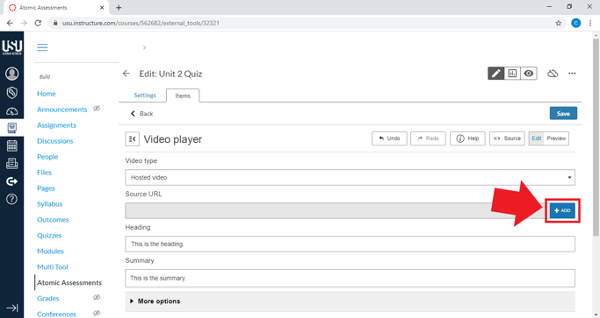
Expand the Video Type dropdown and select Hosted video

Click Add under the Source URL
Drag and drop your video in the section or click on the + to add your video
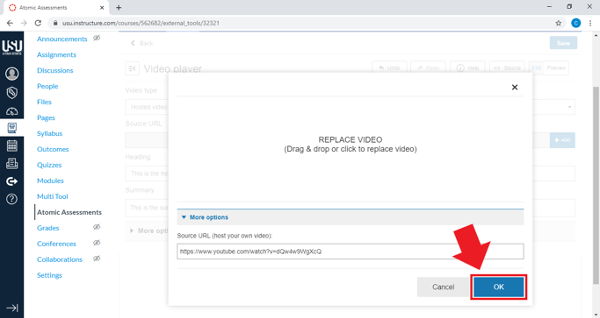
To add a link instead, select More options.
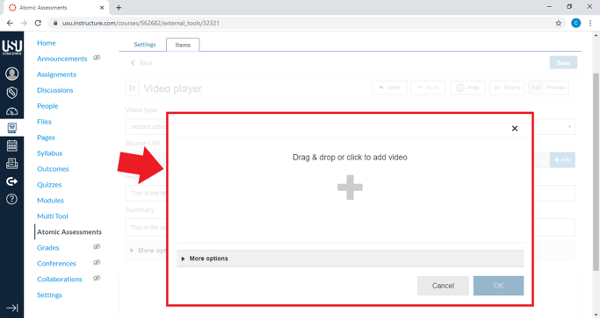
When you have added your video, select OK
Format the Video
How to format the video to your liking:
As needed, add a heading or summary to your video

Under More options, add additional settings or accessibility features
For more information on each of the features, click on the Help button to read the descriptions.

Click Save

(Optional) Click Settings and select a layout
This can be helpful if you would like to have the questions appear along side or underneath the video.
