
Create an Assessment in a Content Page
This tutorial is for faculty who would like to integrate a variety of questions within their Canvas lesson content. These questions can be graded or ungraded.
Insert Atomic Assessment Activity in a Canvas Page
On a content or assignment page, select Edit

Place the cursor in the text box where you would like to insert the assessment or question

Find and select the plug-in icon and select Atomic Assessments
If Atomic Assessments doesn't appear in the dropdown, you may need to click on View All and find it in the menu

Select Choose Existing Assessment
If you have not already created the assessment, you can choose to create one now by selecting a question type.

Click Insert to embed the Atomic Assessment in the page

You will now see the Atomic Assessment embedded in the page

Check the page for errors, then select Save at the bottom of the screen

Edit Content Page Assessments
You can edit in-lesson questions either directly in the page that it is embedded, or through the Atomic Assessments tab in your Canvas side navigation.
Edit Assessment in Canvas Page
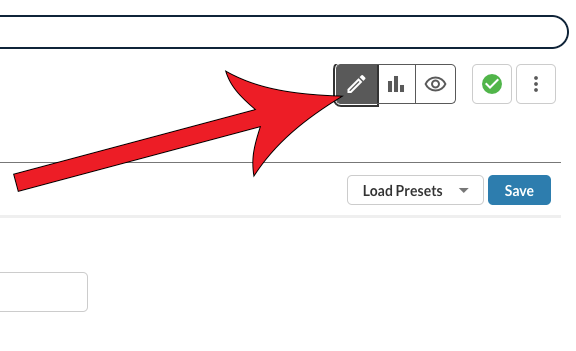
You can edit the Atomic Assessment directly in the page that has your activity embedded through the Edit, Reports, and Preview tabs.
If you want to remove the question from the page, delete it as if it were an image in a word processing document or use View Page History to select a past version.
Edit Assessment through Atomic Assessments
In addition to editing the assessment directly on the page that it is embedded on, you can also edit the activity as you normally would through the Atomic Assessments tool in the Canvas side navigation.
In the Atomic Assessments Editor, in-lesson assessments are indicated by a “page” icon (see image below).
It is important to note that if the assessment or question is deleted from the Atomic Assessments menu, an error will appear on the page that says "The page you are looking for does not exist."
