
Copy Assignment to Another Class
In a similar process to sharing content with another user, you can copy an assignment from one course to another by exporting the content into a .zip file and then importing that file to another course.
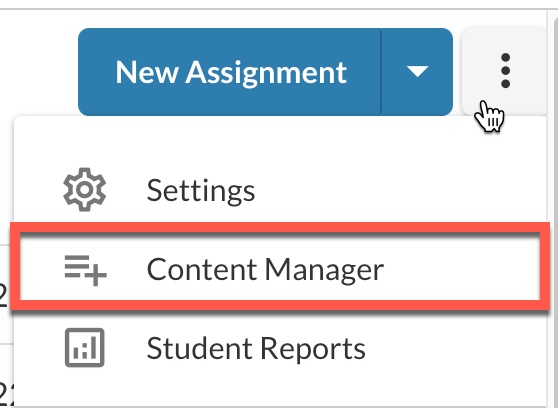
In Atomic Assessments, click on the menu dropdown icon

Choose Content Manager
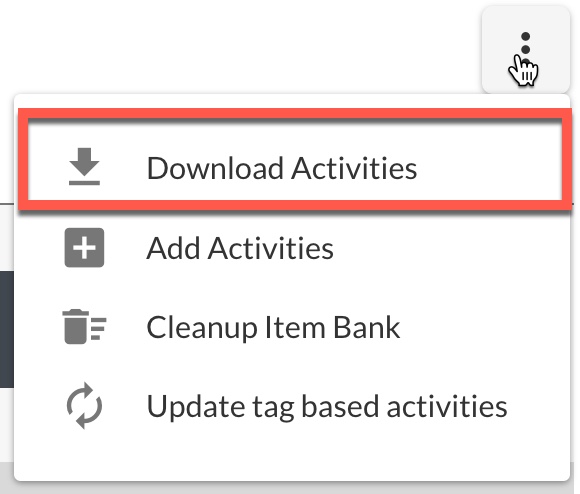
Click on the menu dropdown icon and choose Download Activities
Check the activities you want to download then click Download or click Download All Activities at the bottom of the window
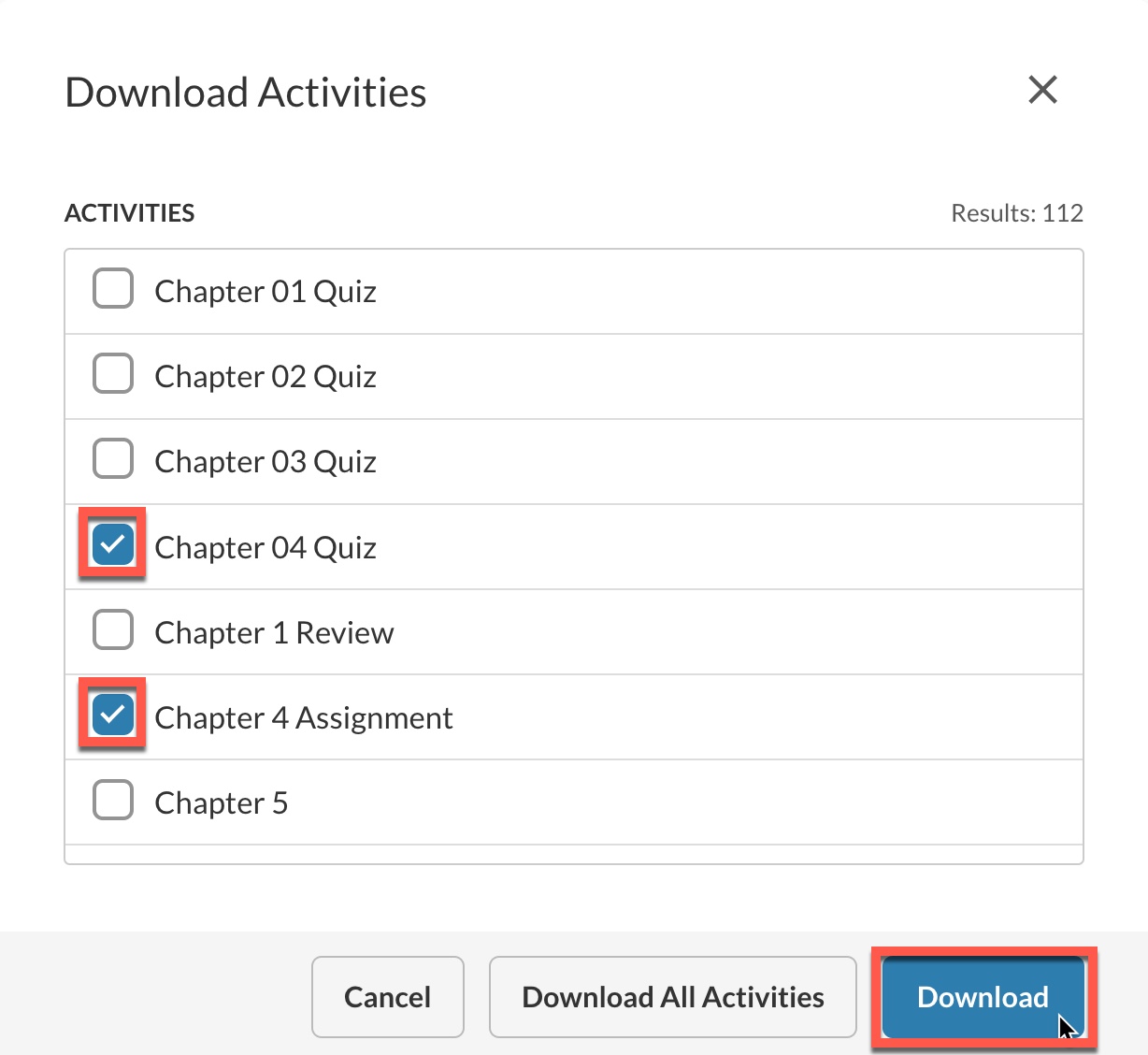
Click Download to download your .zip file, which contains the exported activities, then close out the window

Navigate to your new course and go to Atomic Assessments
Click on the menu dropdown icon
Choose Content Manager
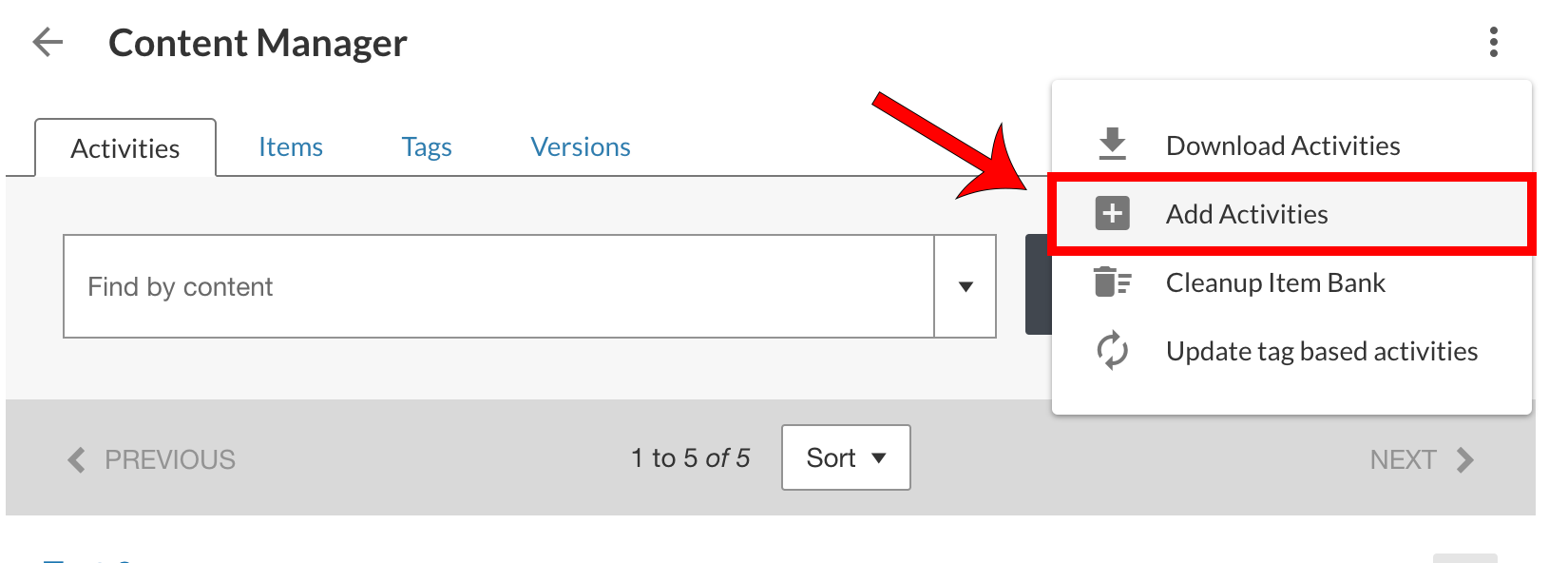
Click on the menu dropdown icon and select Add Activities
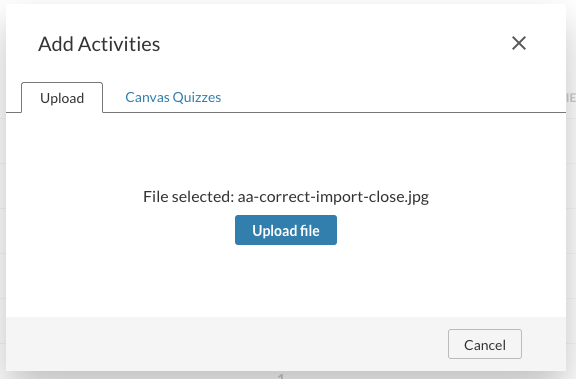
Click Choose a file to upload and select your downloaded .zip file
Click Upload File
Click the dropdown next to New Assignment and select New From Existing Activity

Select the new activity
Configure activity settings to your liking and click Save
