
Copy a Canvas Course that Uses Atomic Assessments
Since Atomic Assessments is a third-party tool, you will need to activate it in the course that you would like to copy the content over before you proceed with the import.
Add Atomic Assessments to Course Tool Navigation
In the Canvas tool navigation, click Settings
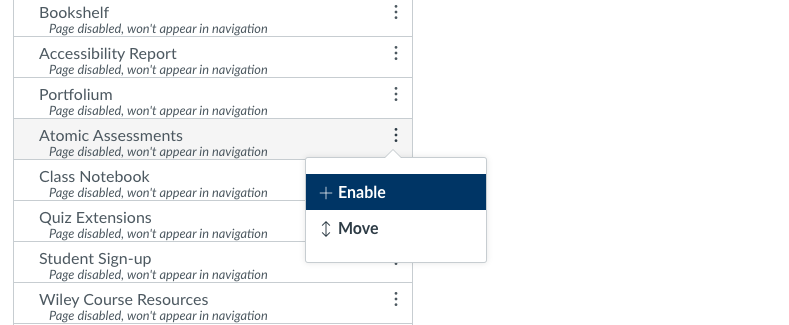
Select Navigation and scroll down to Atomic Assessments in the hidden items

Click on the 3 dots and click + Enable
Click Save at the bottom of the page
Atomic Assessments Settings
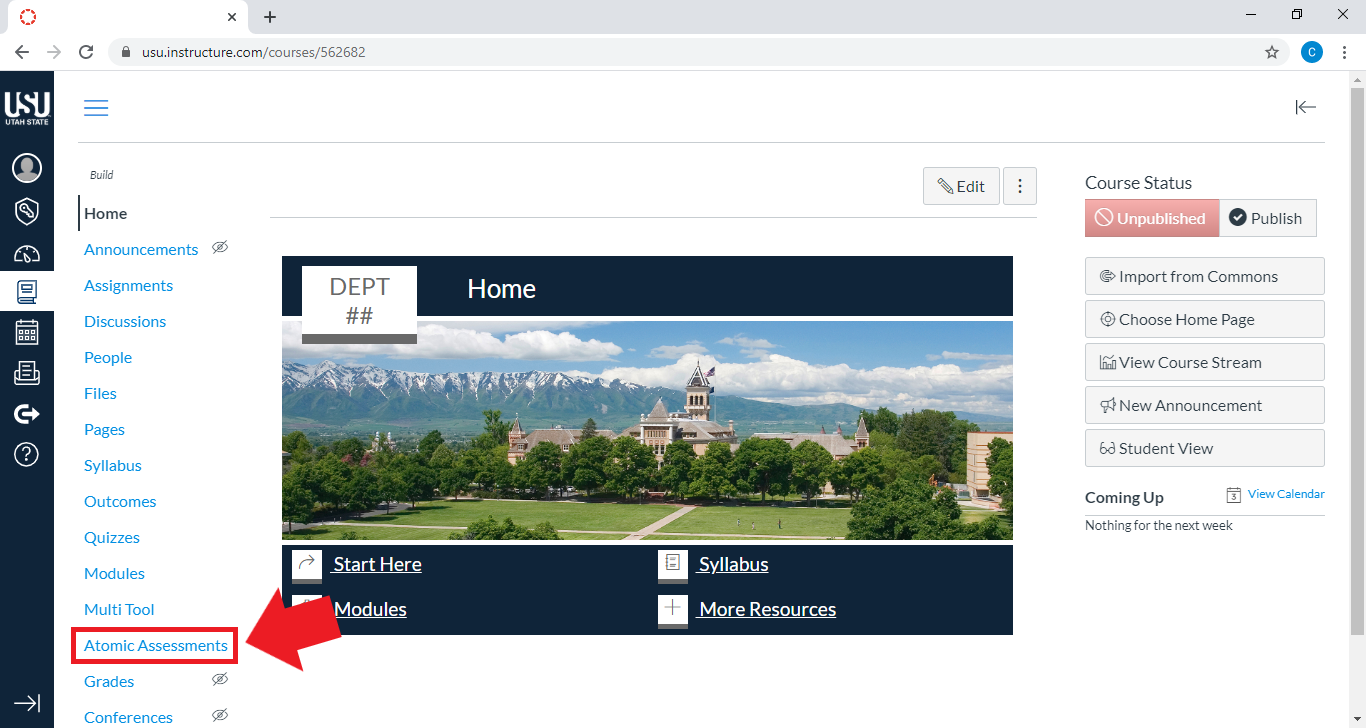
In the Canvas tool navigation, click Atomic Assessments
Click the 3 dots next to New Assignment and select Settings

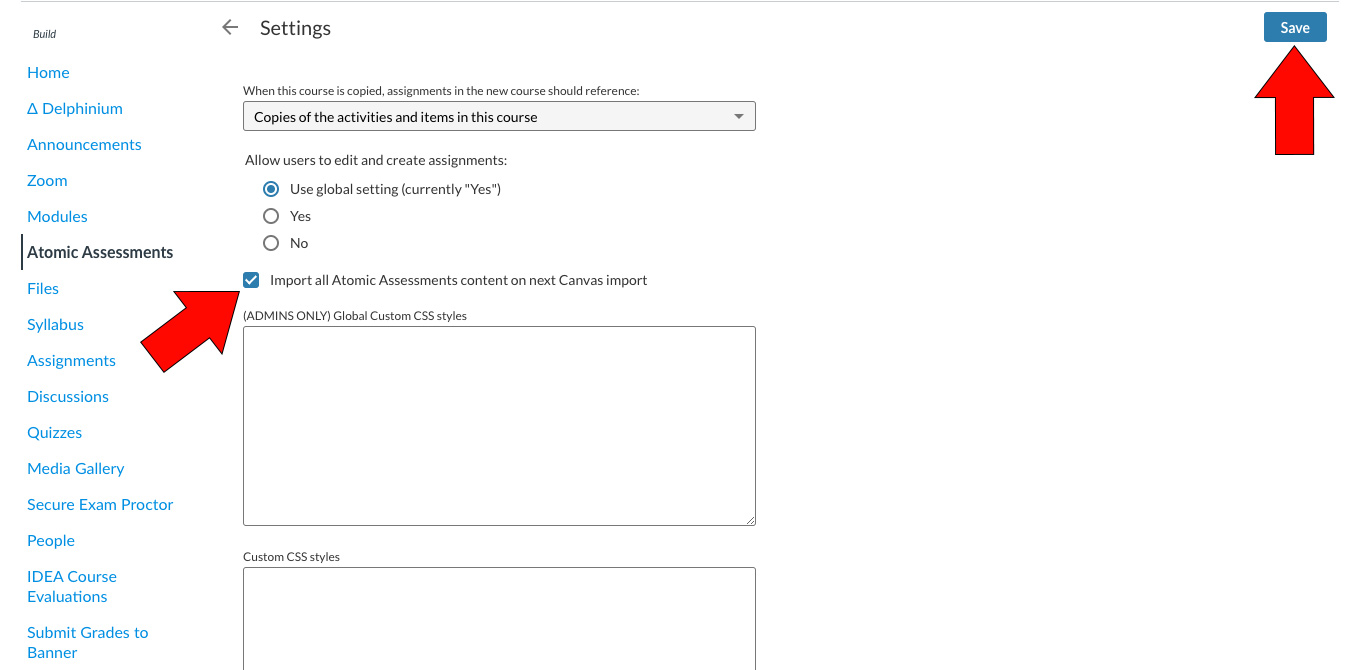
Check the box next to "Import all Atomic Assessments content on next Canvas import"
Click Save
Importing the Course Content
In the Canvas tool navigation, click Home
On the right, click Import Existing Content

Click the Content Type dropdown and select Copy a Canvas Course

Type in the course that you would like to copy and select your course
Select All Content and fill out other desired fields
Click Import
Once the import finishes, you can click Atomic Assessments on the Canvas tool navigation to verify that all of your Atomic Assessments transferred over.