
Atomic Assessment Question Settings
Atomic Assessments has more settings options for both questions and the overall assessment than Canvas quizzes. This allows instructors more customization, but also may require more time to ensure settings are correct.
This tutorial reviews commonly used question settings. For more options in Atomic Assessments settings, visit Assessments Settings Overview.
Question Scoring
Each question type includes several options for settings. Learnosity’s Question Types Overview Opens External Page reviews some question settings.
Once you have selected or created a question, settings can be accessed in the edit question mode under the More options dropdown.
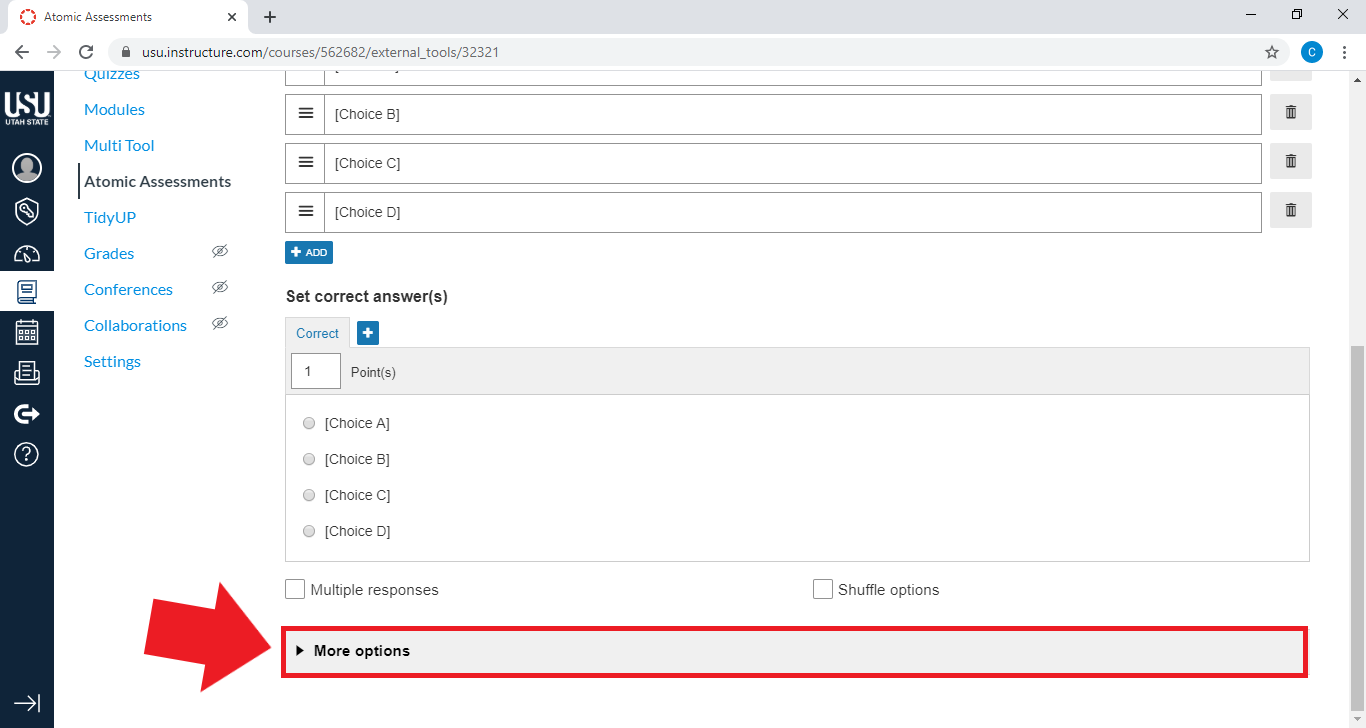
Some question types have more customizable options than others. However, these settings generally all include the option for a Check Answer Button, Scoring Type (helpful if you want to give partial credit for a multi-point question), and some Layout and Feedback options.
Unscored/Practice Usage
The Unscored/Practice Usage option allows authors to disable scoring for a question. When enabled, the question will receive no score. This can be found in the scoring section of a question.
Check Answer Button
Check Answer is a button that appears below a Question, and allows students to check if their response is correct. It is usually only applied to formative assessments. Check Answer can be enabled by toggling the Show Check Answer Button option in the Question Editor.
Feedback attempts can be configured to allow the student to answer the question as many times as needed (or allowed). The default setting is unlimited attempts and correct/incorrect/partially correct highlighting as shown in Figure 4. The number of allowed attempts can be adjusted in the More options section of the question editor.
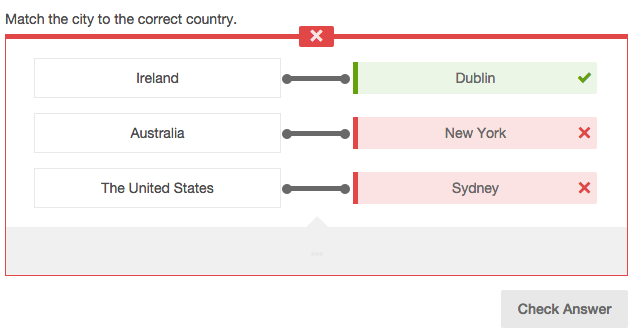
In the assessment settings, you have the option of what students see when they check the answer: correct/incorrect/partially correct highlighting, correct answer, correct/incorrect/partially correct feedback, general feedback, response-specific feedback, a sample answer, and score. This setting can be adjusted from the assessment settings tab under More Options, then Feedback Timing.
Scoring Type
The Scoring Type options affect how each of your students will be scored depending on the accuracy of their answers. This is particularly useful for multiple response question types.
Exact match
The Exact Match scoring option is available in all autoscored question types. With Exact Match, the student must get all parts of the question correct to receive points.
Partial Match per Response
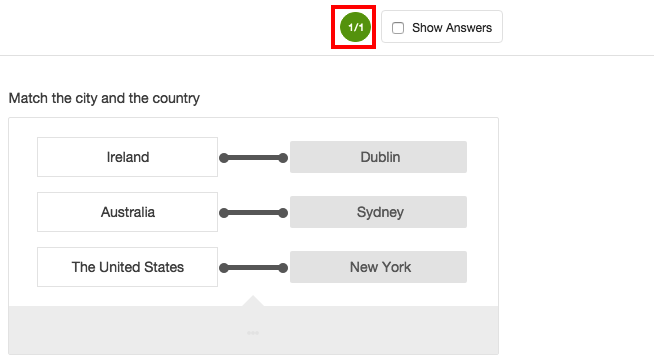
Partial scoring can be used in questions with multiple responses. Each response can be scored independently and each response is of equal value. This option is not available on all question types.
In the example below, the question is given a score of 1 and each response within the question will be worth 1 point making a possible maximum score of 3 for the entire question.
Partial Match
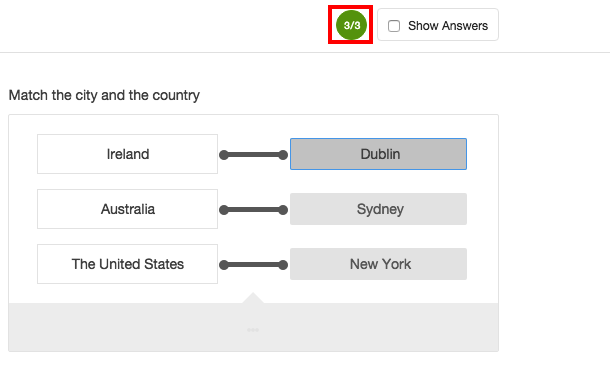
Partial Match is similar to Partial Match per Response. A student gets a partial score for each correct response within the question. The difference with Partial Match is that the value entered in the points box is the overall points possible for the question and those points are distributed among possible answers.
If the Question is given a score of 1, as shown in Figure 3 below, then each response within this Question will be worth .3333 (rounded to 4 decimal places).

Under Partial Match there is also a Rounding option. Rounding is only available when the scoring type Partial Match has been selected. There are two options to select from the drop down menu: None or Round Down. None is set as the default option.
- None will round the score to four decimal places e.g. 2.6666
- Round Down will round the score down to the nearest whole number, e.g. a score of 2.666 will be rounded down to 2.
Penalty Point(s)
This will determine if points are deducted for an incorrect answer. By default, the Penalty Score is set to 0. In the Match List examples above, there are 3 responses to the Question. If we apply a penalty score of 1 to the examples shown above, then:
- Exact Match - If the student answers any of the responses incorrectly, they will receive a score of -1 for the Question.
- Partial Match Per Response - For each incorrect response, the student will receive a score of -1, with a possible max penalty score of -3.
- Partial Match - For each incorrect response, the student will receive a score of -.3333 with a max penalty score of -1. If rounding has been enabled, it will also apply to the penalty score.
Non Autoscored Questions
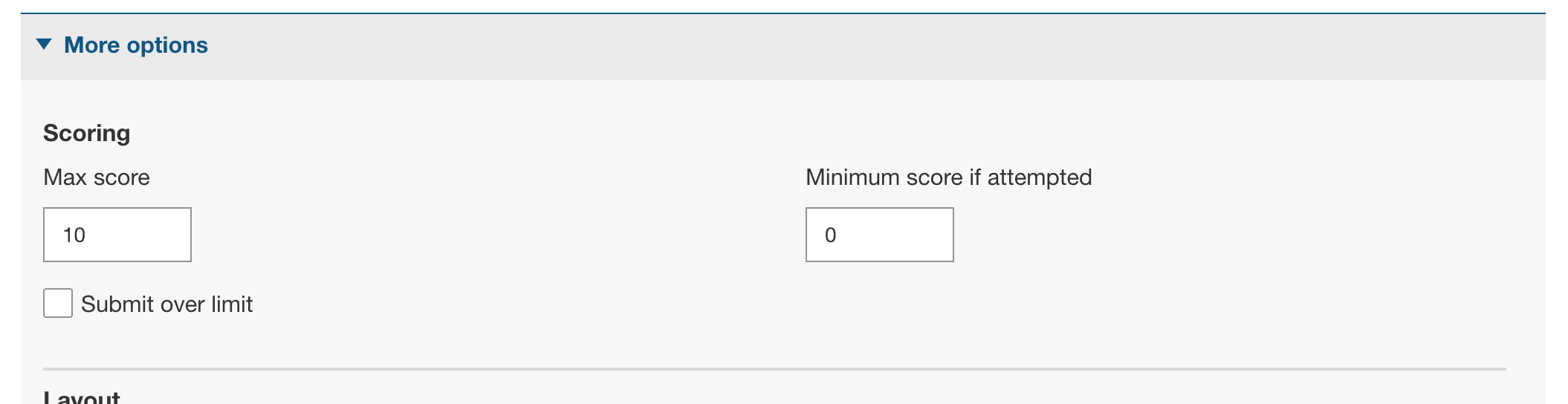
As mentioned previously, each question type has its own unique group of settings. Question types such as Essay (including Math and Chemistry), Audio, and Image Highlighting cannot be scored automatically due to the nature of the question and will need to be scored by a teacher. While a correct answer cannot be specified in the Question Editor, a maximum score can be set by filling out the Max Score field found under the More Options accordion.
Advanced Math Scoring
There are some options for math scoring: evaluation types and form checking. Please see the Math Scoring Methods documentation Opens External Page on Atomic Jolt's website for more information.
For margin of error on question answers, you can can use the equivValue method and enter the value as n±m with n as the value and m as the allowed margin of error.
Cloze Settings: Match All Possible Responses
You can use the Match all possible responses option to specify more than one valid response for a given response option. This can be helpful when creating questions where you need to accommodate multiple versions of the same language, when the response has multiple known variations, when the possible response can have more than one spelling, etc.
The Match all possible responses option is only available in the Fill in the Blanks (Cloze) question types.
Below is an example how this setting would function:
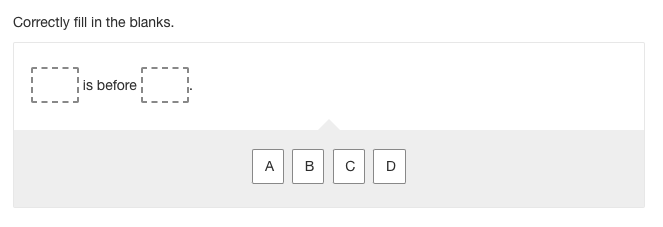
For this example, you could enter the correct answer as:
A is before D
You could then enter your alternate response as:
B is before C
Then, by checking the Match all possible responses box all answers would then include:
A is before D.
A is before C.
B is before C.
B is before D.
How to Set Up
Navigate to the Fill in the Blanks (Cloze) tab

Select the desired question type
It may be worth noting that the Label image with drag & drop question type does not support the Match all possible responses feature.

Fill in the question information
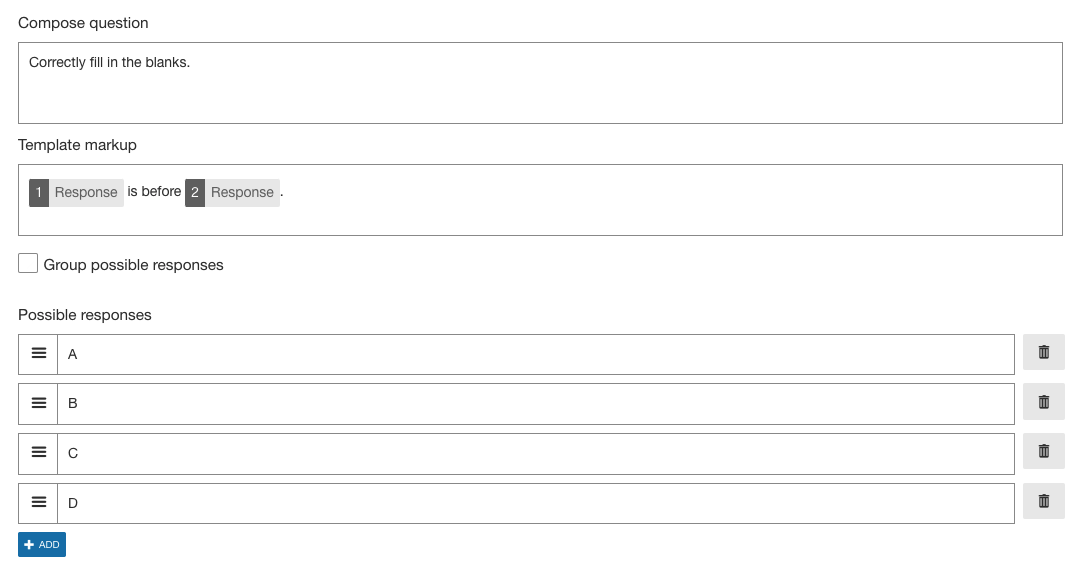
Set the correct answers

Create an alternate set of correct answers
To do this, you will need to click on the + button, then set the alternate set of correct responses. Repeat this as many times as needed.

Check the box that says Match all possible responses

Click on the More options dropdown and select the desired settings

Scroll to the top and click Save
References
- Learnosity's Author Guide on Understanding Question Validation and Scoring Types Opens External Page
- Learnosity's Author Guide on Using The Match All Possible Responses Validation Option Opens External Page
Questions?
For more specific help in Atomic Assessments, contact us.
Also see: University of Wisconsin’s documentation Opens External Page .
Atomic Assessments - Get Started
The following list of pages will guide you through getting started with this tool. The current page is listed in bold.