Add My Media Video to Atomic Assessments Item
If you would like to include a video from your "My Media" collection, you will first need to get the Embed code found under the Share tab in My Media. Once you have that, then you will be able embed the video into the Atomic Assessment item.
Copy the My Media Video Embed Code
The first step that you will need to do is to copy the embed code of the video you have saved in My Media. If you do not have the video uploaded in your My Media account, see our page on how to upload a video to My Media.
Go to your My Media in Canvas
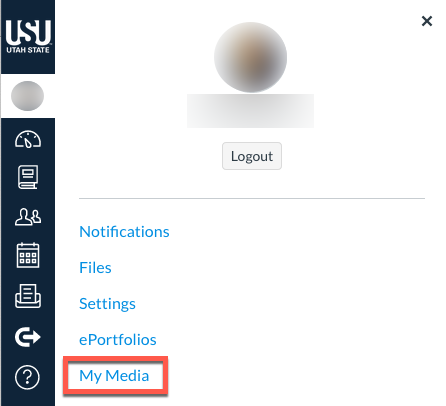
Click on Account, then select My Media.
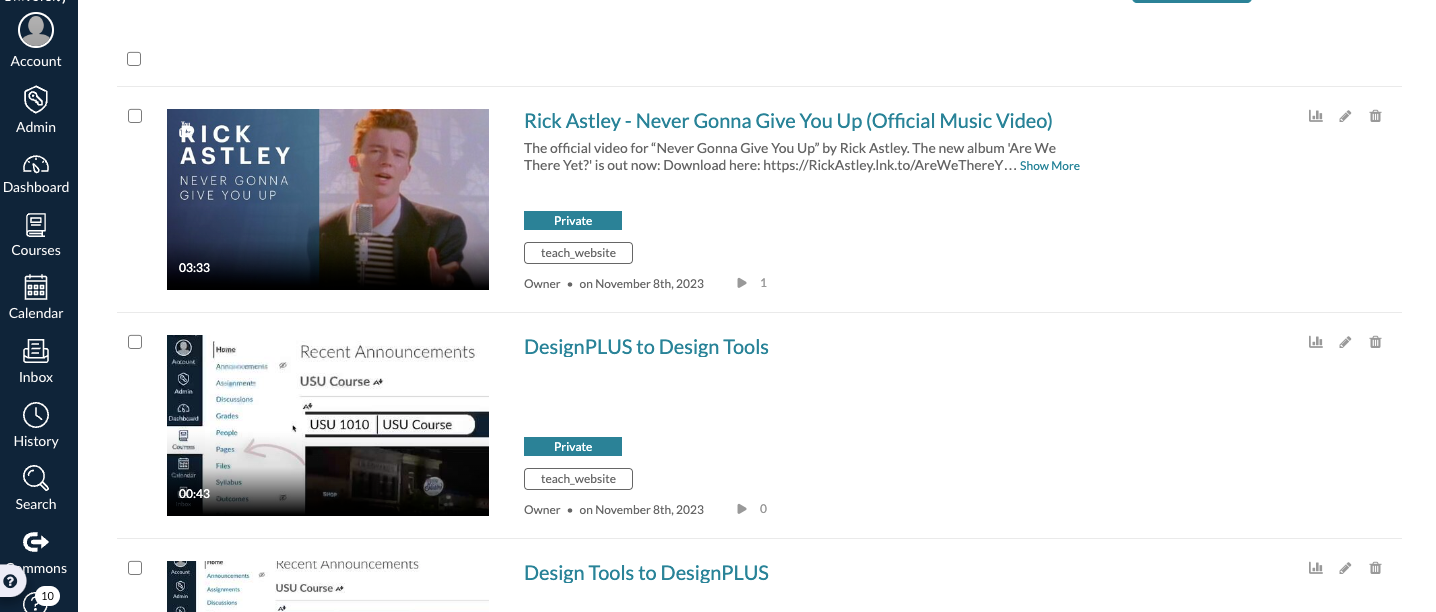
Click on the video you want to use
Navigate to the Share tab
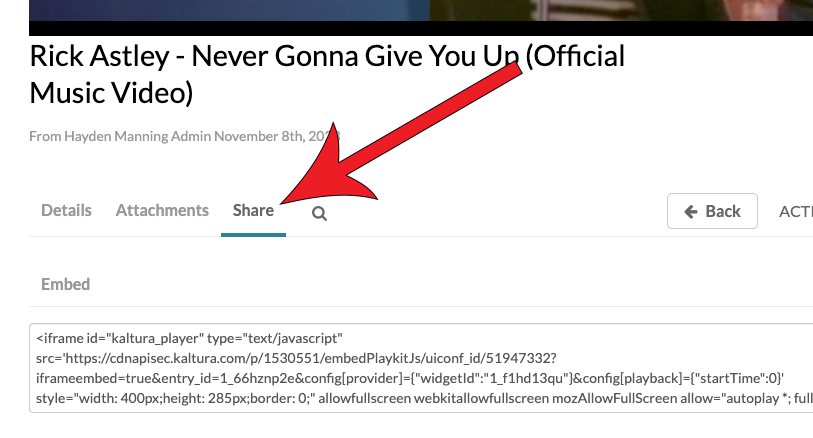
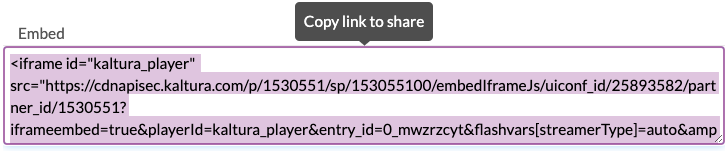
Copy the code under the Embed section
Add Video to Atomic Assessment Item
How to embed the video from the code that you copied above:
Select the activity you would like to add the video or create a new one
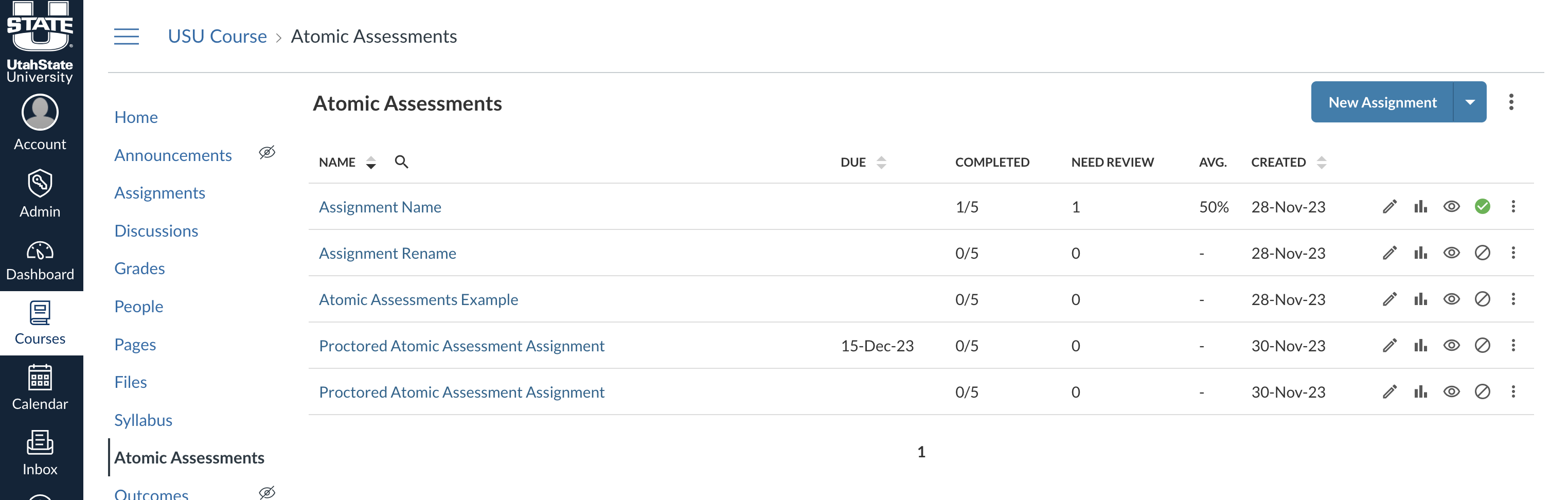
Navigate to the Edit tab
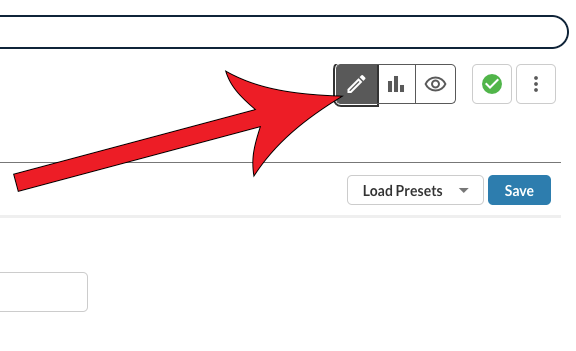
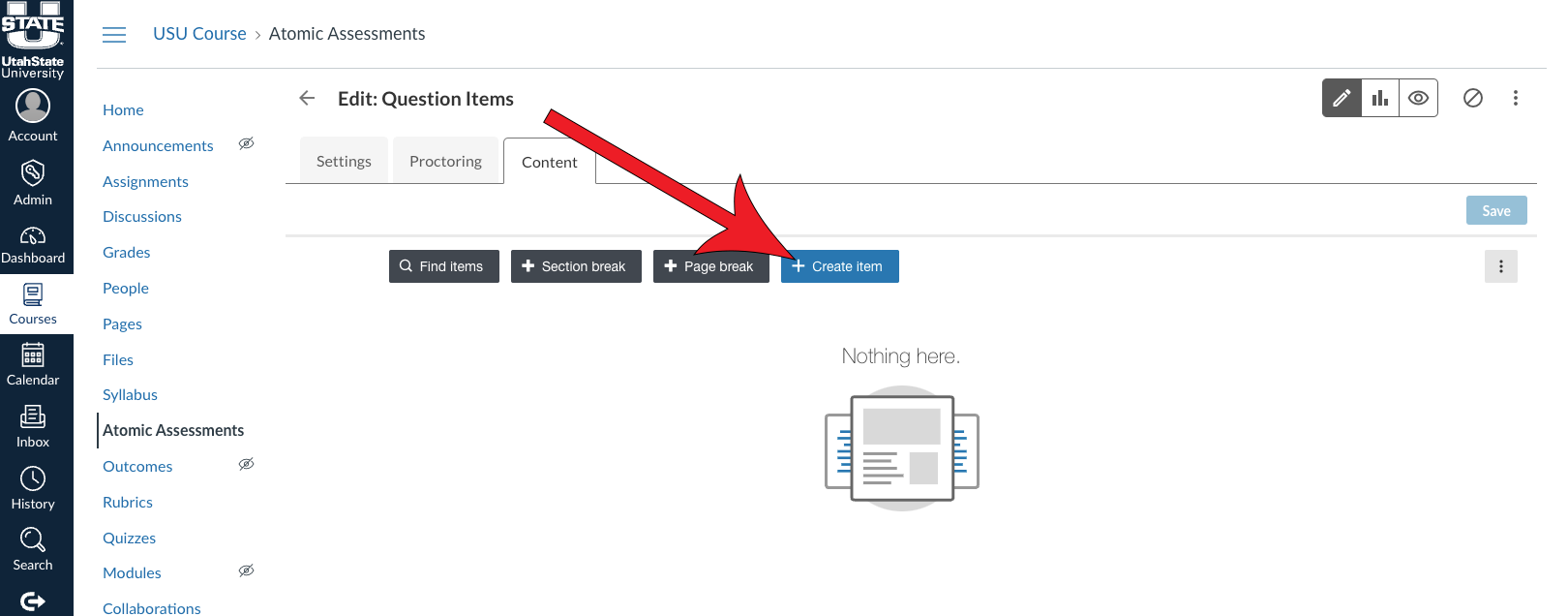
Navigate to the Content tab
Click on the item you would like to add the video or create a new item by clicking + Create item
Go to Features

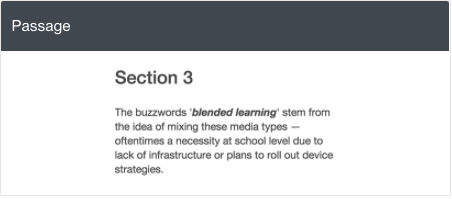
Select Passage
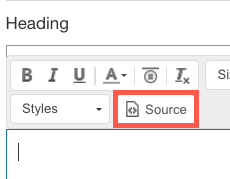
Click on the Source button in the Contents Box
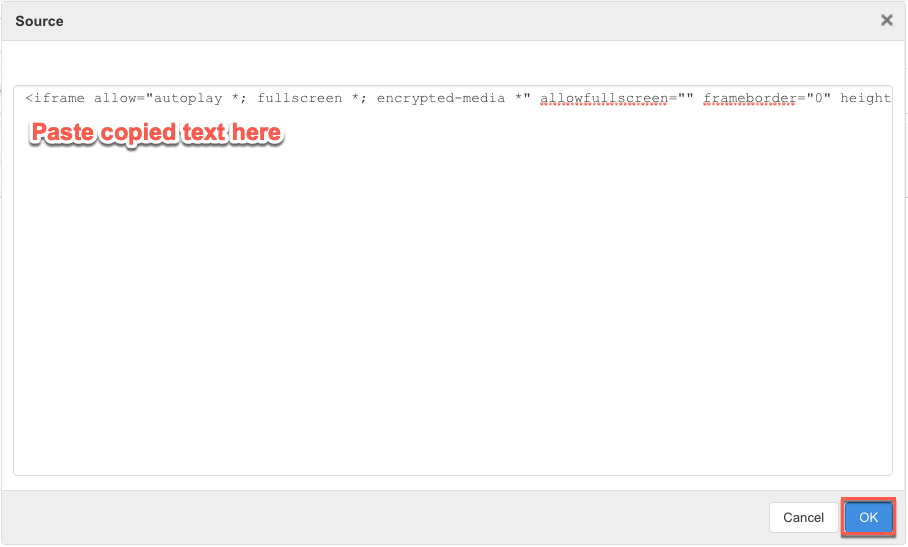
Paste in the copied embed code then click OK
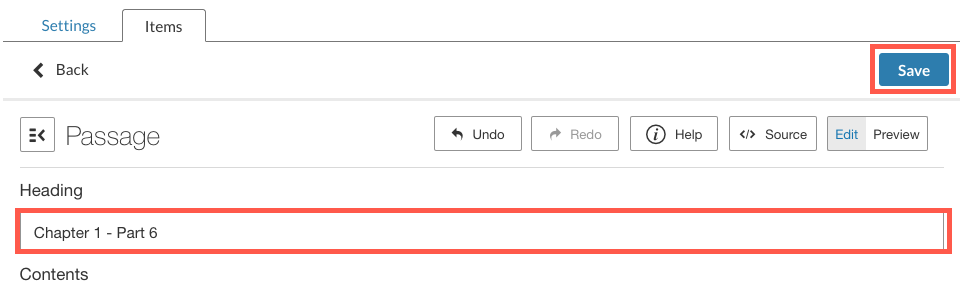
Enter a title in the Heading and click Save