Proctored Exams in Atomic Assessments
Like Canvas Classic Quizzes, Atomic Assessments has various proctoring options for your students. Below is a list of the different sections that this page covers.
Remote Proctoring with Proctorio
You can enable Proctorio to help with virtual proctoring for quizzes and exams built in Atomic Assessments.
If you need to make accommodations for individual students, see the Making Your Exam Flexible section.
Create the Atomic Assessment with the desired settings
In the More Options be sure NOT to include an access code, Proctorio will handle this for you. When completed, don't forget to click Save.
Navigate to the Proctoring tab

Check the box for Enable proctoring for this assignment
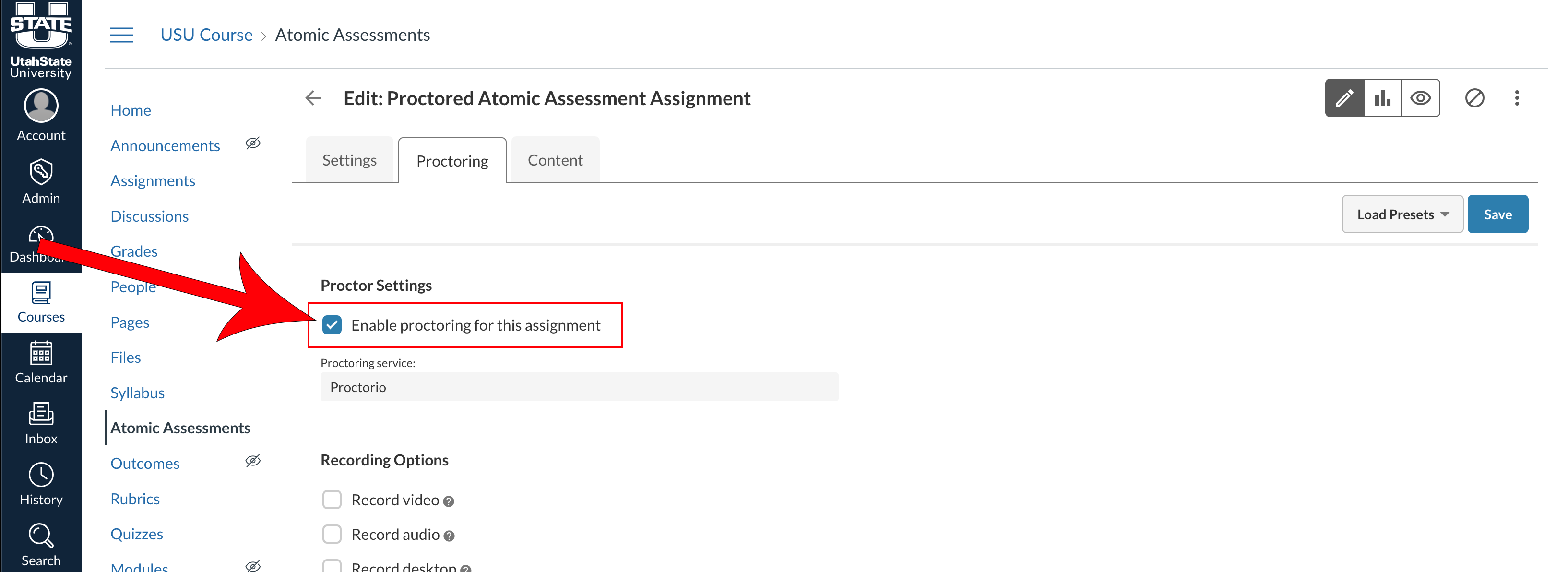
Select the desired recording and lockdown options
If choosing Verification Options, ensure associated Recording Options are selected. You can click on the ? Icon after each setting to learn more about it.
Click Save when you are finished

Publish the assessment
When copying Atomic Assessment content from one course to another, you will need to enable Proctorio in the new course and re-select desired Proctorio settings.
Review the Proctorio Gradebook
After students have taken the assessment, you can view the student test taking sessions. Again, you will need to use either Chrome or Microsoft Edge with the Proctorio Extension installed.
Locate the assessment
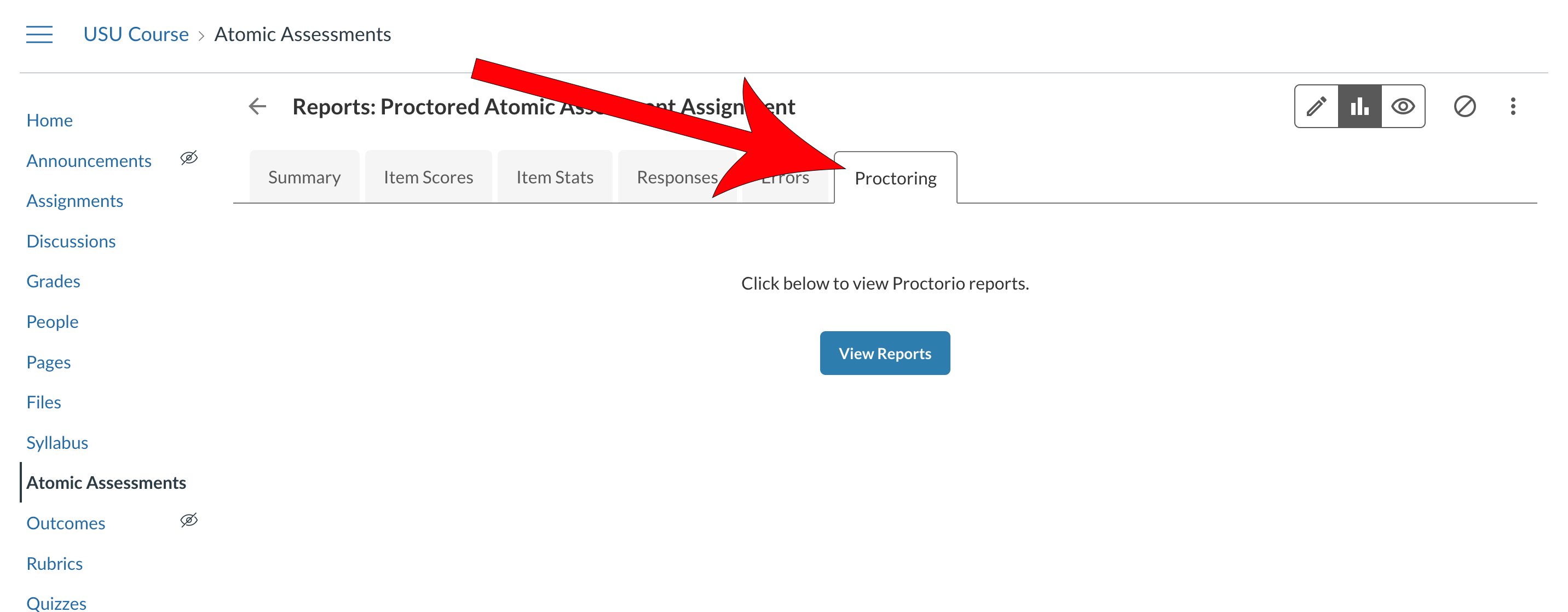
Click the Proctoring tab
Click View Reports
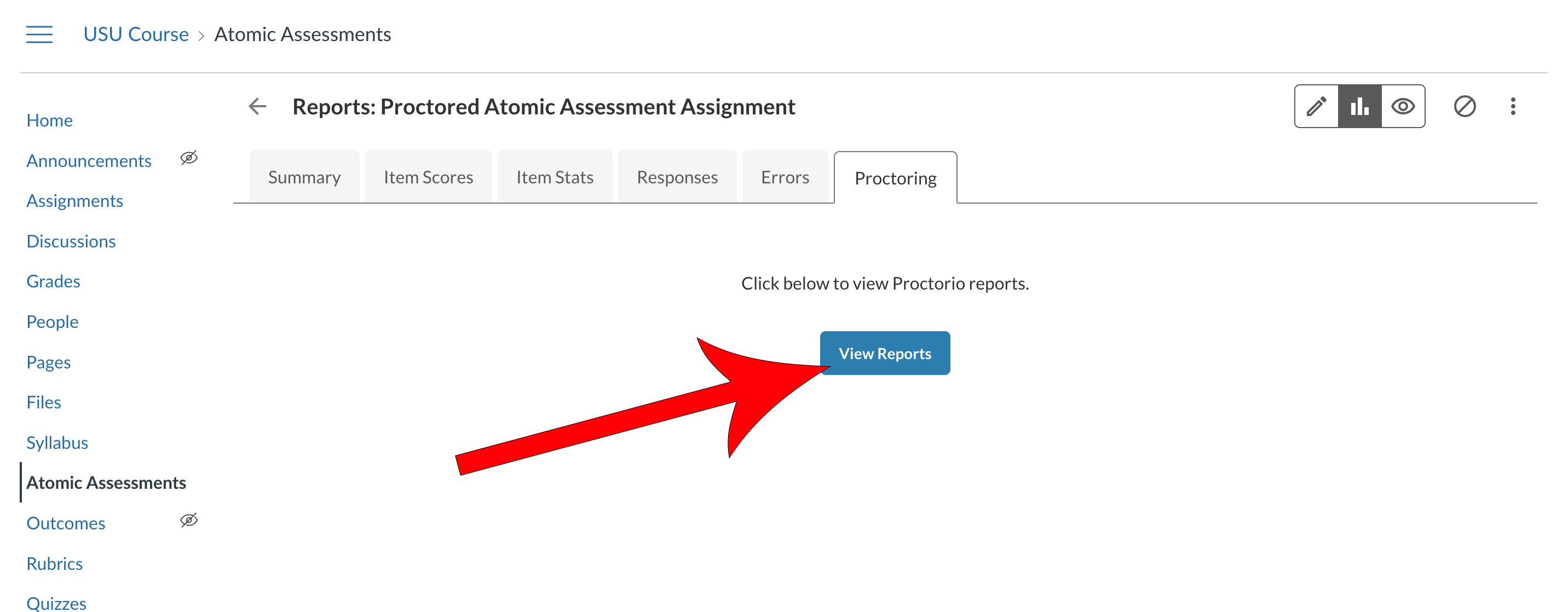
A new window will open with the Proctorio Gradebook
See the Faculty Guide in your Canvas Pages for a video on using the Proctorio Gradebook.
Proctoring Administered through the Logan USU Testing Center
Exams in Atomic Assessments can be proctored or used in the Logan Testing Center like Canvas quizzes by adding an access code.
Note: If you have set an access code or IP address filter for your exam to be proctored in the testing center, your students will have to return to the testing center to be able to review their previous attempts.
As you follow the steps below, review and adjust the other settings to your liking.
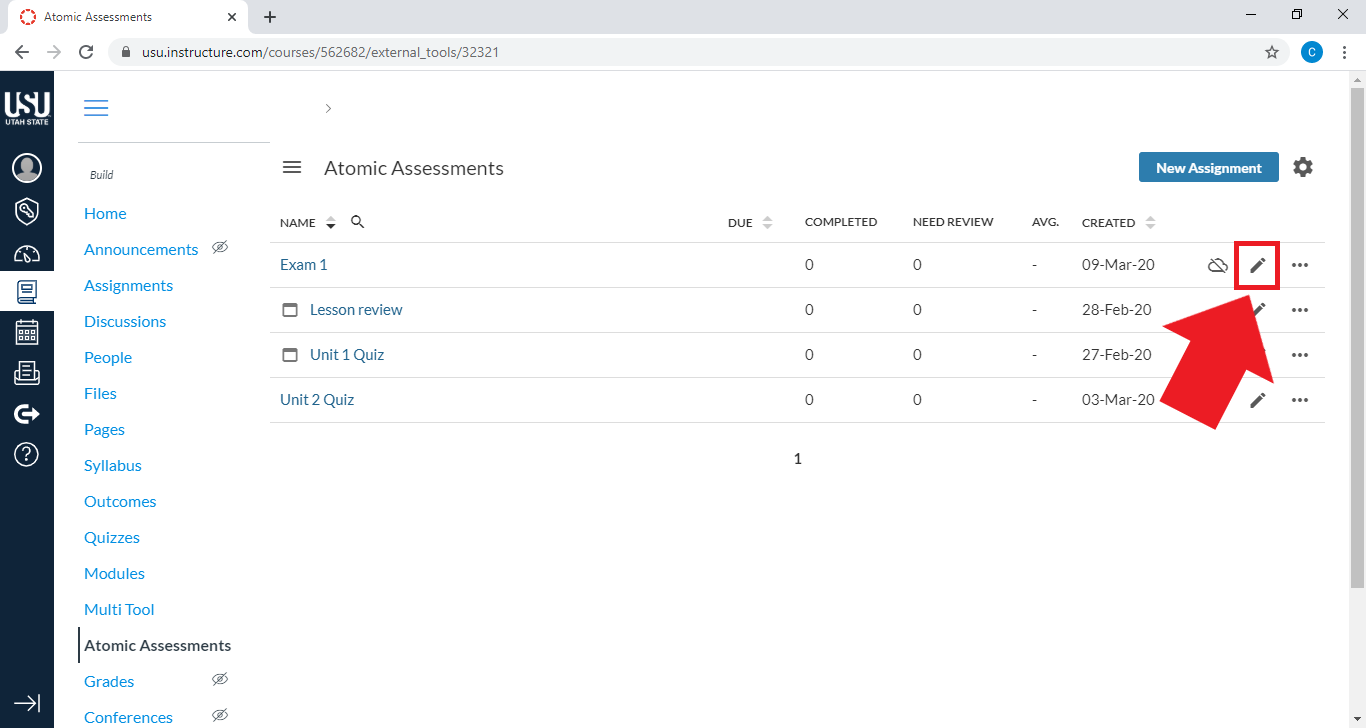
From the Atomic Assessments menu, select the pencil icon for your exam
Scroll to the bottom of the Settings tab and click on the More Options dropdown

Locate the Access Restrictions section at the bottom of the page
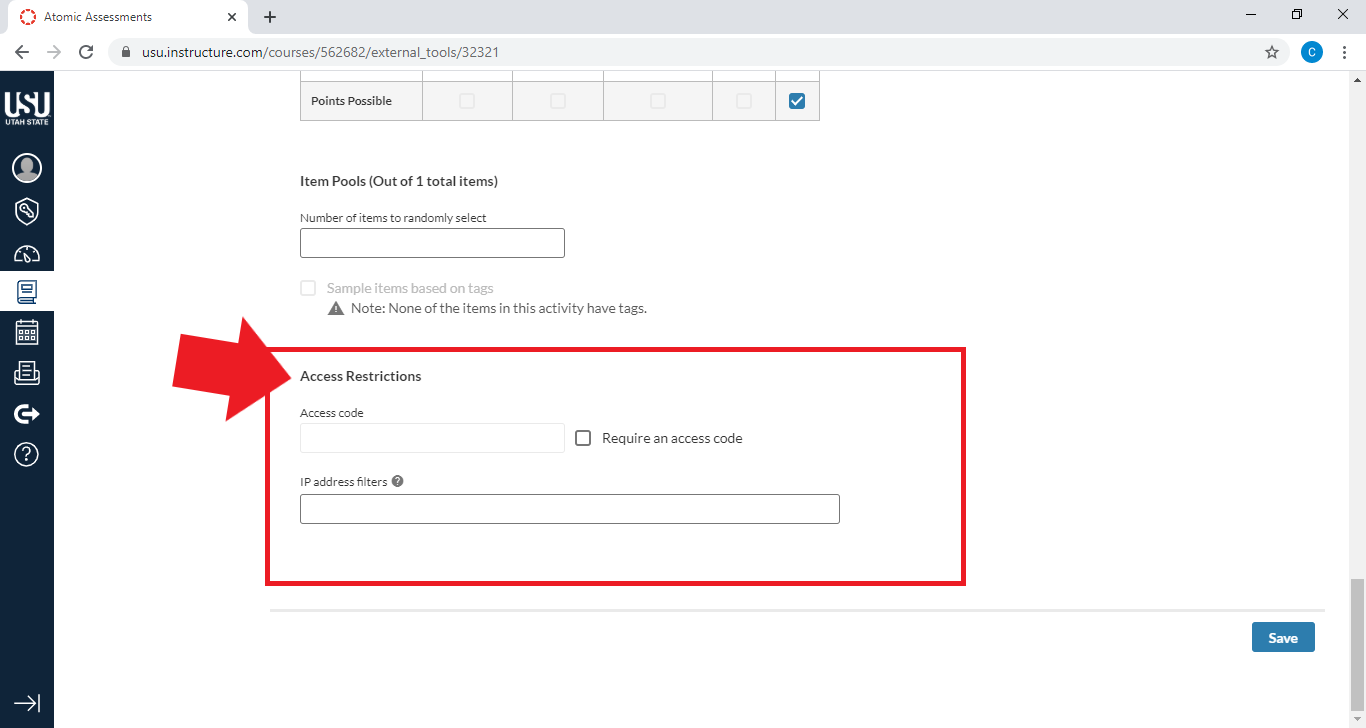
Add the IP address under "IP address filters," separating multiple addresses with commas
The IP address for the Logan Testing Center is available through Materials and Testing Services (MATS). For more information, see the USU Testing IP Restrictions page. (Note: Atomic Assessments uses the same IP address as Classic Quizzes.)

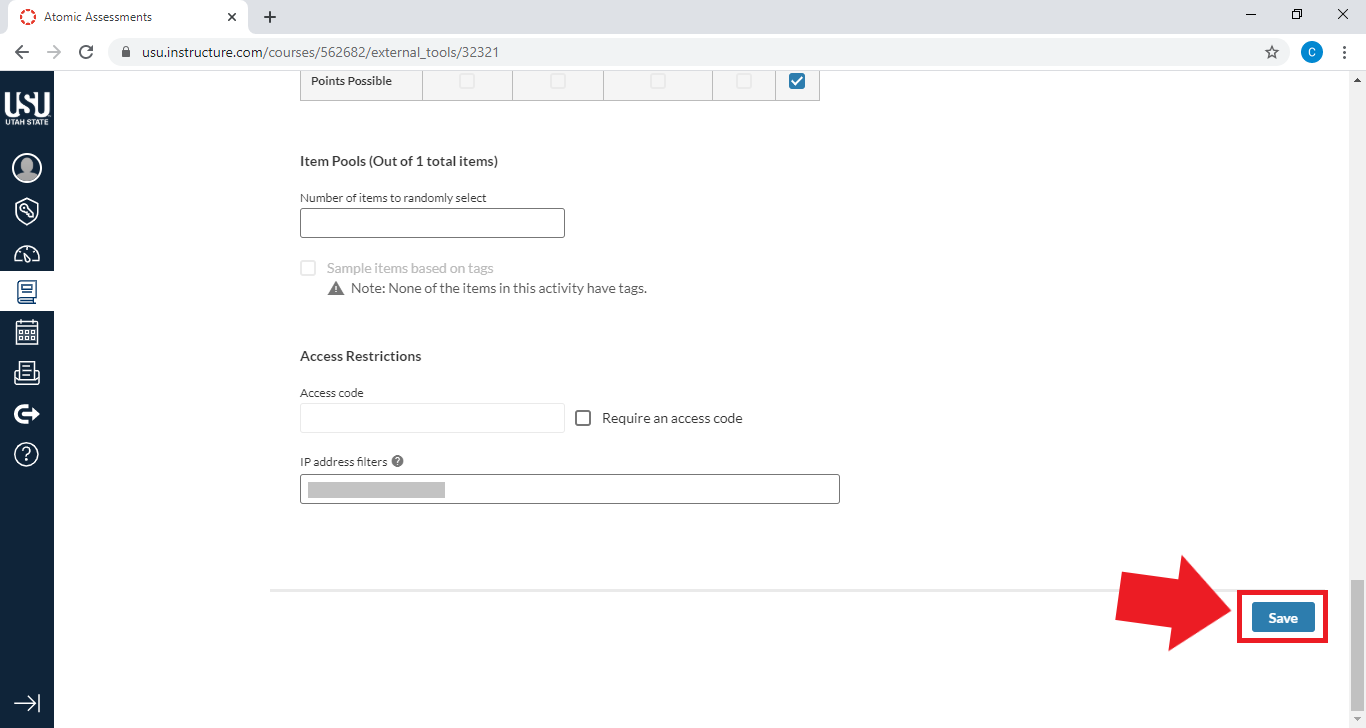
Click Save
Proctoring Administered through other USU Testing Centers
If your exam is not administered in the Logan Testing Center, you can set an access code that a proctor at any other USU testing facility can use to open the test for the student.
From the Atomic Assessments menu, select the pencil icon for your exam
Scroll to the bottom of the Settings tab and click on the More Options dropdown
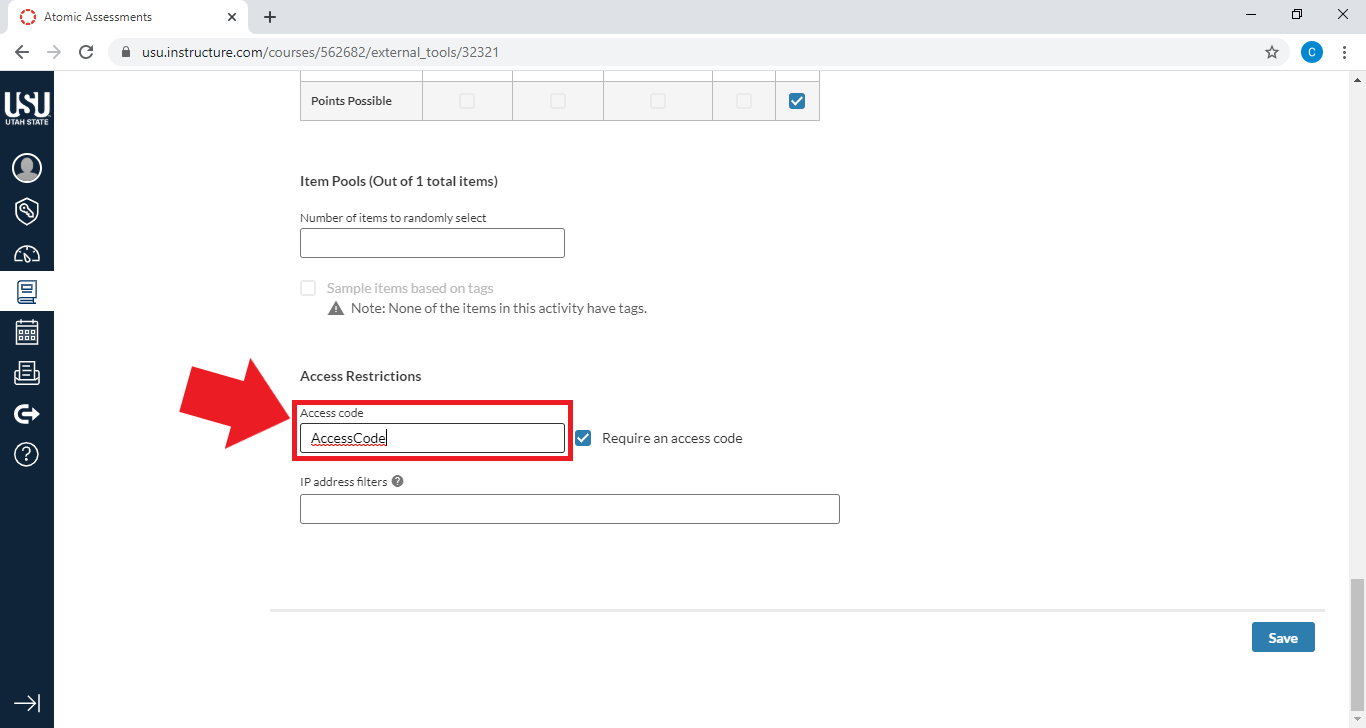
Locate the Access Restrictions section at the bottom of the page
Enable the Require an access code field
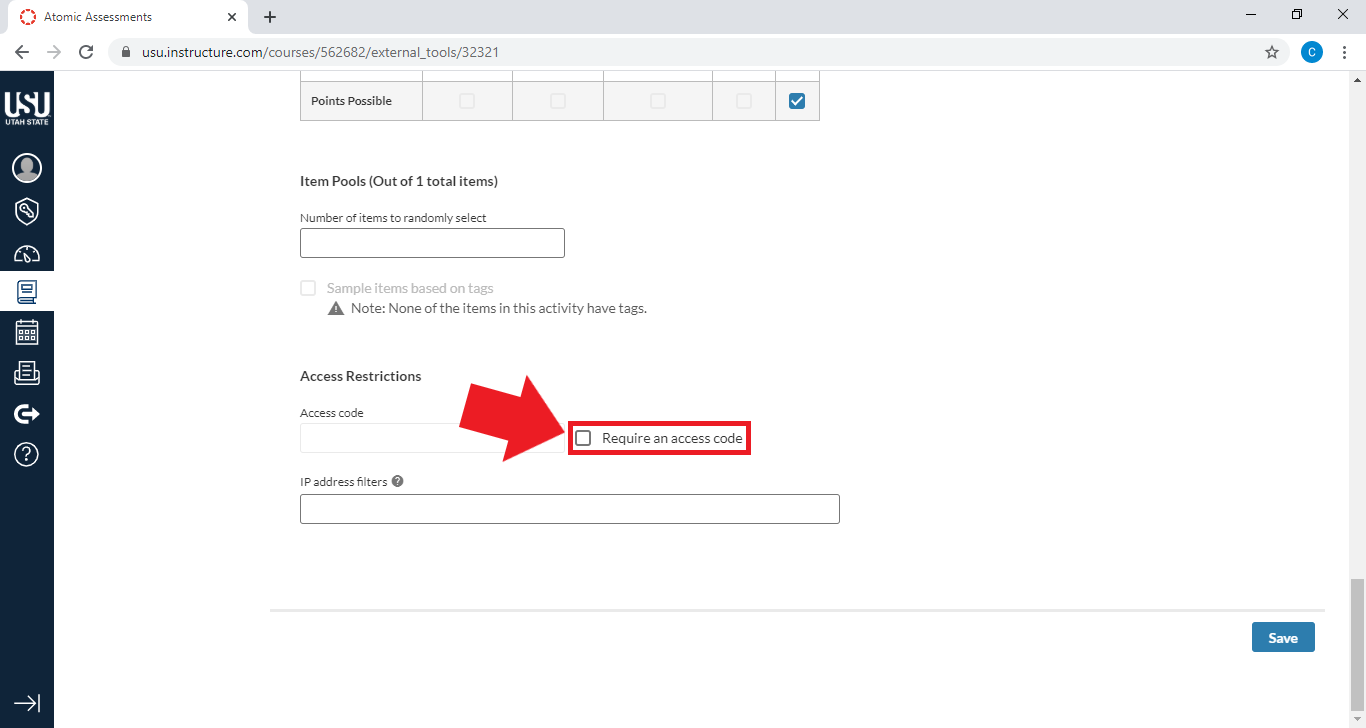
Enter the desired access code
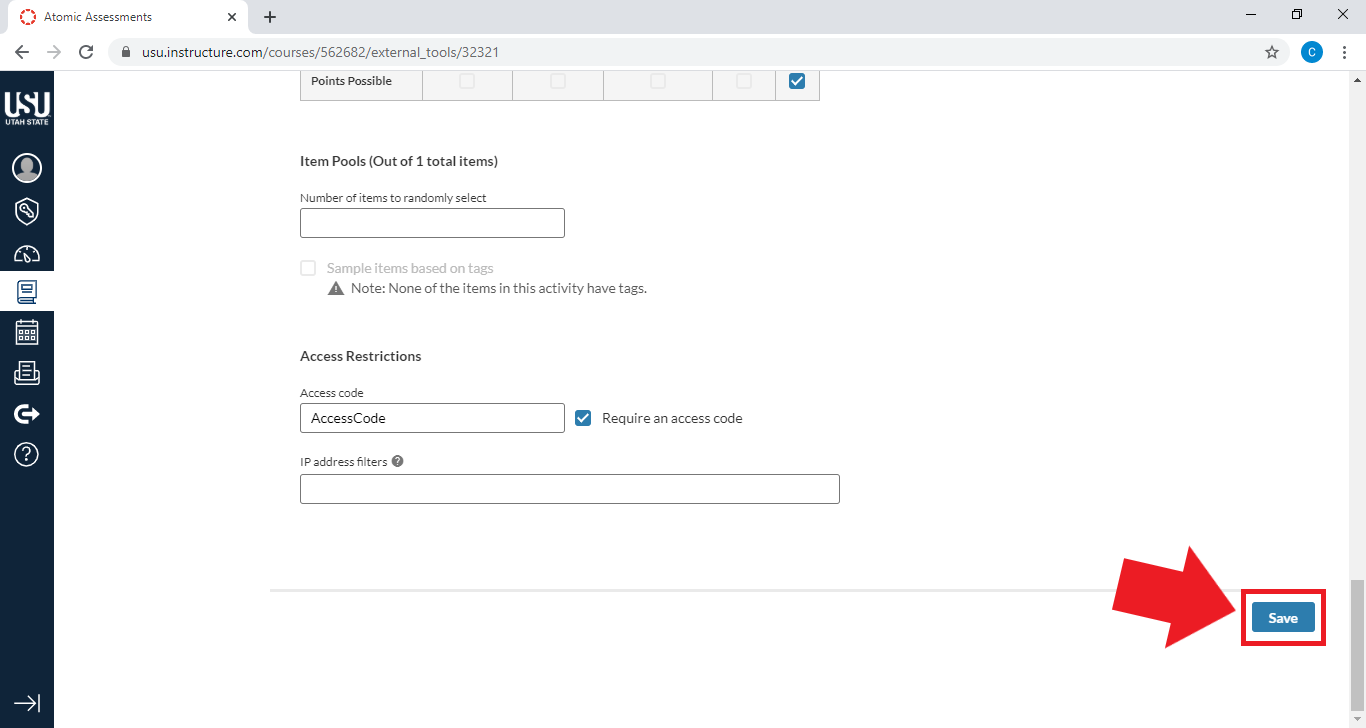
Click Save
Enter the exam name, availability dates, time limit, and access code in the Materials and Testing Services (MATS) website
Making Your Exam Flexible
In Canvas there is an option to make proctored exams "flexible" with Proctorio, meaning that some students can take the exam in the testing center while others take it from home. Atomic Assessments doesn't have that feature, but there is an alternative solution and that is to duplicate the exam, set the Proctorio settings, and assign it to specific students. Here are the steps:
Navigate to Atomic Assessments
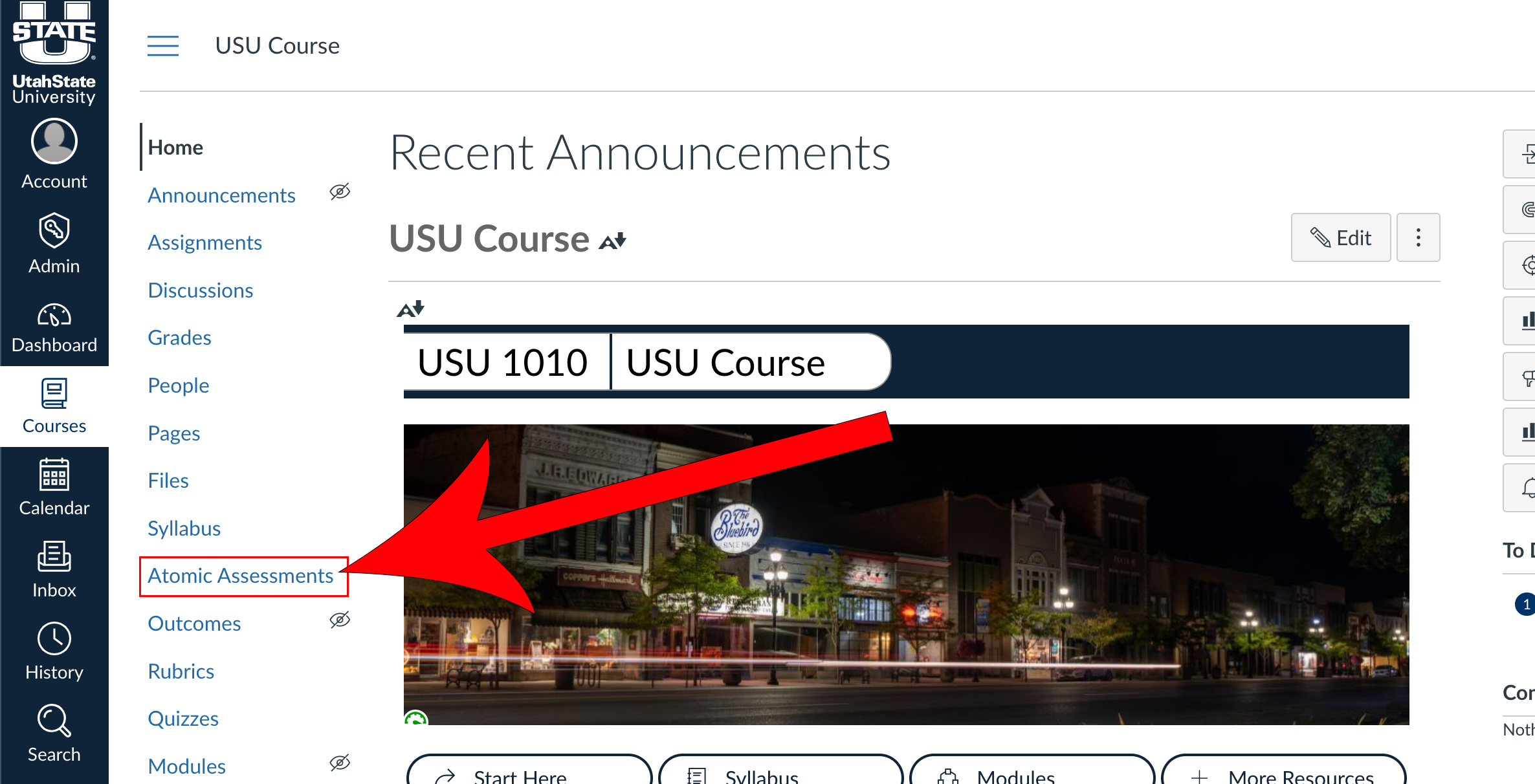
Click the down arrow on the New Assignment button and select New From Existing Activity

Select the assignment you would like to make flexible

Update the exam name, settings, and who the exam is assigned to

Click Save

Navigate to the Proctoring tab
Click the checkbox to Enable proctoring for this assignment
Select the desired recording and lockdown options
If choosing Verification Options, ensure associated Recording Options are selected. You can click on the ? Icon after each setting to learn more about it.
Click Save
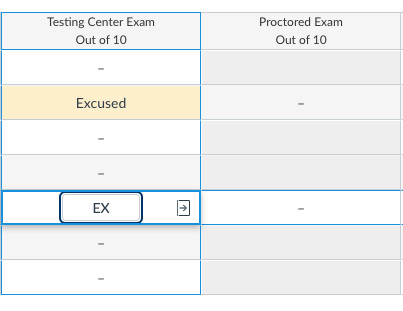
Excuse the student(s) who will take the exam using virtual proctoring from the exam given at the testing center
To do this, you will need to:
- Navigate to Grades.
- Locate the exam that will be taken in the testing center.
- Enter "EX" as the score for the student(s) who will be taking the virtually proctored exam at home.
After you hit Enter, the score will be replaced with the word "Excused."
The virtually proctored exam will only be assigned to selected students, so there is no need to excuse students who are taking the exam at the testing center from the virtually proctored version of the exam.