
Adding Alternative Hosts on Zoom
As an instructor, you can add an alternative host to your Zoom meeting before it starts, enabling them to share their screen, moderate participants, and more.
Only USU Zoom accounts can be added as alternative hosts. If you want a guest speaker who isn’t affiliated with USU to be a host, you will need to start the Zoom meeting, admit the guest speaker, and then make them the host using the options in the participant list. After that, you can leave the meeting if you wish.
Add Alternative Hosts Through the Zoom Website
One way to add alternative hosts to a meeting is through the USU Zoom website:
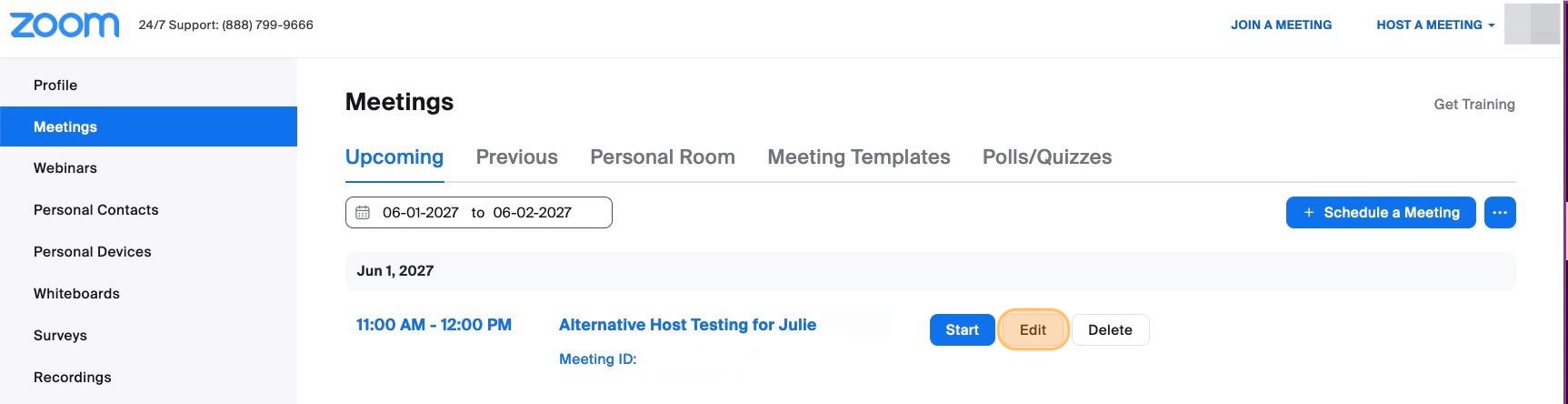
On the Zoom website, find the meeting you want to add an alternative host to and click Edit or create a new meeting with the Schedule a Meeting button
Under Options, click Show

Click in the Alternative Hosts box and type the name of the person you want to add

Then, click on the name with associated Anumber@usu.edu email address
If a person doesn't appear in the search results, it means they haven't activated their university Zoom account. They need to log in at https://zoom.usu.edu, then you will be able to add them the following day.

Click Save

The alternative hosts will appear after the meeting ID and passcode

Add Alternative Hosts through Zoom Tool in Canvas
Another way to add an alternative host to your Zoom call is through the Canvas tool found in your course.
From Canvas, click on the Zoom tool link, then selecting the Upcoming Meetings tab and click on the name of the meeting
At the bottom of the page, click Edit this Meeting

Click in the Alternative Hosts box

Type in the Anumber@usu.edu email address for the person you want to add as an alternative host
Note: It won't find the person by name.
You will see the person's name and their associated Anumber@usu.edu email address. Click on their name

Click Save

Confirm the alternative hosts at the top of the meeting details
Note: The names will not appear, only the Anumber@usu.eduemail address.

Troubleshooting Alternative Host Accessibility
If you have successfully added the individual as an alternative host, but they login to the meeting and haven't received host rights, you will need to do some troubleshooting.
The main cause of this is the user not being signed into their USU account through the Zoom application on the computer. To sign into the application, follow the steps outlined on our page for logging into your account. If the alternative host is signed into their USU account in the Zoom application and still experiencing issues, they should log out of the application and back in.