
Share Zoom Whiteboard with Students in Canvas
The steps below assume you have previously created a Zoom Whiteboard from the Zoom application. You can create whiteboards within the Zoom tool from within Canvas and they will automatically be shared with students in the course.
Add Whiteboard to a Project (the course)
Go to the Whiteboard you created
When adding an image to the steps,
Click the Share button

Click None

From the drop-down menu click on the name of the course
Tip: If you don't see the name of the course, go to the Canvas course Settings and enable the Zoom tool on the Navigation tab. Then, come back to this step.

Click the Move button

You will see a message that the whiteboard got added to the class project, then close the share pop-up window

Access the Whiteboard from the Canvas Course
The following instructions show how you can access your created whiteboard within your specified Canvas course:
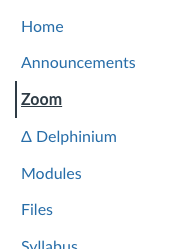
Click Zoom in the left-hand navigation of your Canvas course
Click Whiteboard

Select your whiteboard

Sharing an Existing Whiteboard in a Zoom Meeting
The following instructions show how you can share an existing whiteboard in your current Zoom meeting:
In the Zoom meeting, click More located on the bottom right of the screen

Click Whiteboards, then select Existing whiteboards

Select the whiteboard you desire, then choose Collaborating to allow students to interact with the board

Select Open board
It will take a minute for the whiteboard to load before other participants can see and interact with the whiteboard.