
Zoom Troubleshooting
Features are Unavailable or not Working as They Should
Make sure your Zoom application is up to date. You can either download the app from Zoom's website Opens External Page or perform a manual update from within the software. To update manually:
1
Open the Zoom application
2
Sign in using the SSO option, when prompted type in 'usu-edu' and then use your A number and strong password
3
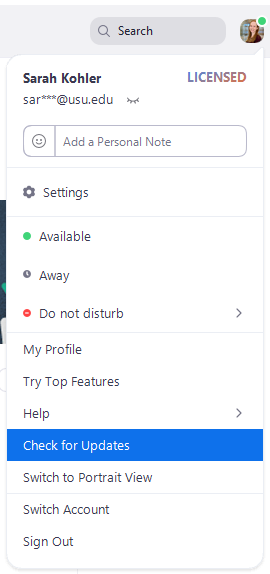
Click on your profile picture in the top right corner and click the Check for Updates option
Microphone or Speaker Not Working
When in a Zoom call, select the arrow to the right of the microphone icon in the bottom left and choose test speaker and microphone. Zoom will then run you through a few steps to choose the correct devices. You can also manually choose which speaker and microphone to use in that same menu.
Call is Lagging
- Have participants turn off their videos
- Close out of other applications on the computer
Audio Not Working in a Presentation
- Make sure that when you're sharing content you select Share computer audio at the bottom of the Share Screen pop-up.
- If you have already started sharing content, select More within the floating menu. Then select Share computer audio.
Shared Videos are Choppy
- Make sure that when you're sharing content you select Optimize Screen Sharing for Video Clip at the bottom of the Share Screen pop-up.
- If you have already started sharing content, select More within the floating menu. Then select Optimize Screen Sharing for Video Clip.
- Make videos full screen for the best result.