
Import Scheduled Zoom Meeting into Canvas
Learn how to integrate Zoom meetings into your Canvas course and make your class Zoom link accessible to all of your students.
Previously Scheduled Zoom Meeting
If you have already set up and scheduled a Zoom meeting for your course and are wanting to share the link with your students, follow these steps:
Go to your Canvas course and select the Zoom side tab
If the tab is not there, refer to the Integrate Zoom into Canvas page.
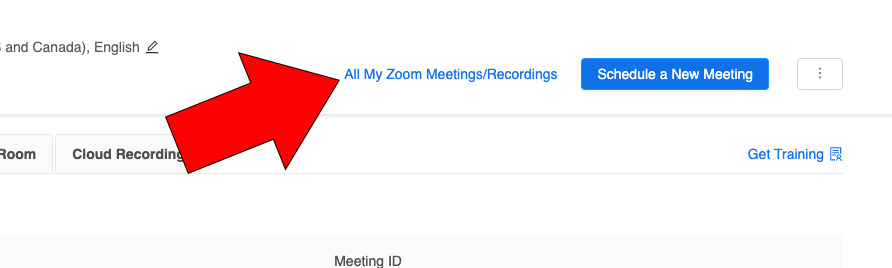
Click on the text link All My Zoom Meetings/Recordings
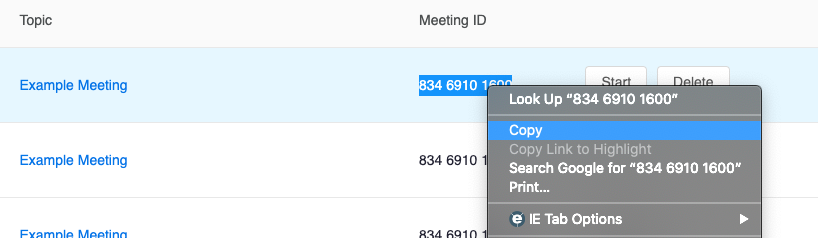
Locate the meeting and copy the Meeting ID (11 digit number) next to it
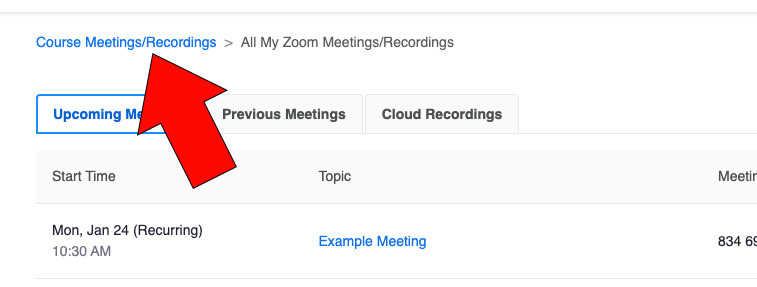
Click on the text link Course Meetings/Recordings
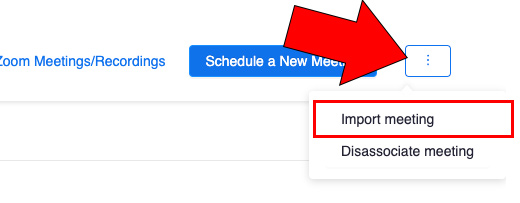
Click on the three dot button and choose Import meeting
Paste in the copied Meeting ID and click the Import button
Video
This short video will walk you through the process of how to share a previously scheduled Zoom link with all of your students in a course.
Have Not Already Scheduled a Zoom Meeting
If you haven't previously set up a Zoom meeting for your course and are wanting to be able to share the link with all of your students, follow these steps:
Go to your Canvas course and select the Zoom side tab
Click the Schedule a New Meeting button in the top right
Fill out the required fields and click Save
We recommend you not use your Personal Meeting ID (PMI). If you decide to use your PMI, be sure to enable the waiting room feature so that you have to admit people to the meeting. This will help prevent Zoom bombings.
At the bottom of the page is an explanation of some of the options provided when scheduling a meeting. Once saved, the students will be able to see and join the meeting from the Zoom tab in Canvas.