
Logging into Zoom using a USU Account
In order to be able host Zoom meetings with your USU Licensed account, you must login using SSO (Single Sign-On)
1
Enable your Zoom account by logging in with your A number and strong password at https://usu.zoom.us/signin
This will initialize your account so that you can log into the Zoom client application.
3
Run the Zoom Client on your computer or mobile device and click Sign In

4
At the login screen, click the Sign In with SSO button

5
Enter usu in the company domain field and press Continue

6
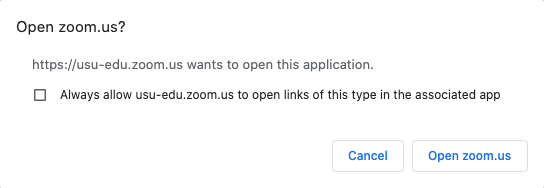
When prompted, click Open zoom.us
Prior Zoom Account
If you previously signed up for a Zoom account using your USU or another email account, your computer or device might open up without prompting you to login. If that happens, access your account settings and choose Switch Account from the menu.
When you are using your @usu.edu account you should see your name USU associated email in the menu, and the word LICENSED at the top of your Profile settings.
When you are using your @usu.edu account you should see your name USU associated email in the menu, and the word LICENSED at the top of your Profile settings.


Zoom - Get Started
The following list of pages will guide you through getting started with this tool. The current page is listed in bold.