
Record In-Person Lecture Taught in Zoom Rooms Classrooms
This page describes how to record your lectures when teaching an in-person class in a classroom with Zoom Rooms equipment. The Logan classrooms with Zoom Rooms equipment are:
| Agricultural Sciences Building | AGRS 101 |
| Distance Education | DE 105, DE 109, DE 202, DE 203, DE 211 |
| Eccles Business Building | EBB 215 |
| Education | EDUC 130, EDUC 130A, EDUC 132, EDUC 282 |
| Huntsman Hall | HH 270, HH 326 |
| Thomas and Patricia Willis Veterinary Medical Education Building | VME 101, VME 169 |
| Veterinary Science Building | VSB 219 |
If you are at a statewide campus, check with a facilitator or scheduling team to see if your classroom has Zoom Rooms equipment.
Set Up the Zoom Meeting
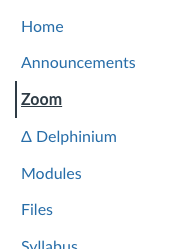
Navigate to Zoom in your Canvas course
Click Schedule a New Meeting

Set up the proper settings listed below
- Set the meeting as Recurring with No Fixed Time so it's the same for the entire semester.

- Disable the waiting room and do not require authentication.
- The passcode should be numerical only, with no letters or symbols

- Enable Allow participants to join anytime and Automatically Record Meeting in the Cloud.

Note the Meeting ID and Passcode
The Meeting ID and Passcode (numerical) will stay the same if the settings aren't changed.
After you create the Zoom room, the Meeting ID and Passcode will appear in the Meeting Details. If you need to return back to the details, simply click on the Zoom meeting name under Upcoming Meetings.

Class Management
Follow the instructions on the Classroom Quick Start Guide page to set up the room and equipment
If you are unfamiliar with the technology of the classroom, you can visit the following page to learn how to operate the Zoom Room touch panel.
Click Join on the Zoom Rooms touch panel and enter the Meeting ID and Passcode to start the meeting

Share content to meeting
To share content (desktop, laptop, etc.), you will click the Share Content button and select what you want to share. That will begin sharing the content locally only.

To record what you are sharing, click Viewing Locally and then Share to Meeting.

End the meeting at the end of class by clicking End Meeting
Remember to do this every time to avoid continuous recording.

Access and Publish Recordings
Recordings will appear in the "Cloud Recordings" tab in Zoom on Canvas.
To share recordings with students, publish them individually or enable "Publish All Recordings" to publish automatically. (Note: If students randomly enter the Zoom meeting room between classes, the meeting will be recorded and published automatically.)