Viewing an Attendance Report in Zoom
Attendance reports are available through the Zoom page in Canvas or the Zoom website. If the meeting recurrence is set for "no fixed time" (as they are for Connect classes) you will have to pull the reports from the Zoom website.
Video Example of Attendance Web Reports (Also With Polling)
From Canvas
Click on the Zoom link within your Canvas course menu
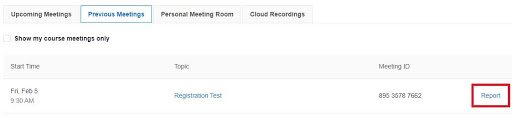
Select the Previous Meetings tab
Find the meeting you would like to get attendance for and click on Report on the right
The Meeting Report will be open by default so you can view the attendance report from the meeting
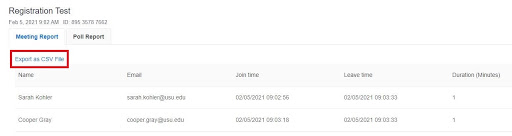
Optional: Click on Export as CSV at the top of the report if you would like to download and save the file
If registration is not required, the meeting report will list the participants’ display names that they can manually change within the call (unless turned off by the host). To get an accurate attendance record, it is recommended to require registration for the Zoom call (as long as it is not a Connect class). When editing or creating your call, check the box to Require registration, and then choose Attendees need to register for each occurrence to attend (if this is a recurring meeting). Participants will then need to put in their name and email address before joining the call. You can also create custom questions for registration at the bottom of the meeting's information page after saving the event.
From the Zoom Website
If you are using a no fixed time call (which is always the case for Connect classes), find the attendance records by following these steps:
Sign into https://zoom.usu.edu
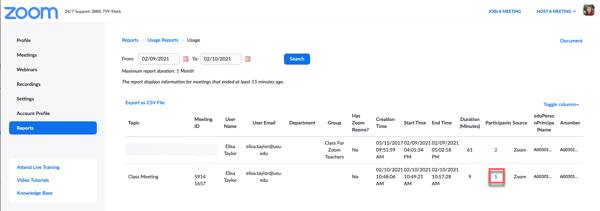
Click on Reports alongside the left menu
Click Usage
Use the date picker to select the date range and then click Search
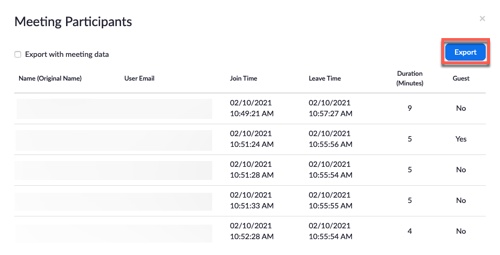
Find the meeting you would like and select the number in the Participants column
You can then export the details as a CSV file, if desired, by clicking on the Export button