
Share Zoom Recordings with Students
Record the class to the cloud using one of the following:
If you don’t see the meeting from the Zoom link in your course, you will need to Import the meeting.
Important: Due to the scheduling of Connect classes, rooms can join the call at any time, allowing students to also join the Zoom meeting whenever they want. This could lead to numerous extra Zoom recordings or a very long recording if students log in early.
This gives you a bit more control and reduces the chance of having extra recordings.
Video
Using a laptop: Log into Zoom using the SSO option. Enter your A# number and strong password
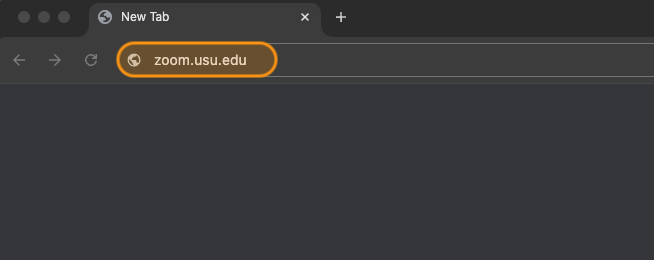
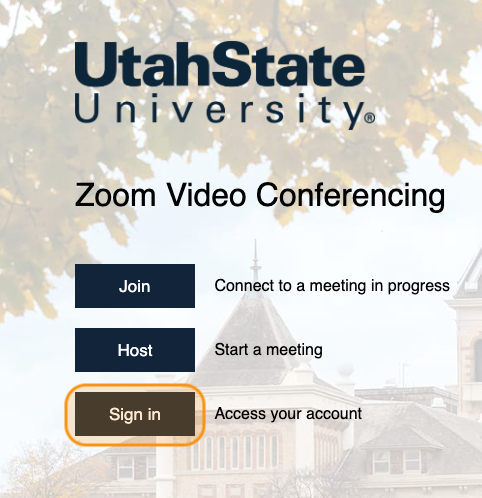
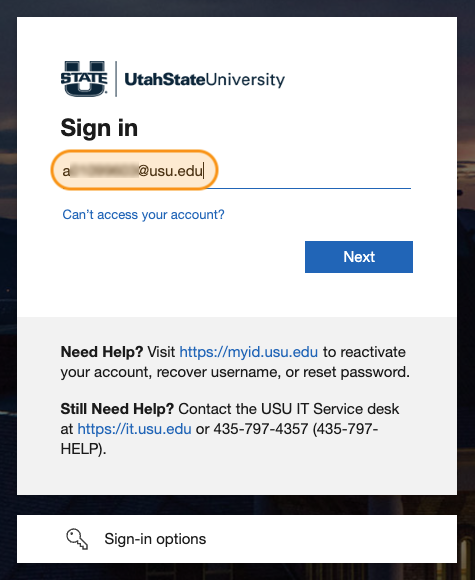
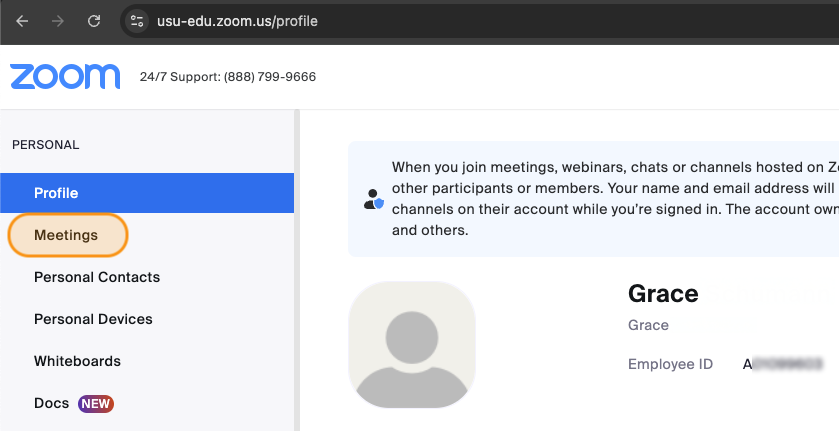
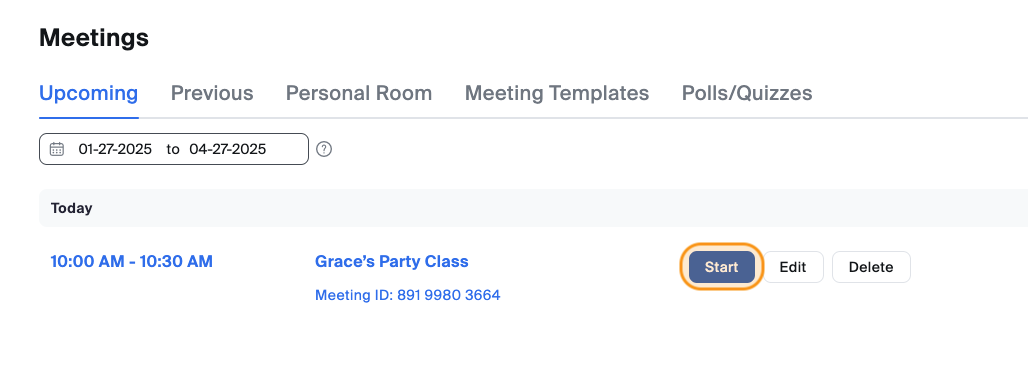
Find the meeting, then click the Start/Join button
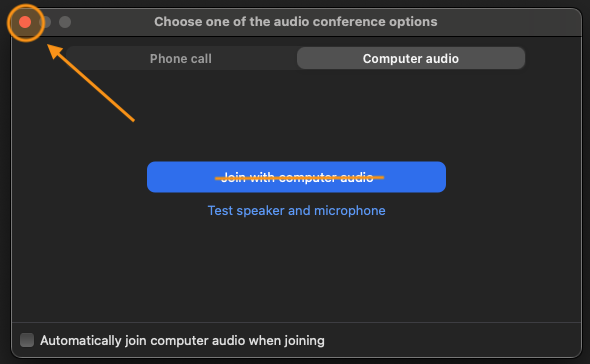
Important: Do NOT join the audio from this device!
Doing so will cause an echo in the classroom.
Click on the record button in the Zoom app when you are ready to start the recording
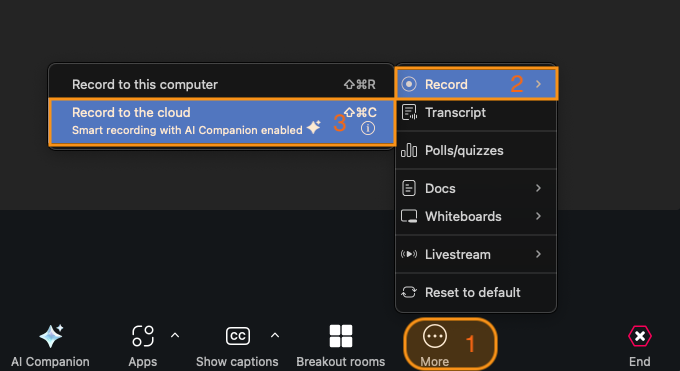
Click the stop button (or end the meeting) when you are ready to stop the recording
After you've recorded your class, navigate to mymedia.usu.edu to publish the Zoom recording to your course. Students will access class Zoom recordings through the Zoom link in the course under the Cloud Recordings tab
Share Zoom Recordings with Your Class
You can also share your Zoom recordings with all of the students in your class directly through Canvas by publishing them in the Cloud Recordings tab.
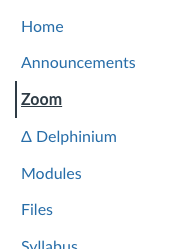
Go to Zoom in the tools navigation
Select the Cloud Recordings tab in the navigation
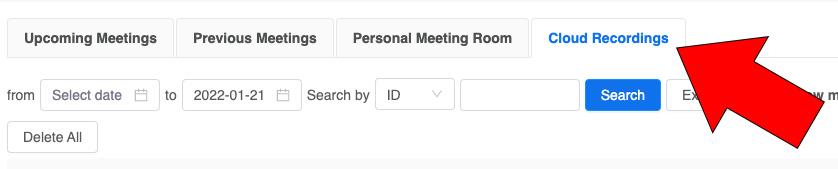
Toggle the Publish bar to On

Students will access the recordings by coming to the course Zoom link and clicking on the Cloud Recordings tab. They will only see videos that have been published.
Note: Zoom recordings can be backed up in My Media if you would prefer to publish them from there. Email chris.clement@usu.edu with your A number and desire to opt-in to have Zoom cloud recordings sent to your My Media account.