
Zoom Room Wireless Laptop Connection
When Zoom Rooms equipment is installed in a classroom, use the following steps to share your laptop depending on whether you have the Zoom application installed on your laptop or not. You need to be connected to the university Eduroam or Guest networks for these instructions to work.
Zoom Workplace App Installed
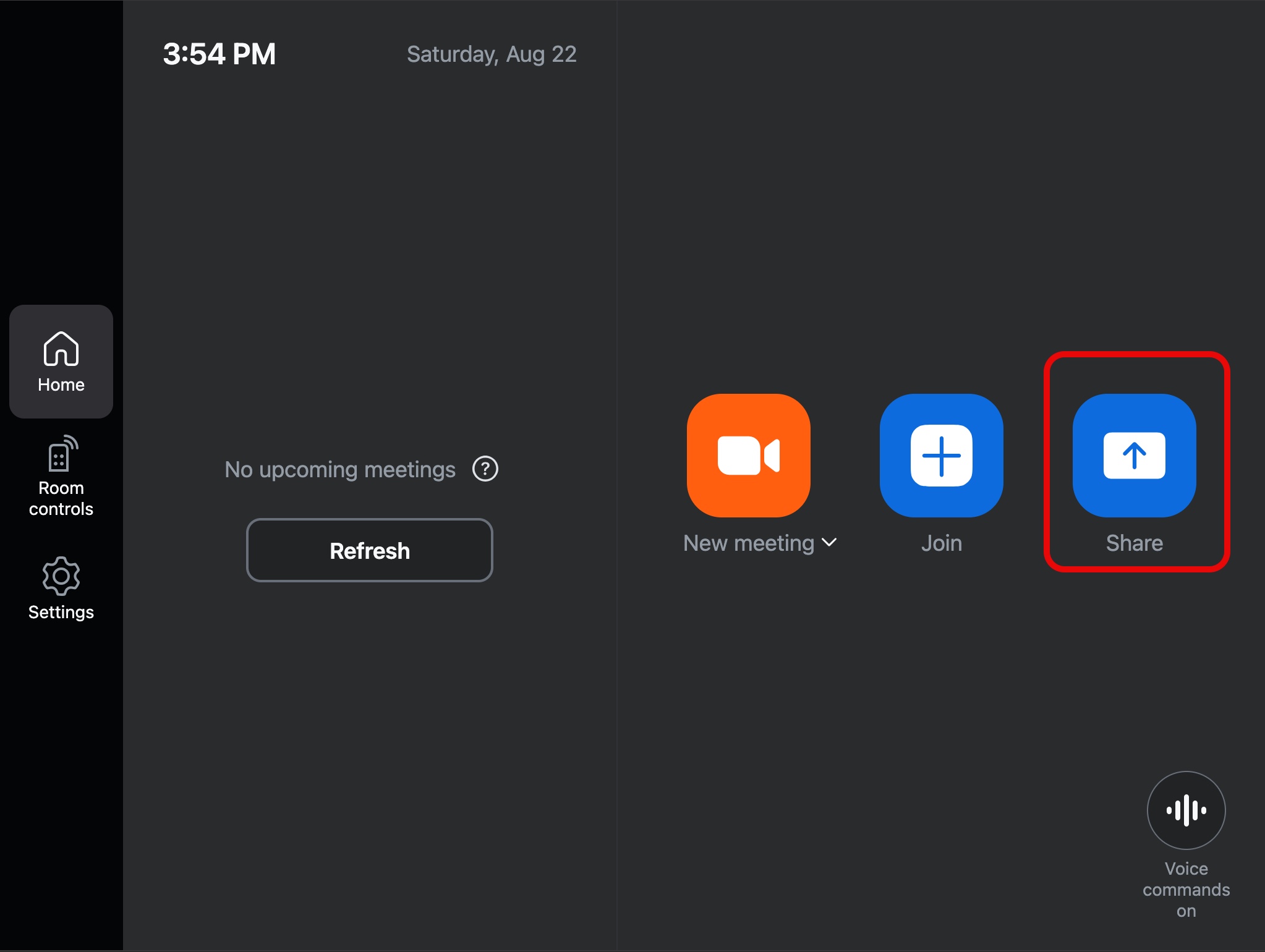
On the room touch panel: tap on the Share button
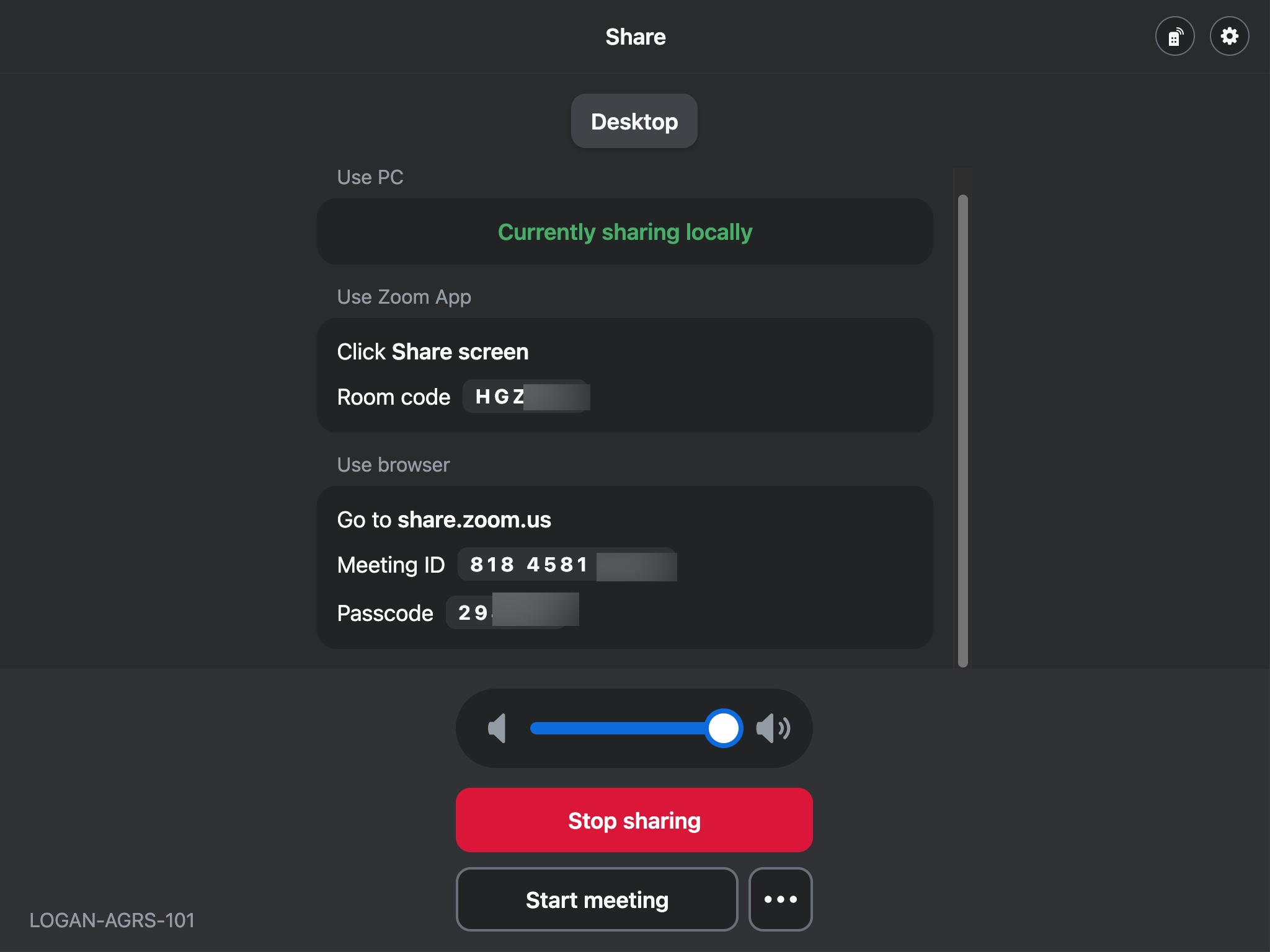
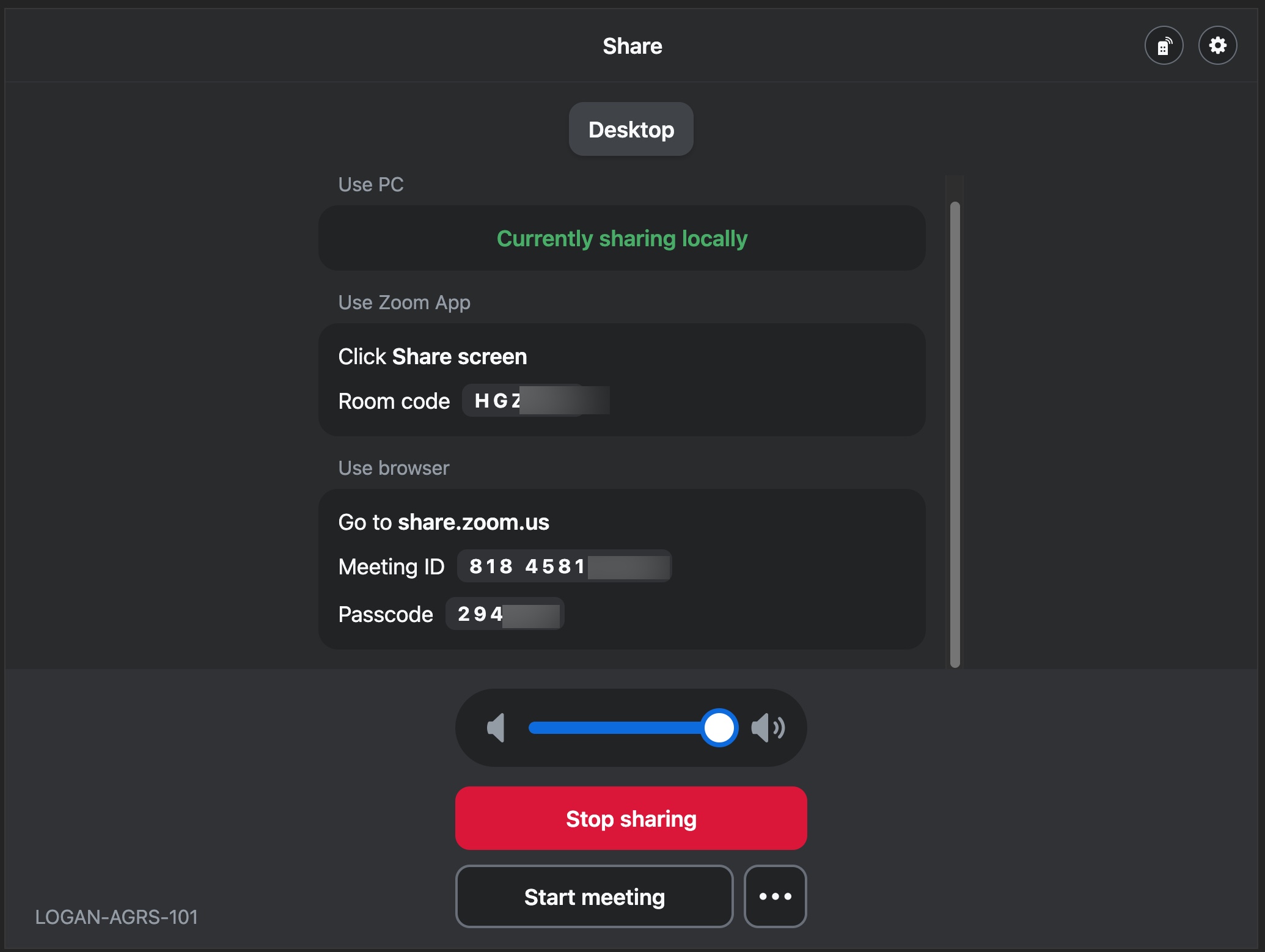
On the touch panel: you will see some instructions
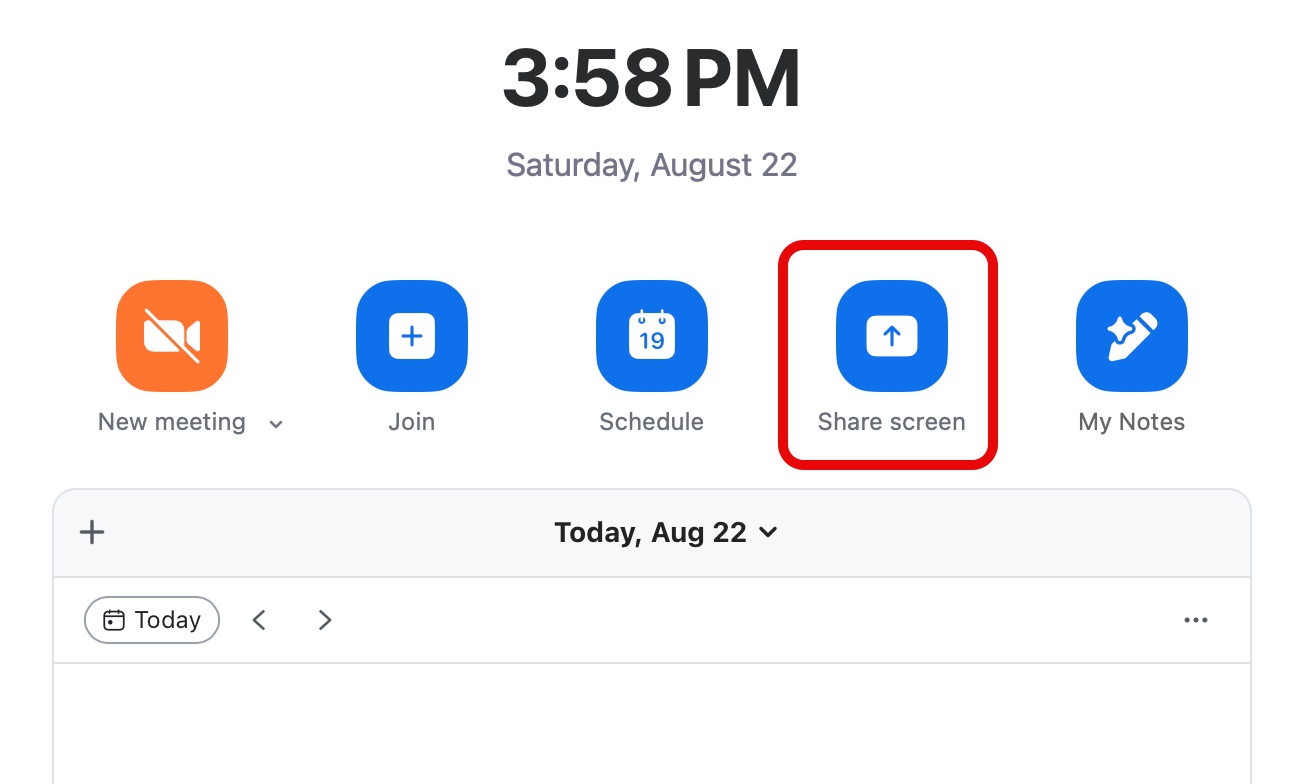
On your laptop: open the Zoom app and tap Share screen
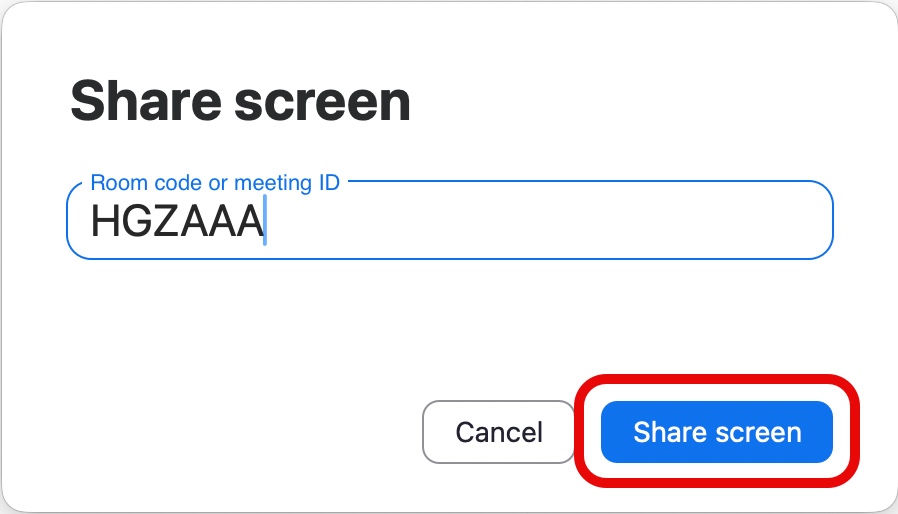
On your laptop: type in the room code from the touch panel, then click Share screen
On your laptop: select the content you want to share
You can choose to share your full screen, a certain window, or a portion of the screen.
On the touch panel: Tap Stop sharing when finished
Zoom Workplace App Not Installed
On the room touch panel: tap on the Share button
On the touch panel: you will see some instructions
On your laptop: open a web browser (i.e. Chrome, Safari, Firefox) and go to https://share.zoom.us
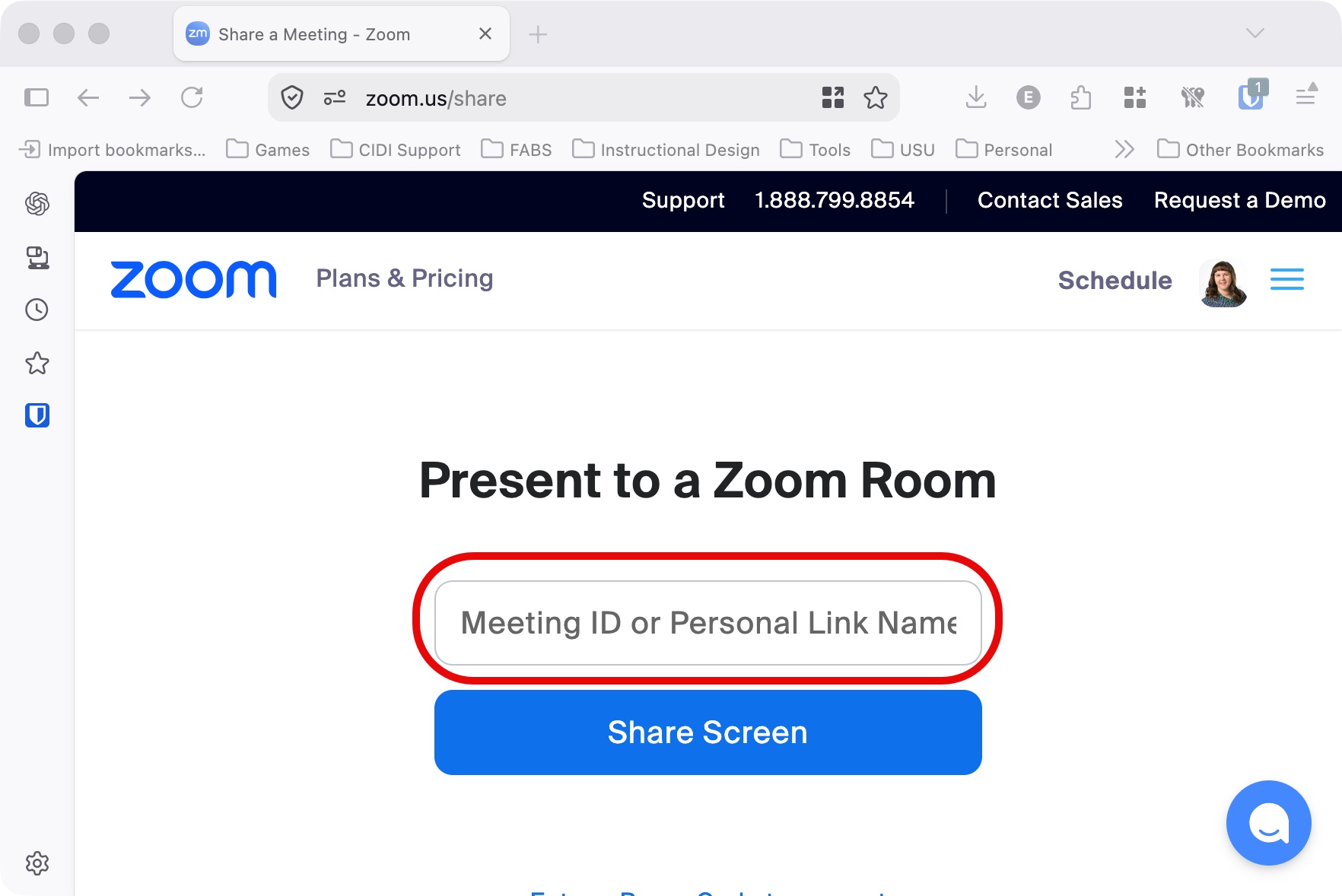
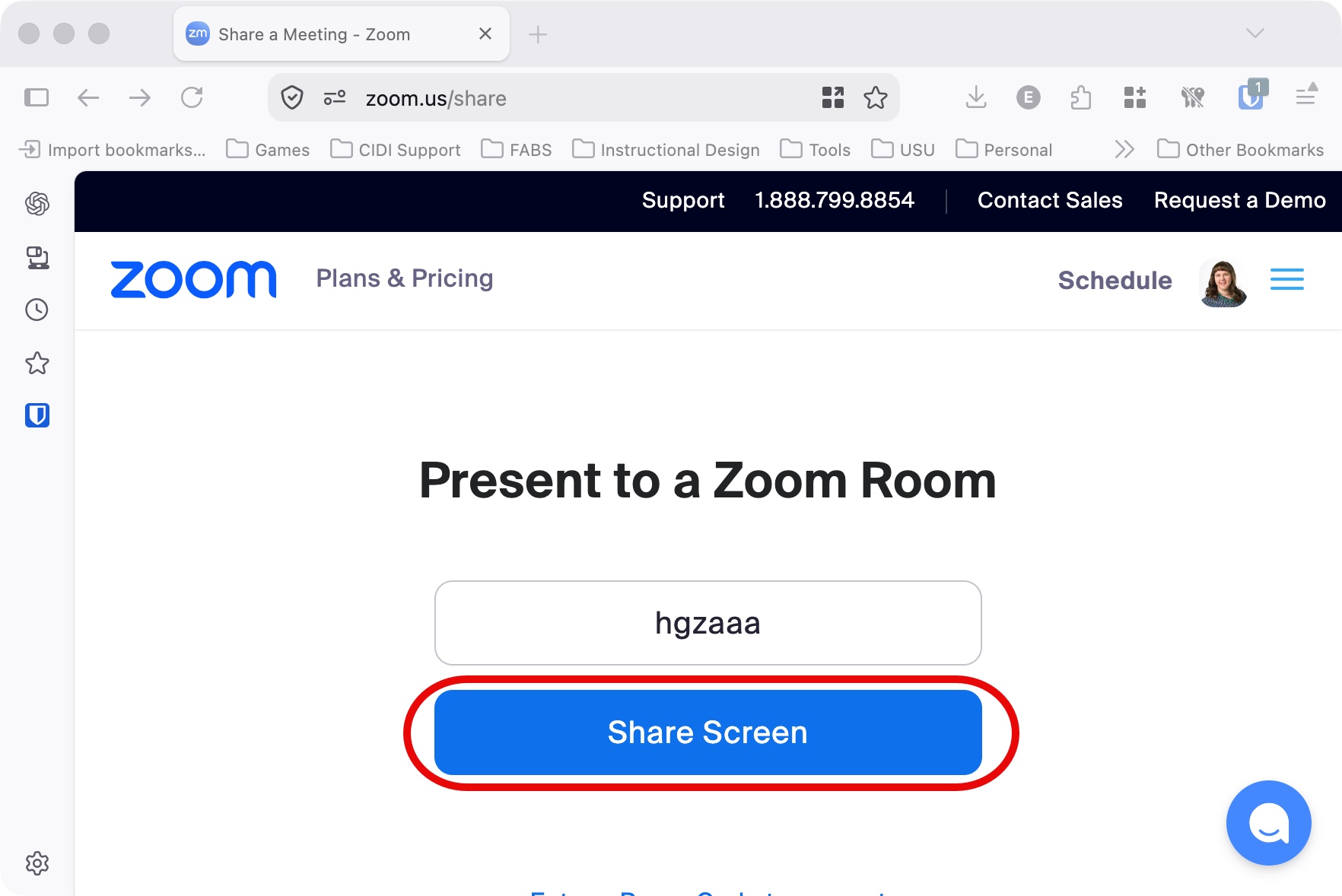
On your laptop: type in the room code from the touch panel, then click Share screen
On your laptop: select the content you want to share
You can choose to share your full screen, a certain window, or a portion of the screen.
On the touch panel: Tap Stop sharing when finished