
Assign MyMedia Video to Another User
To assign (re-assign) a video within your MyMedia to a different user (likely from one instructor to another instructor), do the following:
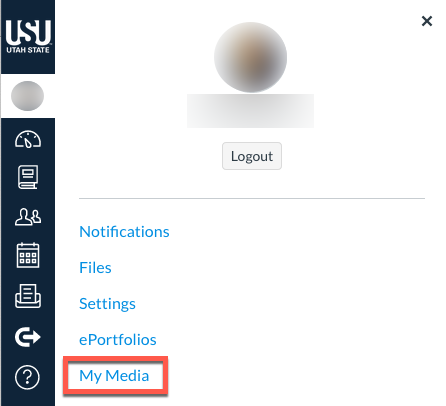
Access MyMedia by clicking on the user icon in Canvas, then clicking on My Media from the menu
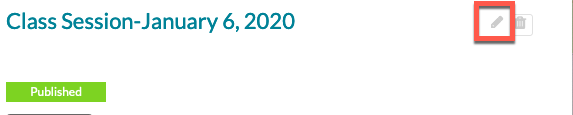
Click on the pencil icon next to the name of the video you want to assign (re-assign) to someone else
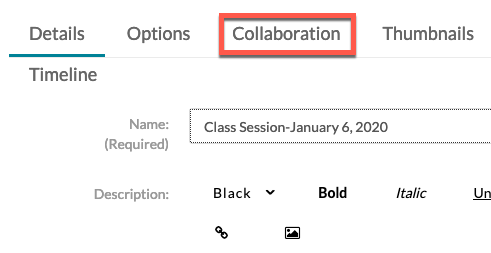
Click on the Collaboration tab
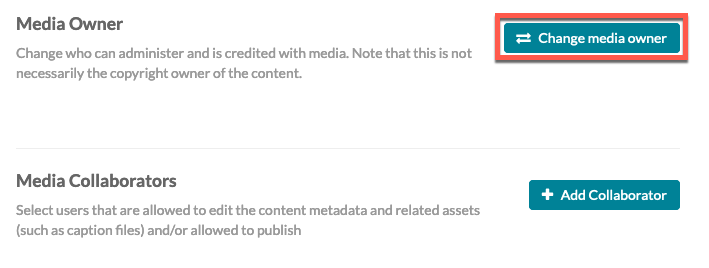
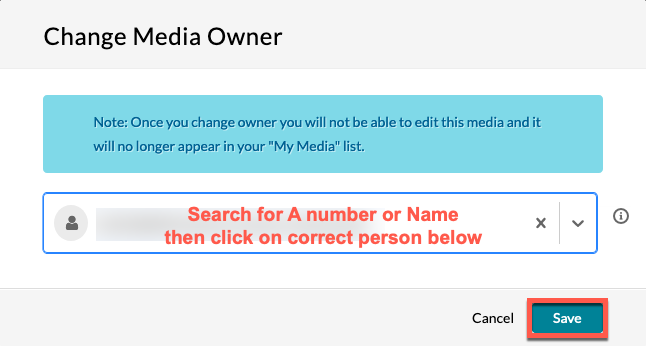
Click on the Change media owner button
Do a search for the A-number or name of the person to whom you want to reassign the video
When the name appears below the search bar, click on the person's name
Then, click on the Save button
You will be able to reassign the video to the person the following day.
The video will disappear from your list and appear on the other user's list
If you want to share the video with the other user, see Share MyMedia Video Permissions with Another User