
Embed Playlist in Canvas Page
After you create a video playlist, you are ready to embed it into a Canvas page.
Go to the Media Gallery in your Canvas course
If you created the playlist in a different course, you will need to go back to the course where you originallly created the playlist to find it.
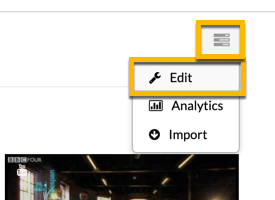
Click on the Channel Actions button and select Edit from the drop-down menu
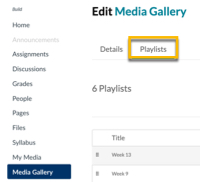
Click on the Playlists tab
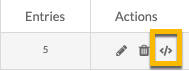
Next to the title of the playlist you want to embed, click on the embed icon in the Actions column
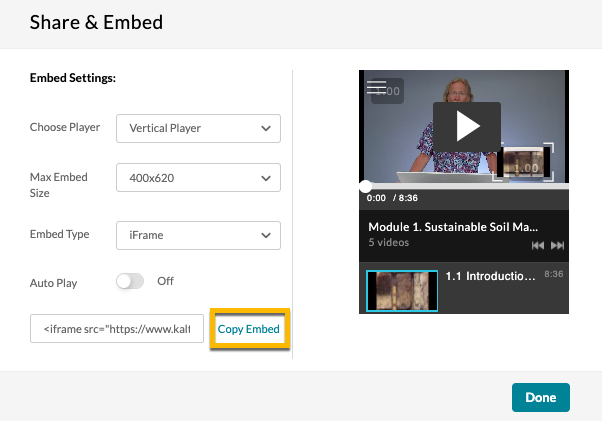
A new window will pop-up. First, select the display you prefer (either horizontal or vertical), then click Copy Embed
This will copy the embed code to your computer's clipboard so that you are ready to paste it
Click Done
Navigate to the location (page, assignment, announcement, etc.) in your Canvas course where you want the playlist to appear and edit the description of that item
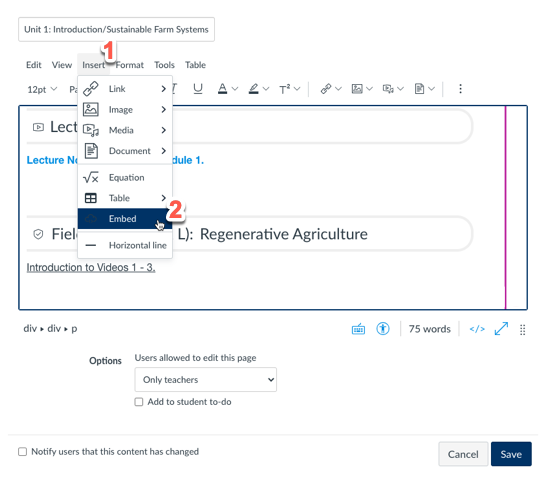
With your cursor in the location where you want the playlist to appear, click on the Insert menu, then click on Embed
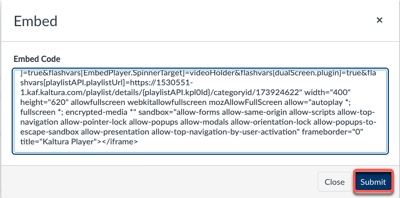
Paste (ctrl+v on PC or command+v on Mac) the embed code that you copied in step 5 above
Then, click on the Submit button
The playlist will appear on the page
You can continue to edit the content or Save the changes