
Share Screen Recording in a Discussion
You may want to participate in some of your students discussions by embedding a video into the forum.
To do so, follow these steps:
On the Discussion page, click Reply
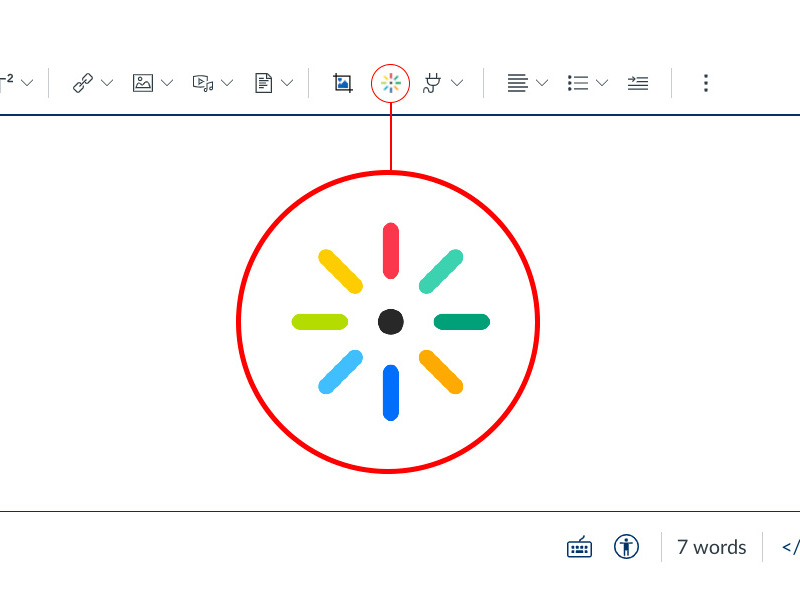
Click the Embed Media icon
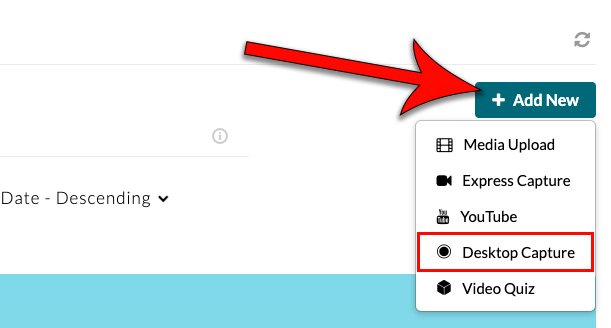
Click the Add New dropdown menu, then select Desktop Capture
If your desktop does not yet have Kaltura Capture installed, download the application by clicking on either Download for Windows or Download for Mac. After it downloads, install the software. Once you have completed that, return to step 1.
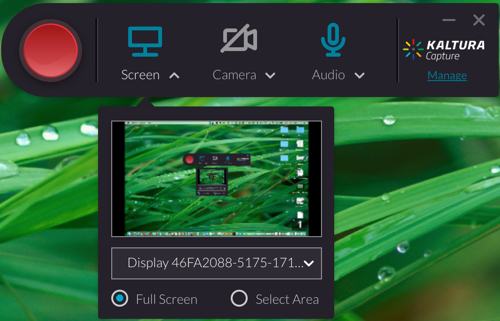
Choose the desired inputs for recording
Each tool has a drop-down option to select which source you would like to record from. If the icon of the tool is blue, it will record that source. If you don't want to record a source, click on it and it will appear gray with a line through it.
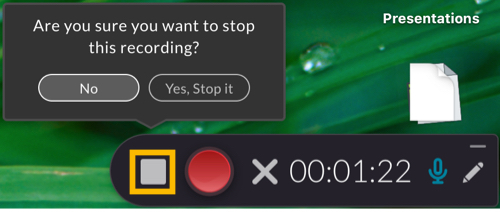
Click on the red circle to begin recording, then click on the white square when you are finished recording
Mind the White Square: Click the white square to stop the recording. If you would like to temporarily pause your video, click on the red circle again.
Review your video, fill in the information, then click Save and Upload

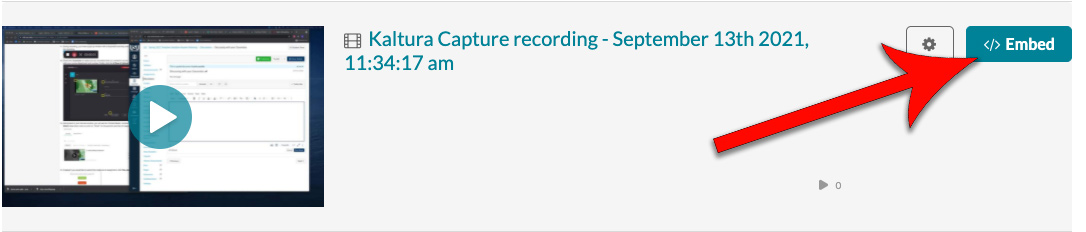
Return to Canvas, locate your new video, then click Embed
If your video doesn't appear in the Embed Kaltura Media window, refresh the page and try again.
Add introductory text, then click Post Reply