
Kaltura Viewing Tips—New Player
As of September 1, 2023 Utah State University updated the video player interface along with some of the settings. If the video you are watching doesn't quite look like the example below, see the viewing tips for the old video player.
Overview
The new My Media video player provides an improved viewing experience and provides a number of features to help students take full advantage of your video content.
If you are still using the old My Media player (see examples below), you can re-embed your videos or contact CIDI for help.
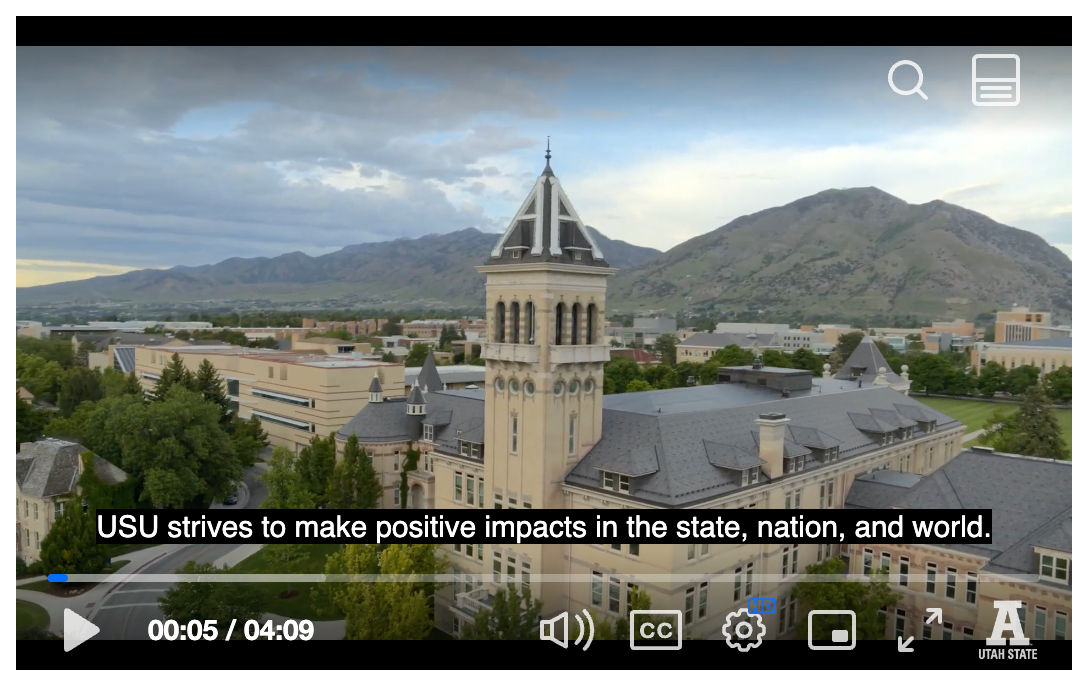
Below demonstrates the difference between the old and new video player. With the old player there is a grey bar at the bottom with available setting options, where the new player lacks this color overlay. The new player offers additional setting options and functionality.
Old Player

New Player
General Features
The new video player has a lot of available features to customize the watching experience. These include options to: change the video layout, download the video, adjust the playback speed, and accessing various accessibility features, like captions and a video transcript.
Change the Video Layout
Change the video layout according to your preferences.
Enlarge Video
If you recorded dual stream video, meaning that you took a recording of the screen of your computer as well as a recording with your camera, the default view is to have them side-by-side. The user can switch to a larger view of one or the other and switch which stream is the focus. While in picture-in-picture viewing mode, the user can drag the smaller window around the screen to see anything that might be under it or position it more conveniently.


Swap Enlarged Video
After you have selected one of the videos to enlarge, you can swap which video is the 'primary' video by clicking on the left-and-right arrow icon found in the top-right corner of the secondary video.


Move the Video Position
If the secondary video is covering content of the primary video, you can click and drag video to a different corner of the screen.


Return to the Side-by-Side View
You can return the view to its default side-by-side setting by clicking on the expand icon in the secondary video.


Make Video Full Screen
You can make the video take up your entire screen by clicking on the full screen icon in the settings bar.

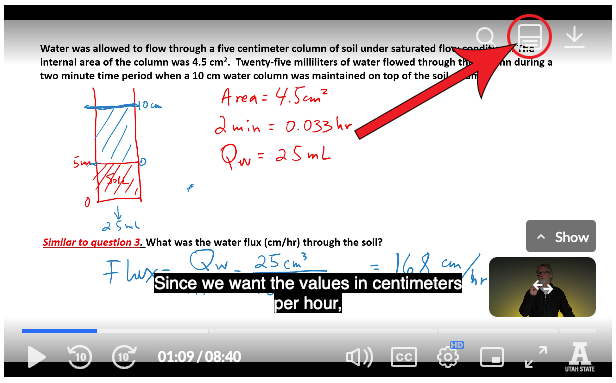
Hide Secondary Video
If you would like to hide the display of a video, first you will need to enlarge the desired video. Then, you will click on the Hide button found directly above the secondary video as shown in the image. To return the video back to its normal display, simply click Show found directly above the mini thumbnail.
This feature works best if the user makes the video full screen. If you are watching the video on a Canvas web page, the Hide/Show feature doesn't make much difference.


Pin the Player to Screen
This will put the video player on your screen, allowing you to navigate around while the video plays on the side. See the image below for an example (right).
When the video is pinned to your screen, you can move its position by clicking and dragging it to another location so that you can access whatever it may be covering.


Download Video
When the video is embedded, the instructor can enable the option for viewers to download the video. With downloading enabled viewers will see the download icon on the viewer window.

Adjusting Playback Speed
To adjust the playback speed, click on the video settings, expand the Speed dropdown, and select between 0.5, Normal, 1.5, or 2.


Accessibility Features
In addition to the general features, the new video player has accessibility features that can be helpful to use as a tool of understanding and even a tool for studying.
Closed Captions
The videos that use the new video player will have machine captions included on the video. If your videos don’t already have captions or you are interested in professional captions, follow the instructions on adding captions to Canvas videos.
When your videos have captions, there are some great new features available for students. Once captions are added to the video they are off by default, but a CC button will appear at the bottom of the player that can be used to turn them on.

Transcript
In the top right corner of the player, there is a “Transcript” button that students can click on to read along with a transcript while watching the video.
From the transcript view, students can easily scroll through the text or search for a specific word and click on a line to jump to that section of the video. This allows students to quickly jump to segments of course videos for review or easy returning to the middle of a lecture.
Students can also click the three dots next to the search bar to download a text file (.txt) of the transcript.

Troubleshooting
If you have problems viewing video, check out the list of supported devices and browsers. iPhone users might want to download the Kaltura KMS Go app.