Record an HDMI Source (Laptop or Document Camera) for Lecture Capture in a USU Classroom
You may want to use a laptop, tablet, or document camera while teaching your class. In order to record the screen or output of that device, you'll need to select the capture source on the classroom touch panel. See appropriate section below for the classroom from which you are recording.
Tip: If you are using a tablet, the tablet will need to be plugged in to the instructor podium using an HDMI cable. (AirMedia may be an option in some classrooms.)
General Classrooms
1
On the touch panel, select the source you are trying to share
2
The desired source should now show up on the Kaltura Classroom
General Connect Classrooms
1
On the touch panel, select Share
2
Select the source you are trying to share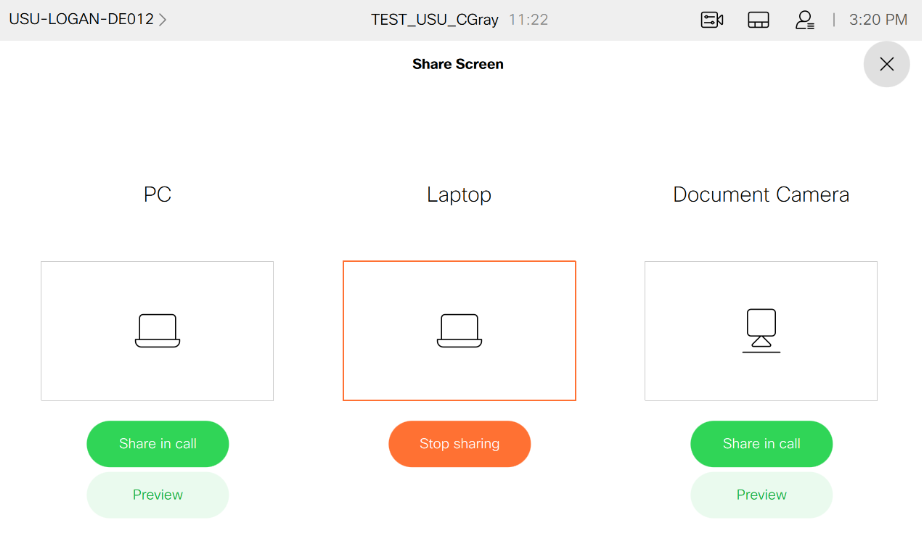
3
The desired source should now show up on the Kaltura Classroom
Huntsman Hall Building
1
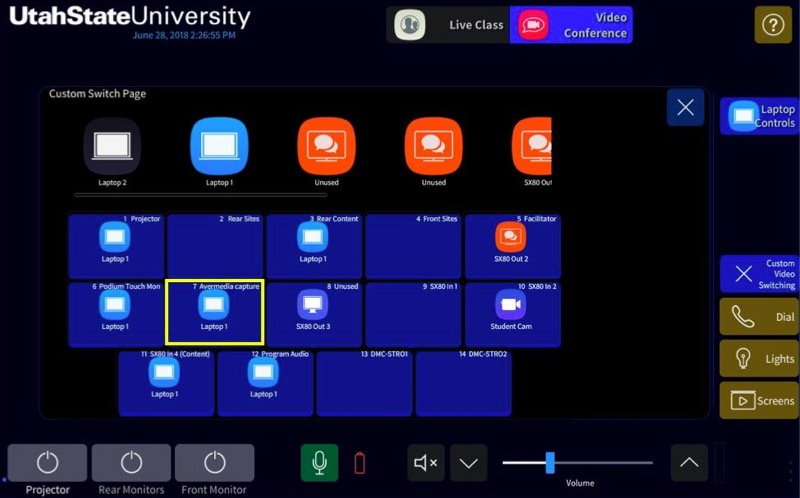
Open Custom Layouts
2
Go to the Custom Video Switch page
3
Drag the source that needs to be recorded into the “PC Capture/Prog Audio” or “Avermedia Capture” place holders