
Share Video Permissions with Another Instructor
My Media allows you to share editing, publishing, or viewing rights on a video to a different user (likely with another instructor). Below are the instructions how to do so.
If you would like to reassign the video to another user altogether, visit Assign MyMedia Video to Another User.
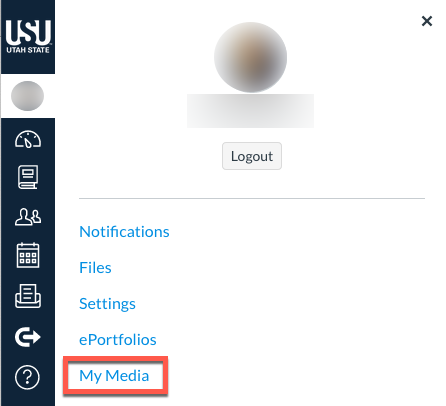
Navigate to My Media
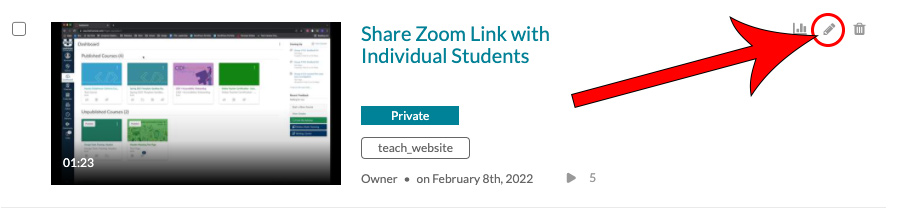
Click on the pencil icon next to the name of the video you want to assign (re-assign) to someone else
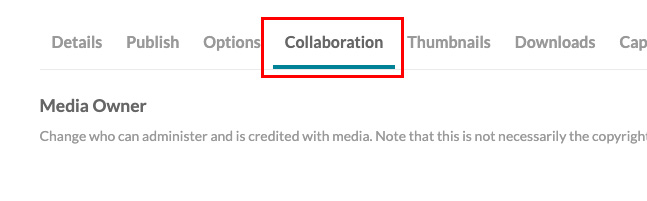
Click on the Collaboration tab
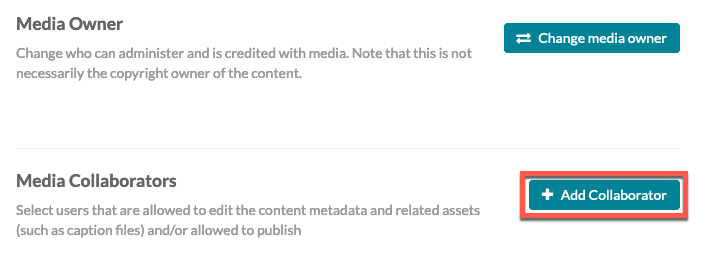
Select Add Collaborator
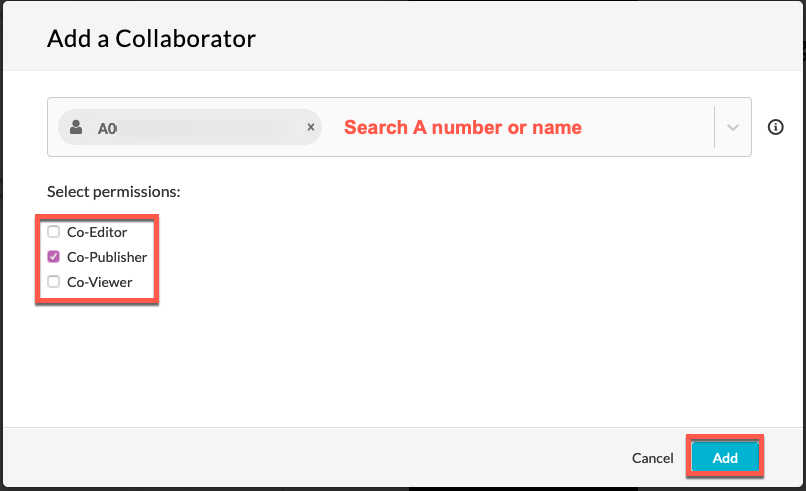
Search the person's A-Number, then click on the their name as it appears
If the user does not show up with an A-number or name search, he or she will need to go to My Media and click on the Guest link then login with A-number and strong password.
You will be able to reassign the video to the person the following day.
Select the permissions you would like to assign, then click Add
Co-Editor: Can make edits and view the analytics of the media. They cannot delete the media nor can they add additional collaborators.
Co-Publisher: Can adjust the publishing settings of the media and can publish the media to any of their course's Media Gallery if so desired.
Co-Viewer: Can only view the media and do not have editing or publishing permissions.
The video will appear on the other user's list and they will be able to edit, publish, or view the video based on the permissions selected