
Embed a Video in a Canvas Announcement
To embed a video recording in a Canvas announcement, follow these instructions:
1
Navigate to Announcements, then click + New Announcement
2
Add a descriptive topic title
3
Click the Embed Kaltura Media icon in the toolbar
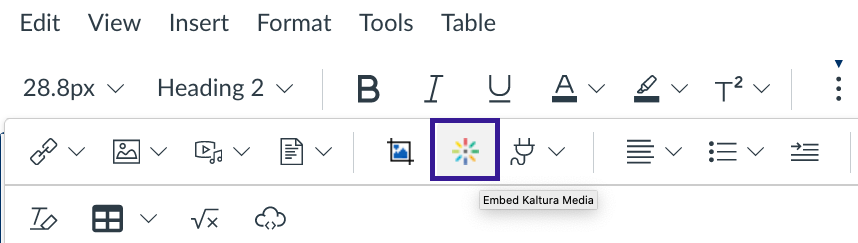
Depending on your browser or window size, the icon could be on the second row of options, which you can access by clicking the
icon
4
Select the desired video and click Embed OR record a new video
See Embed Media with Downloadable Player for instructions on how to allow students to download the video.
Note: It will take some time for the video to process, depending on the length of the video. To ensure the video is viewable to students as soon as the announcement is posted, create the video from the MyMedia page, then follow the instructions in "a" above.

5
Select the desired announcement options
Students will have to view the video within the Canvas course—they won't be able to see it in the message that is forwarded through their preferred notification method—so it is a good idea to add a note with reference to the video.
6
Click Save