Accessing Quiz Analytics for Kaltura Video Quiz
The purpose of this page is to show you how to view video quiz results and see the status of the gradebook sync for Kaltura Video Quizzes in a Canvas course.
Navigate to the Canvas course.
Click "Media Gallery"
An illuminated light bulb.
Tip: If you haven't enabled the Media Gallery, do so by going to "Settings" then "Navigation" and dragging "Media Gallery" into the visible area in the course navigation. Be sure to save the change at the bottom of the page.
Click on the title of the video quiz.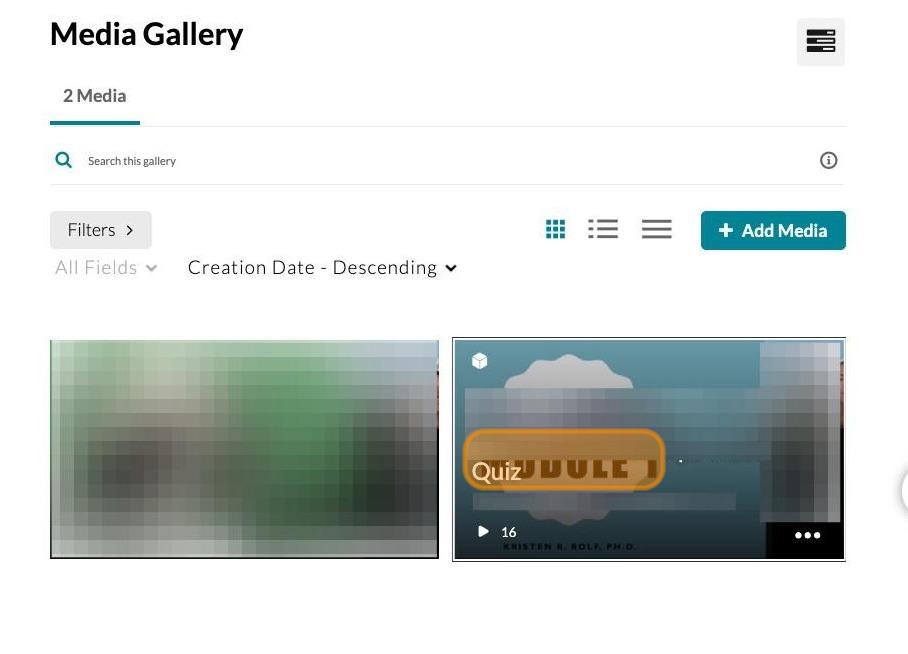
Click "Actions"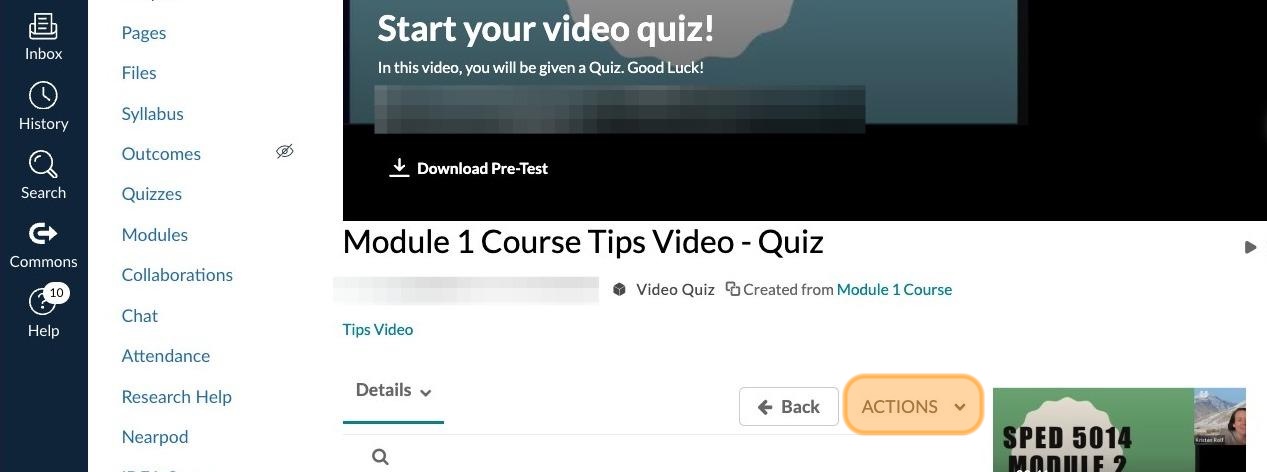
Click "Analytics"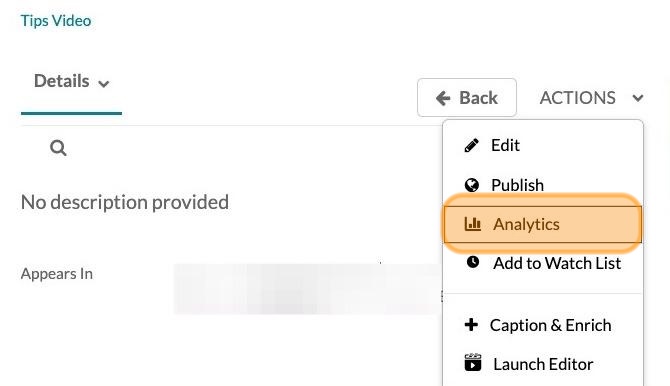
Click "Quiz Users"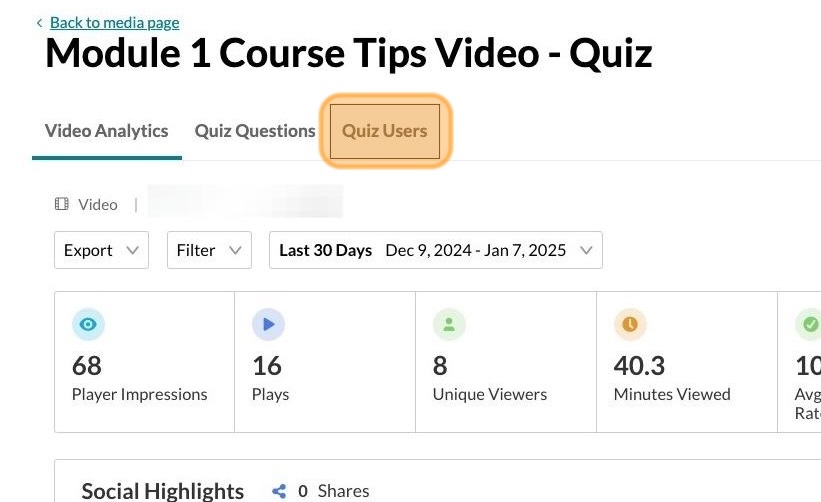
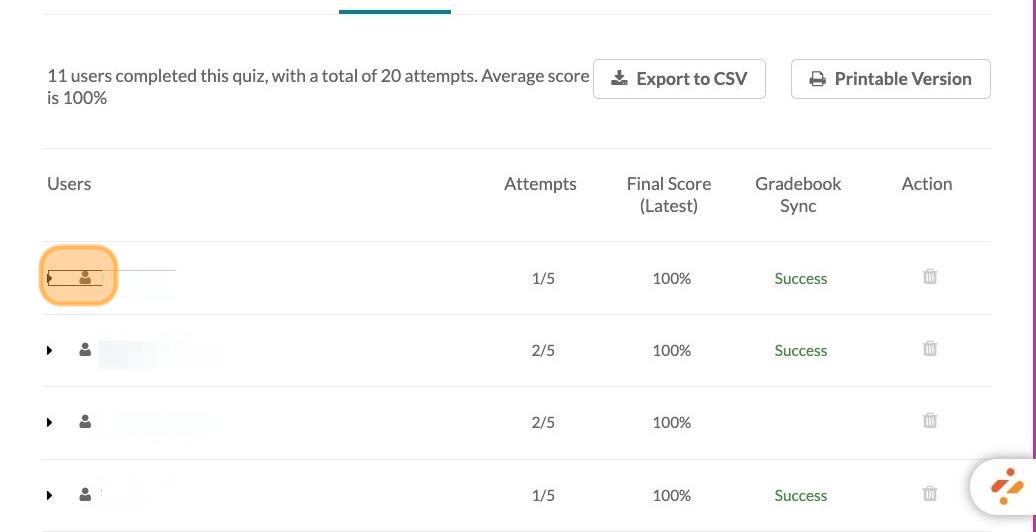
You will see a list of the students who have taken the quiz and the status of the gradebook sync.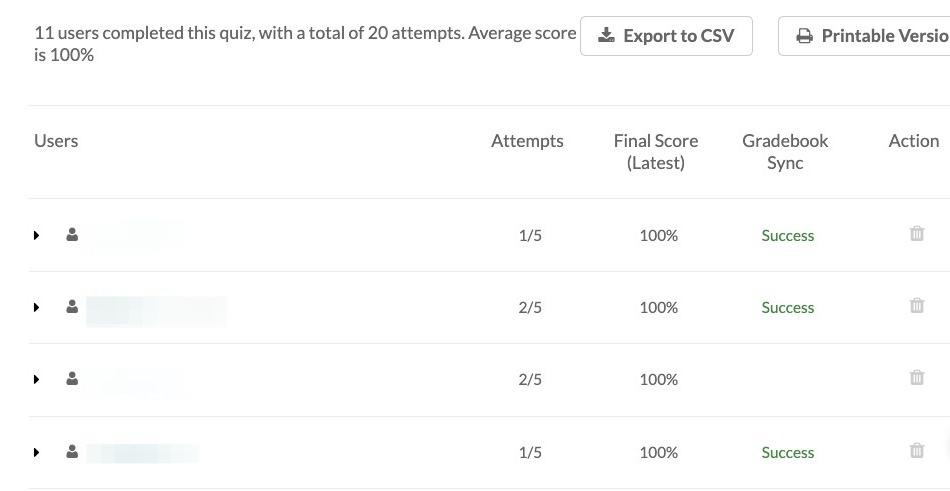
Clicking on the arrow next to a student name will give you more detail about the student's most recent quiz attempt.