
Choosing a Video Thumbnail
Tip: Thumbnail selection works for any video uploaded to My Media. Not only for Kaltura recordings, but Zoom recordings or other .mp4 files as well.
Selecting a Thumbnail Image
1
Navigate to mymedia.usu.edu and select the tab that says "MyMedia"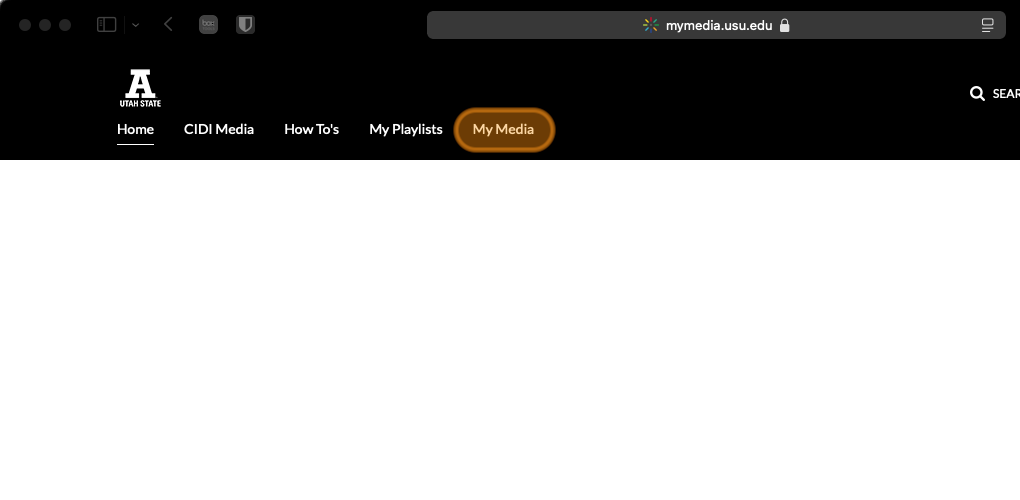
2
Select USU Login. Use your A# and university password to log in
3
Select the name of the video you wish to edit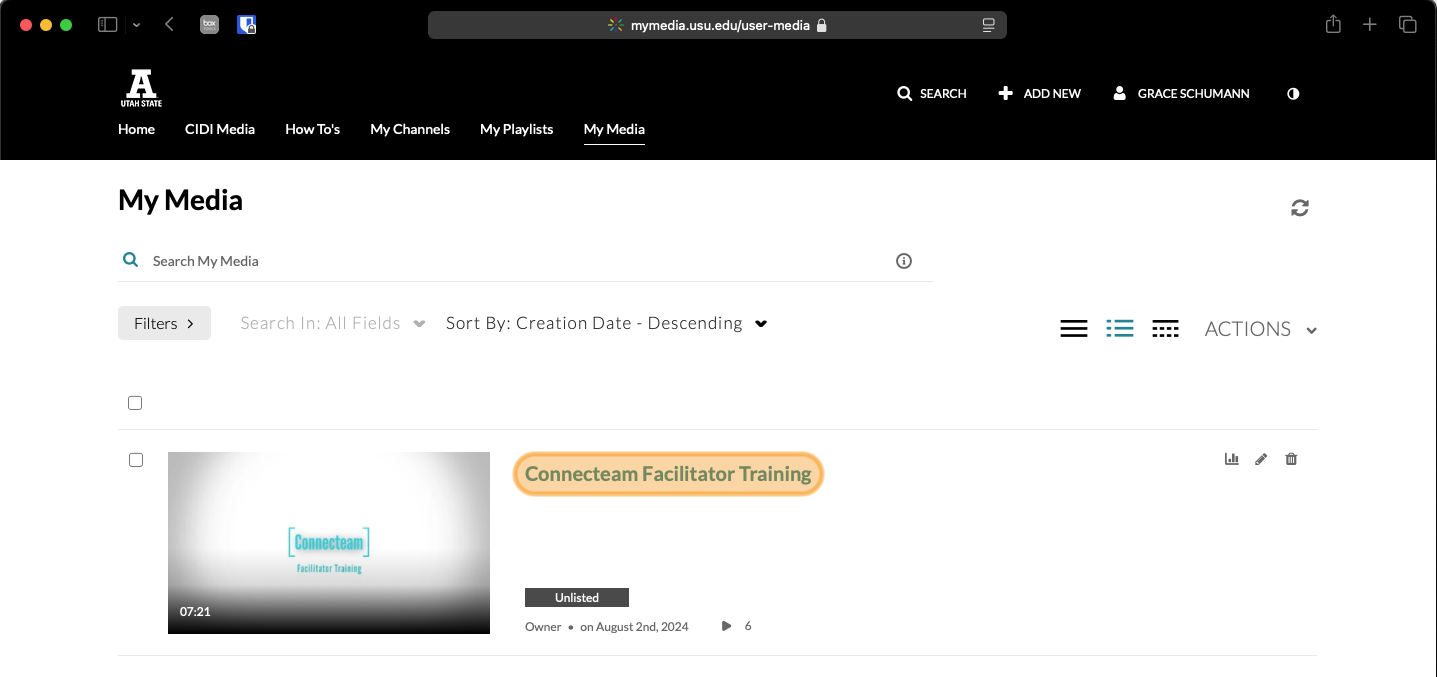
4
Select "Actions" then "Edit"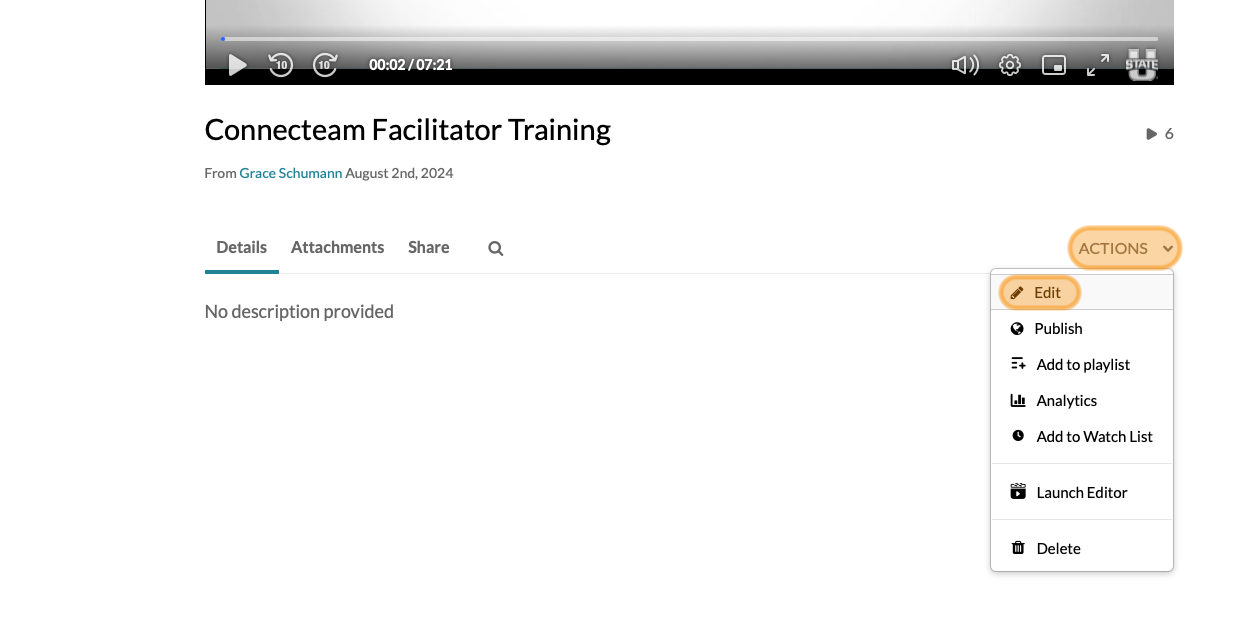
5
Select the "Thumbnails" tab
6
Play the video to find a useful frame
Then select the "Capture" button below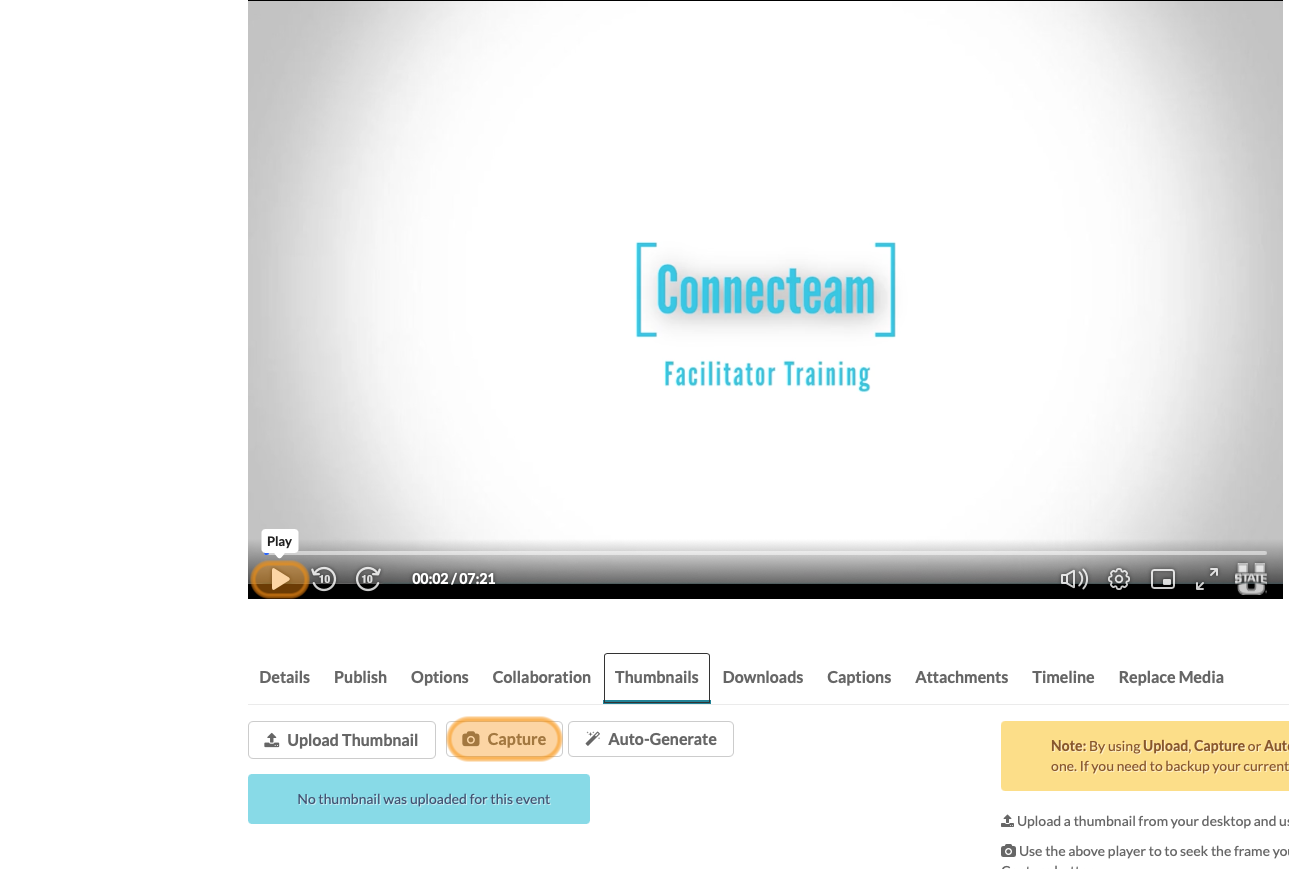
7
The new thumbnail is automatically saved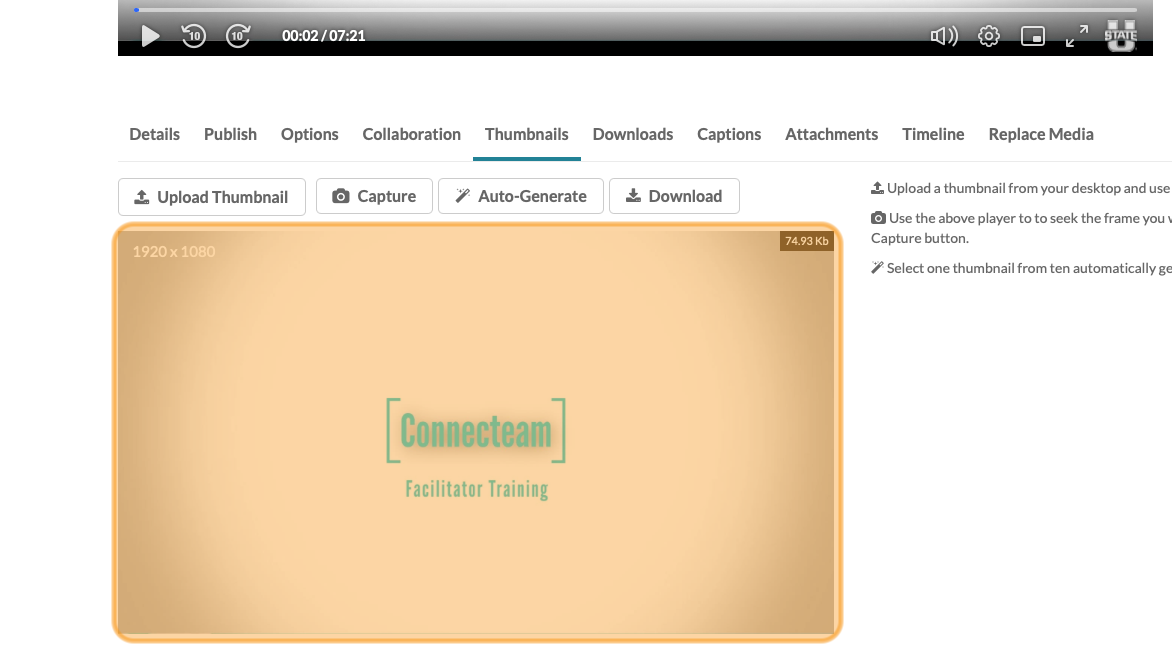
Automatically generated thumbnail images
1
Follow steps 1-5 in the directions above
2
At Step 6 select "Auto-Generate"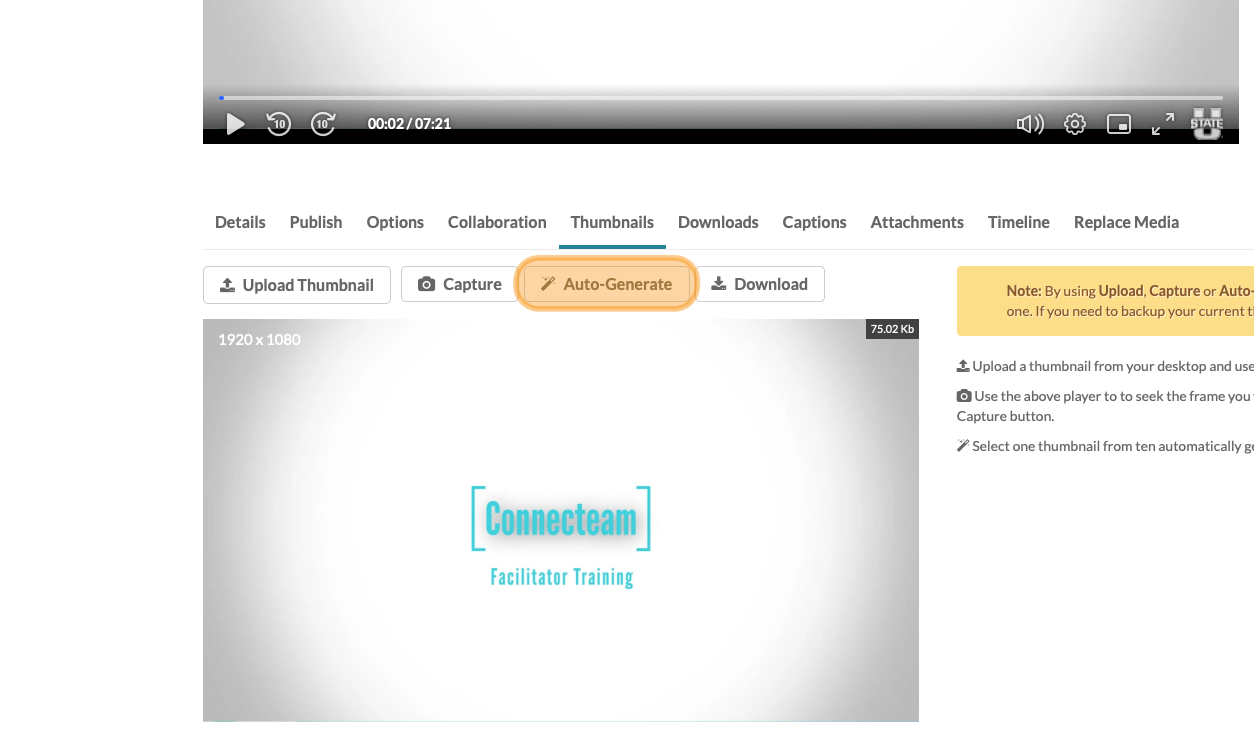
3
Pick an image from the list of automatically chosen frames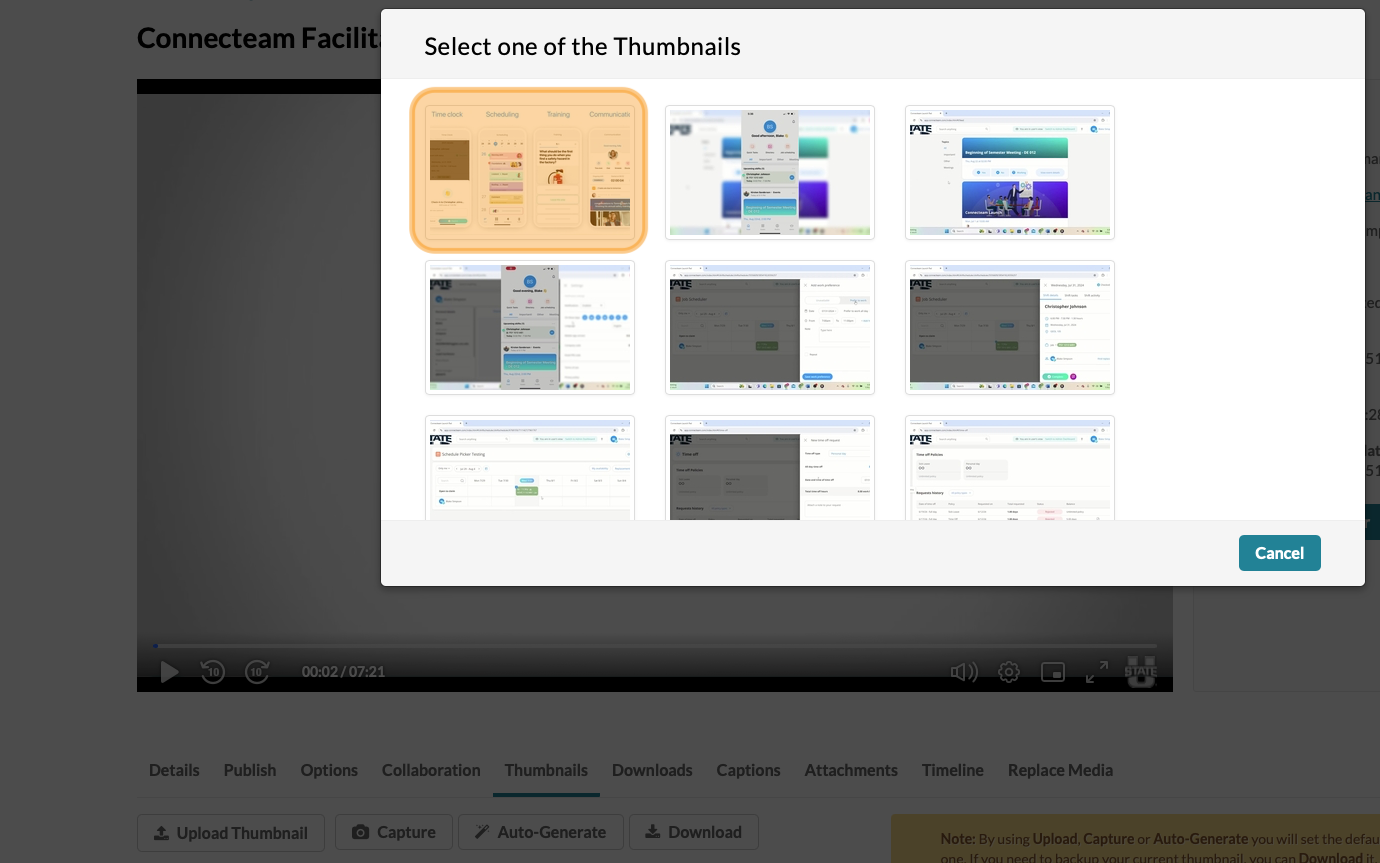
Manually upload a thumbnail image
1
You may manually upload an image to be used as your videos thumbnail.
Follow steps 1-5 detailed above.
2
Select "Upload Thumbnail"
3
Select your chosen image.
The image should have a 16:9 aspect ratio.