Assign Course Credit for IDEA Evaluation Completion
A good way to inventivize student completion of IDEA course evaluations is to provide credit (extra credit or required credit) for evaluation submission. USU provides a tool that allows teachers to do this. The steps for using this tool to create an assignment, link it to the IDEA system, and submit points for completion are described below.
Enable the IDEA Assignment Setup Tool
Go to your course in Canvas and click the Settings link in the left-hand navigation.
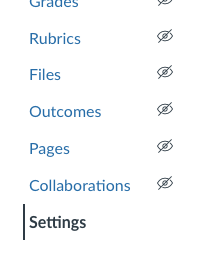
Click the Navigation tab.

Find Idea Assignment Setup in the list of navigation options. Click the three-dot menu that appears next to it and select "Enable."
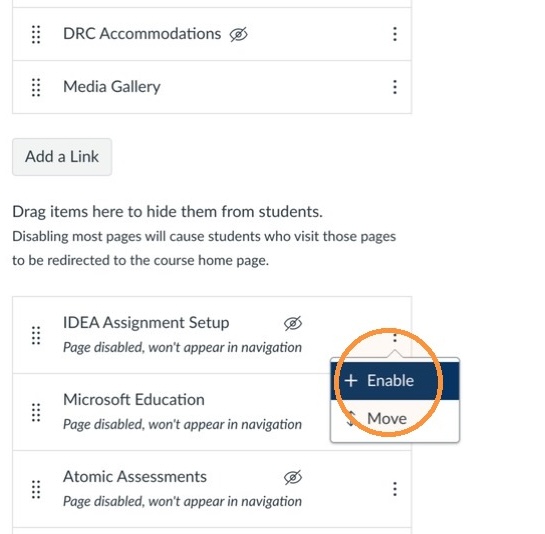
Be sure to save the course navigation changes.

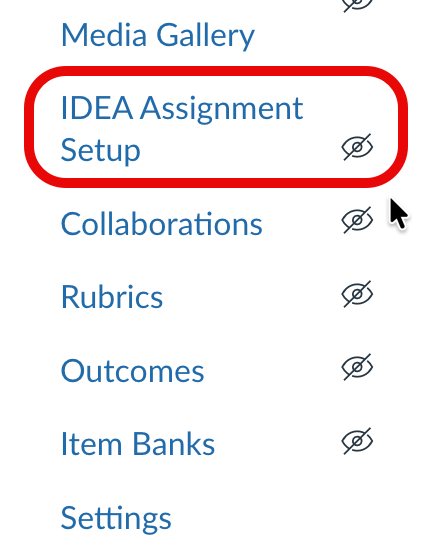
The IDEA Assignment Setup appears in the left navigation, visible to teachers and hidden from students.
Initial Canvas Assignment Setup
To select the assignment that will receive IDEA completion points, follow the steps below.
Click to open the IDEA Assignment Setup link in the course navigation.
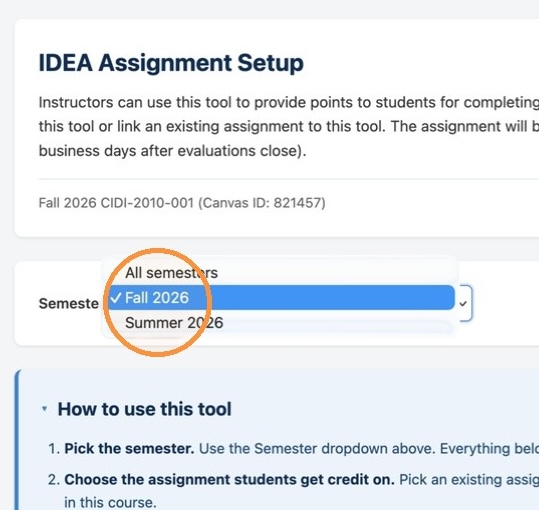
Make sure the correct semester is selected from the Semester drop-down menu.
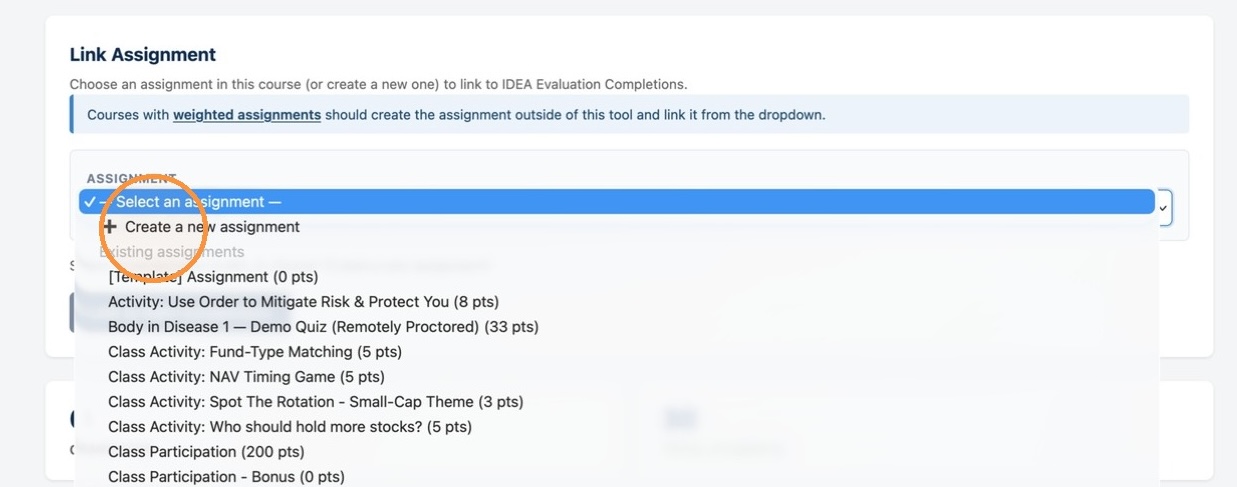
Select either an already existing assignment or create a new assignment from the setup tool.
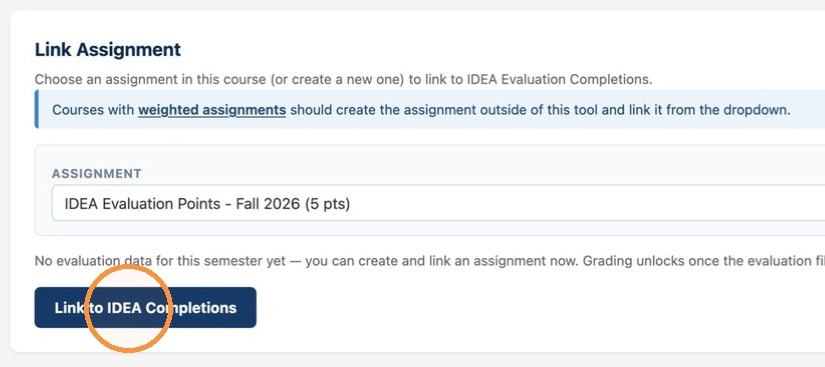
If you choose to select an existing assignment, the next step will be to click Link to IDEA Completions.
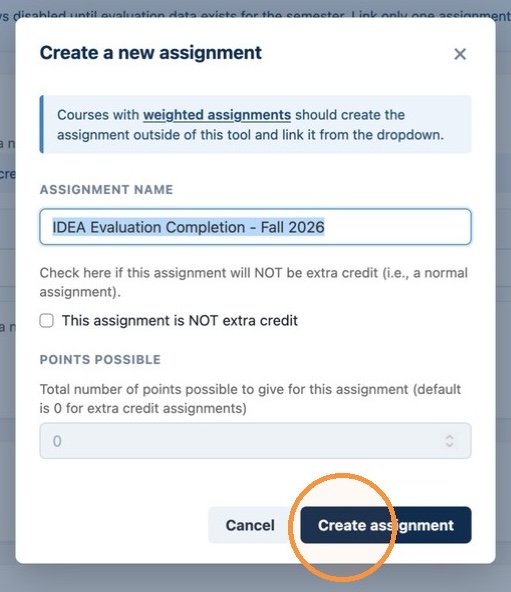
If you choose to create a new assignment, a dialogue appears for creating the new assignment. A name is automatically suggested, which you can edit.
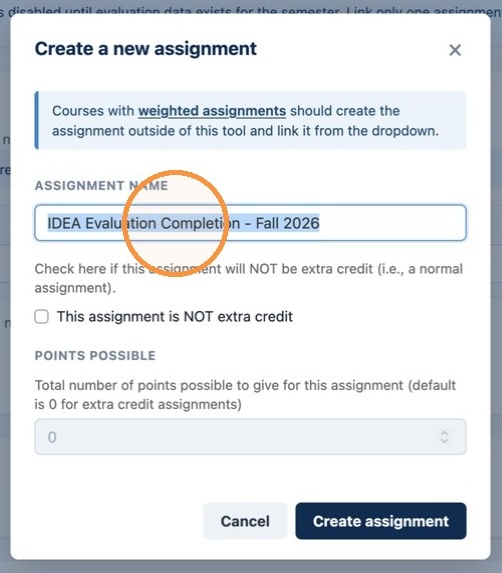
Click Create Assignment.
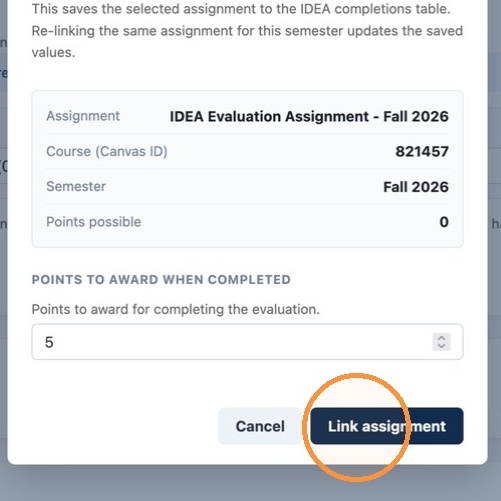
Enter the number points to award for completed IDEA evaluations and click Link Assignment.
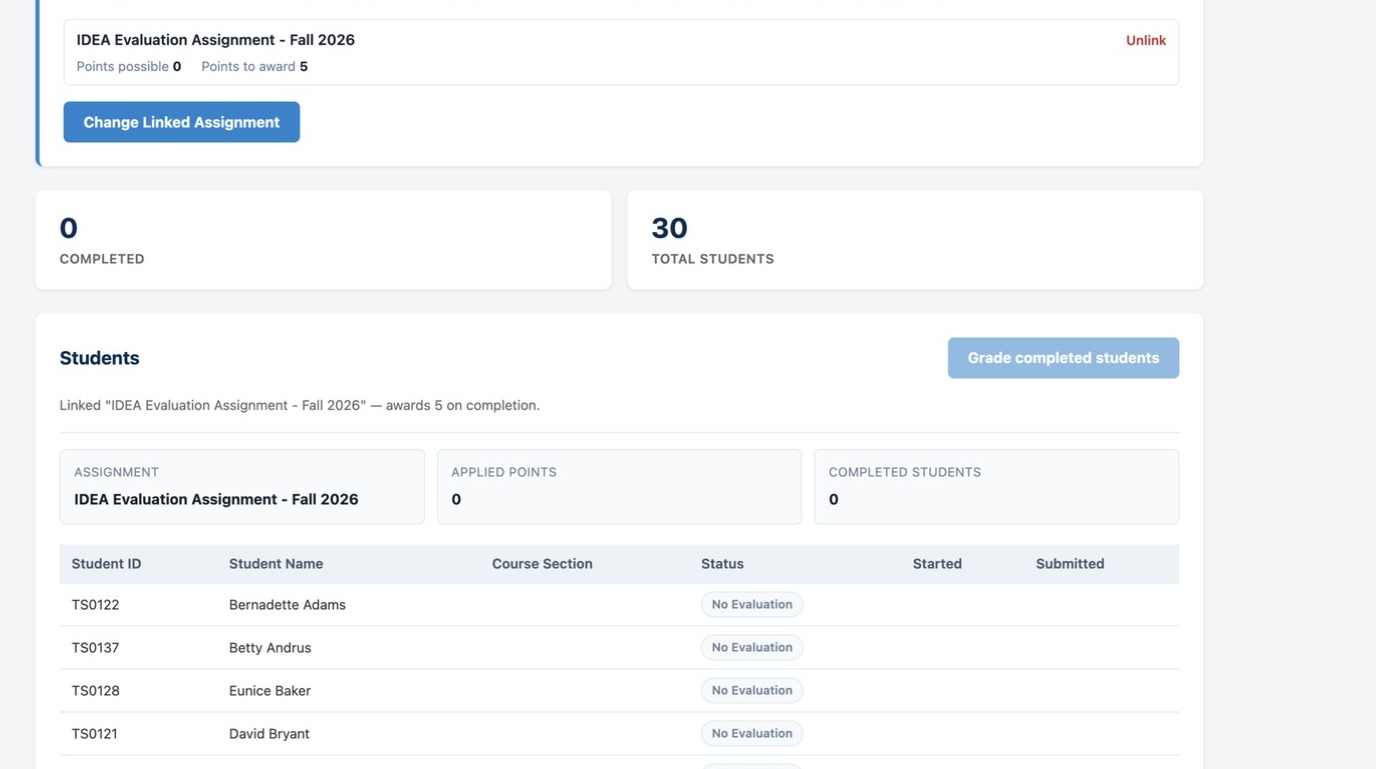
Confirm the assignment is linked.
Processing Grades After Evaluations are Submitted
To apply points for IDEA evaluation completion after the evaluation period has ended, complete the following steps.
Click to open the IDEA Assignment Setup link in the course navigation.
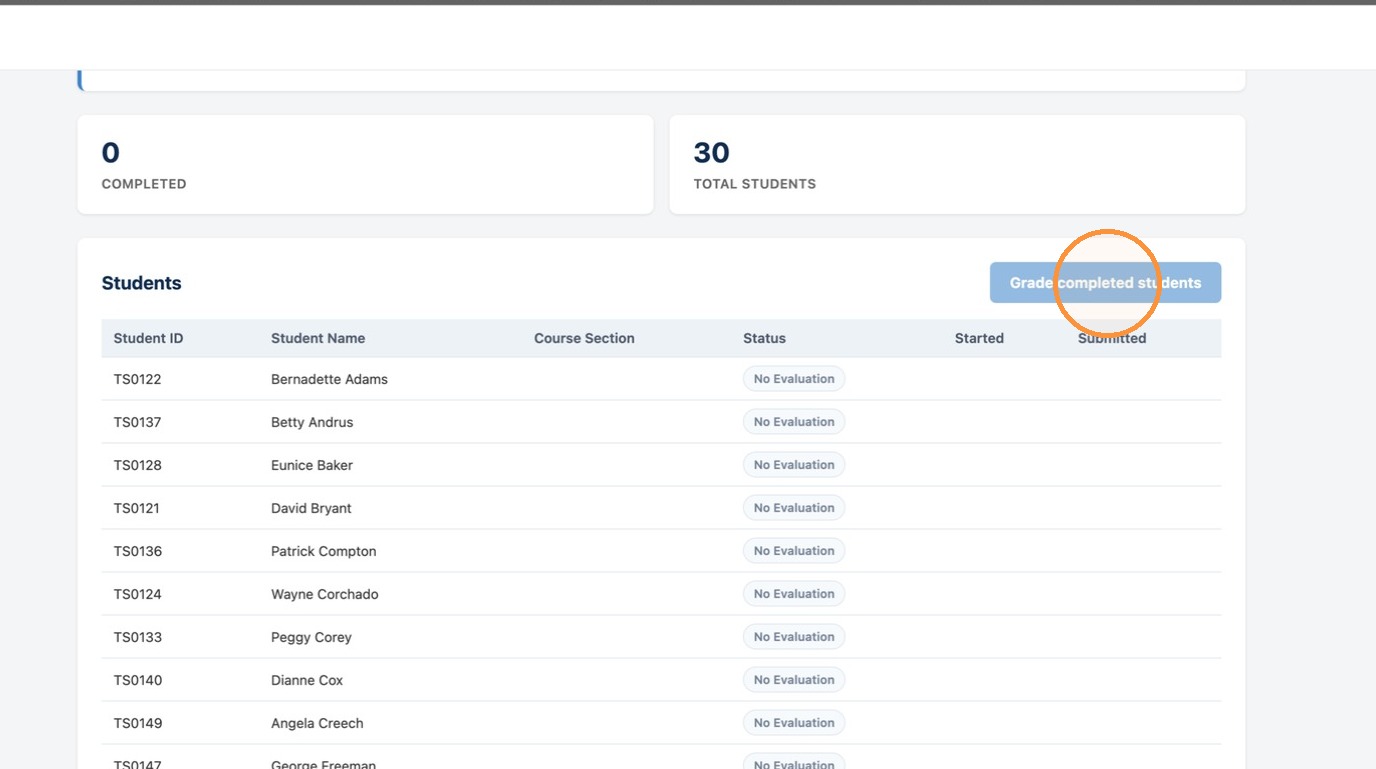
Scroll down to see a list of students who have completed their evaluations.
Click the Grade Completed Students button to submit completion scores to the linked assignment.
Assignment Unlinking and Replacing
If you made a mistake in setting up the assignment link, or otherwise choose to do something different, complete the following steps to unlink and/or replace an assignment.
Click to open the IDEA Assignment Setup link in the course navigation.
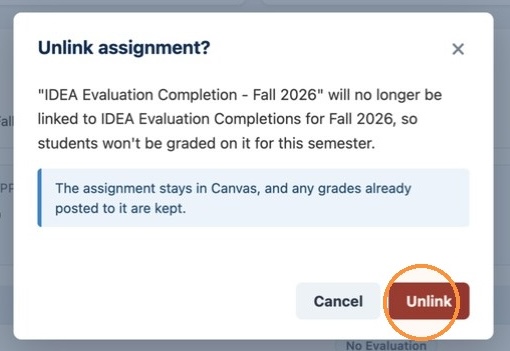
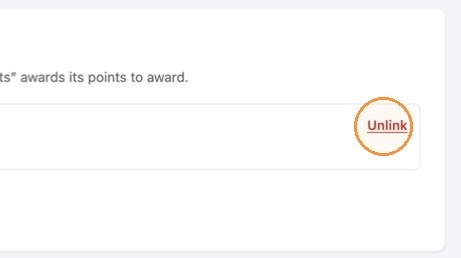
Click Unlink next to the assignment you had selected earlier.
Click the Unlink Assignment confirmation button.