
Adding Current Module Contents to Course Home Page with DesignPLUS
Step-by-step
Navigate to the homepage and click "Edit"
Open the DesignPLUS Sidebar using the Spaceship icon or by typing Alt/Option+Shift+D

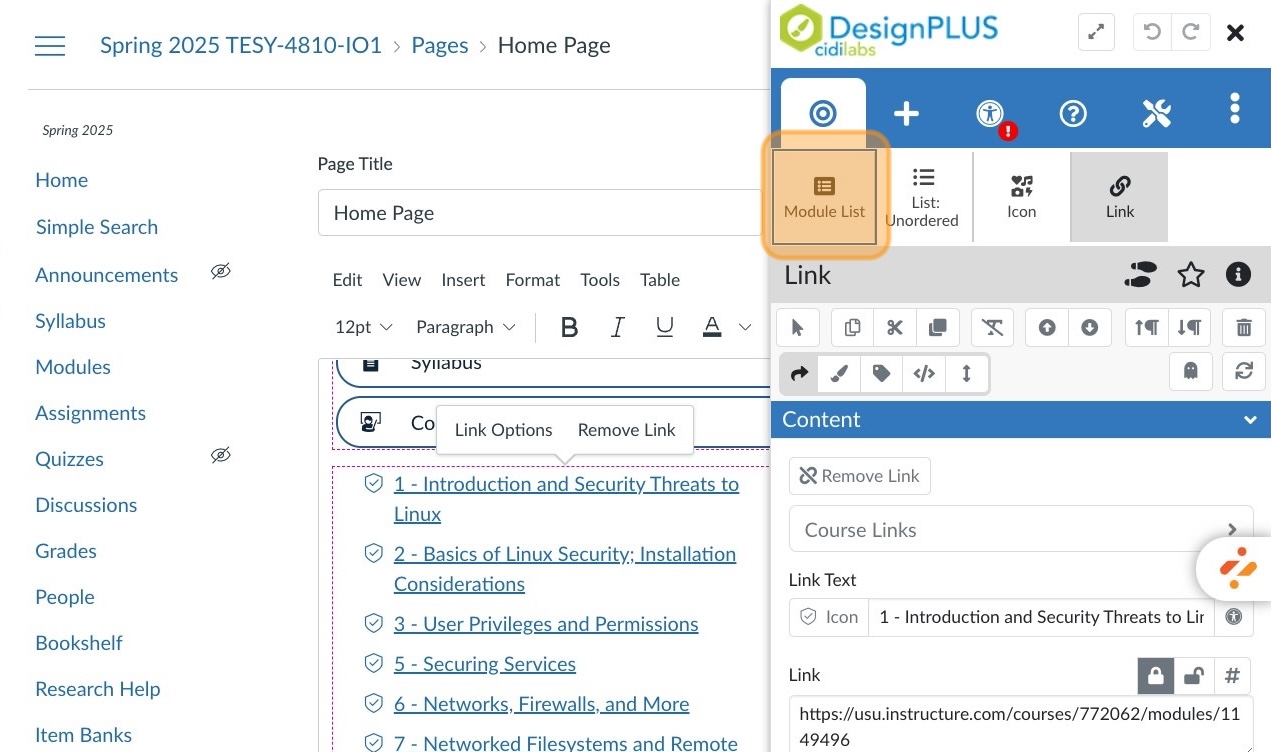
Click inside the module list on the page

Click "Module List" in the DesignPLUS toolbar
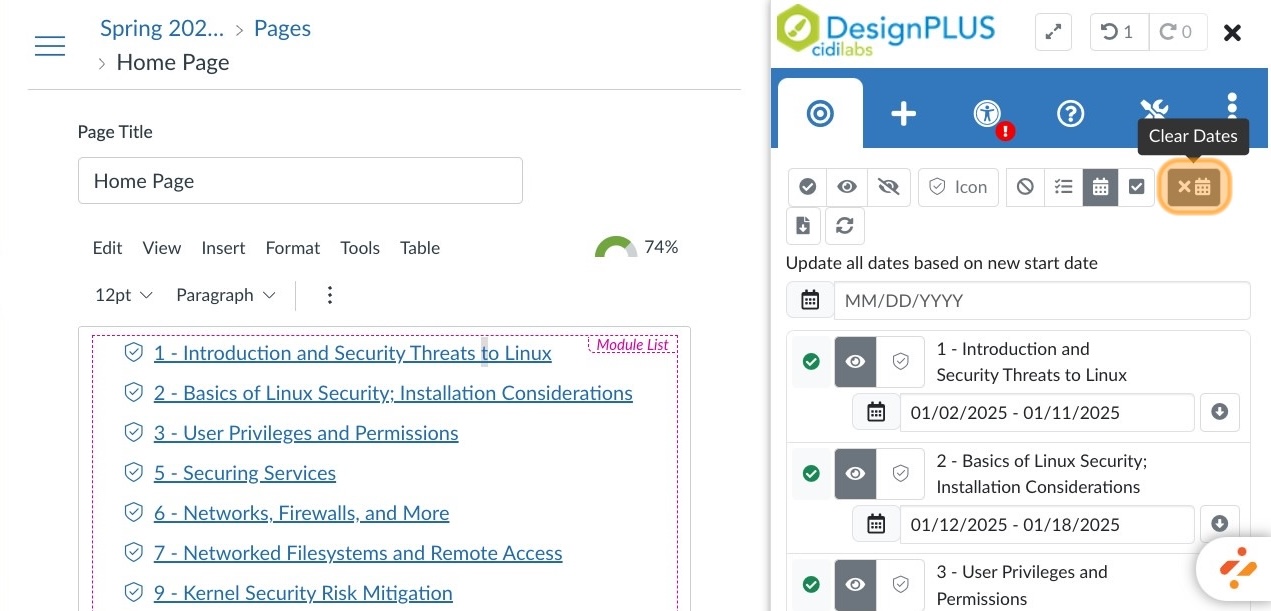
If you need to change the dates, click the x calendar icon to remove the current dates
Click the date field for the first module

Select the start date...
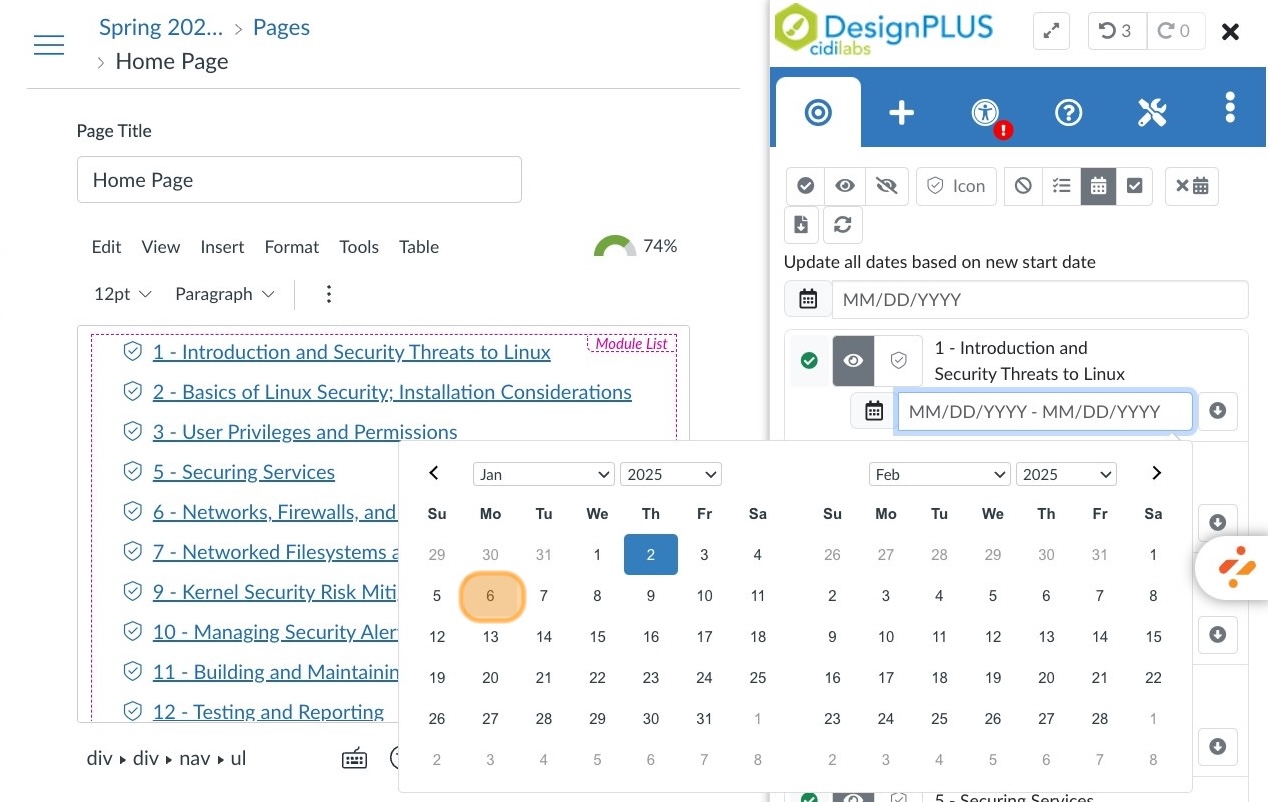
...and end date for the first module

Click the down arrow to fill the modules below with the same date structure

If you want to see how the current module will display, change the start date of the first module to a current or past date

Open the "Advanced" section of the DesignPLUS toolbar.
Then under the Quick Links option, click "Current"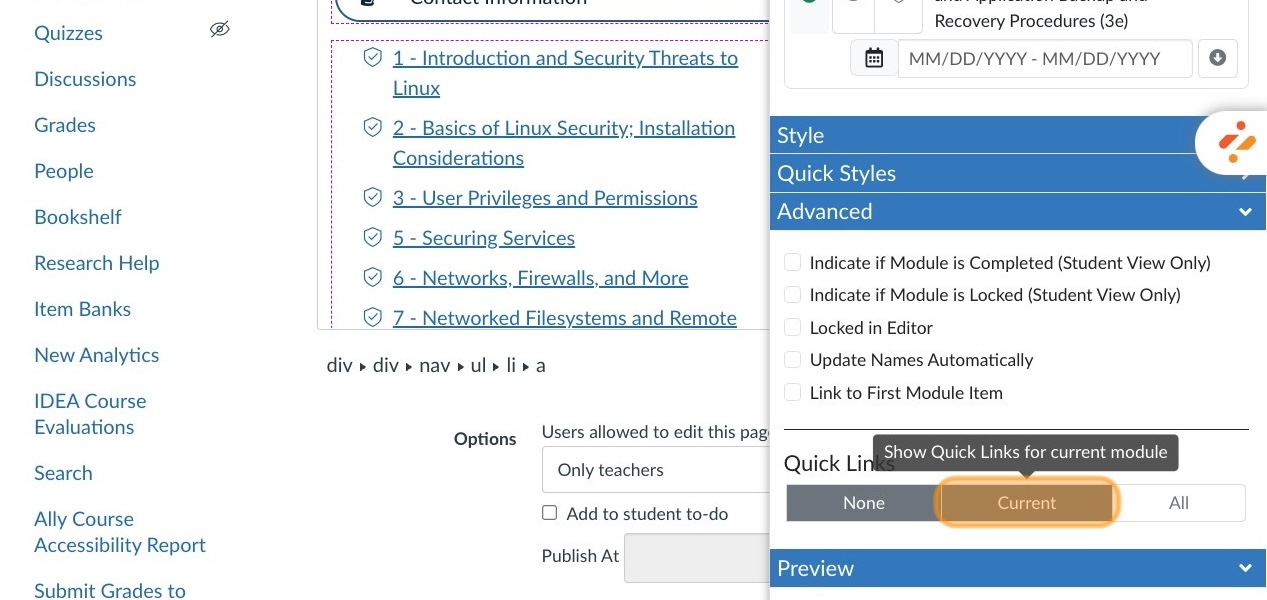
In the Style Panel you can choose display options for the Active module title
Close the DesignPLUS panel
Click "Save"