
Associate a Rubric to an Assignment in Canvas
Rubrics are used to assess the quality of student work and can make the grading more transparent to students. Students can see the rubric before they submit their assignment, so it can also be used to guide them in what they need to include in their assignment.
To create a new rubric, see Create a Rubric in Canvas.
Add an Existing Rubric to an Assignment
1
Click Assignments
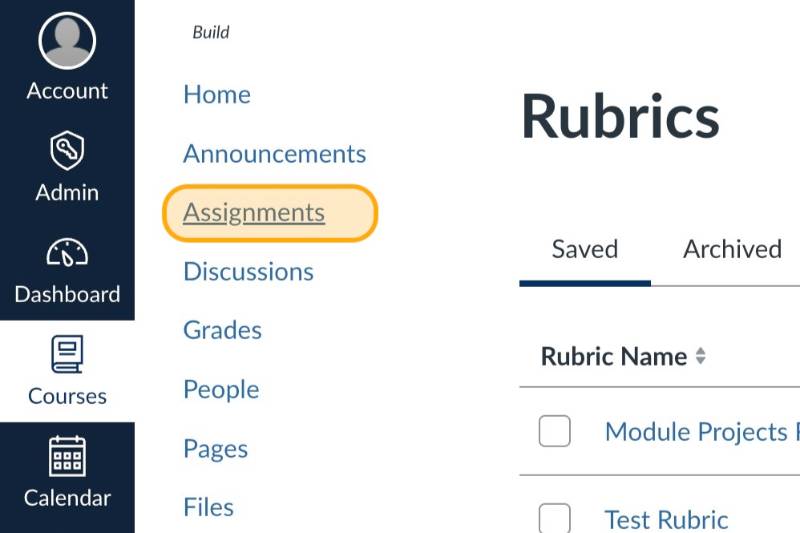
2
Click the assignment title for assignment
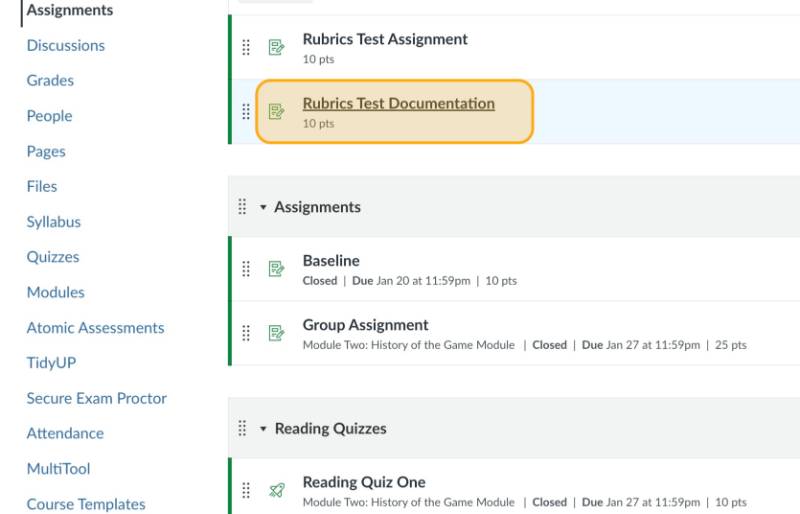
3
Click Find Rubric
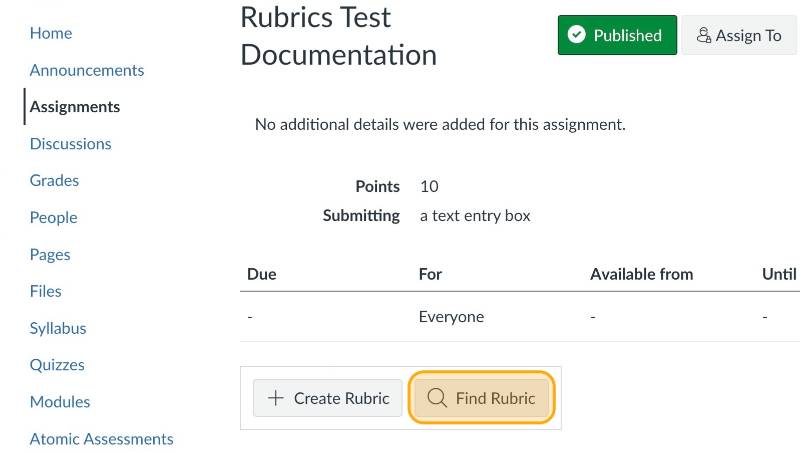
4
Select the rubric and click Add
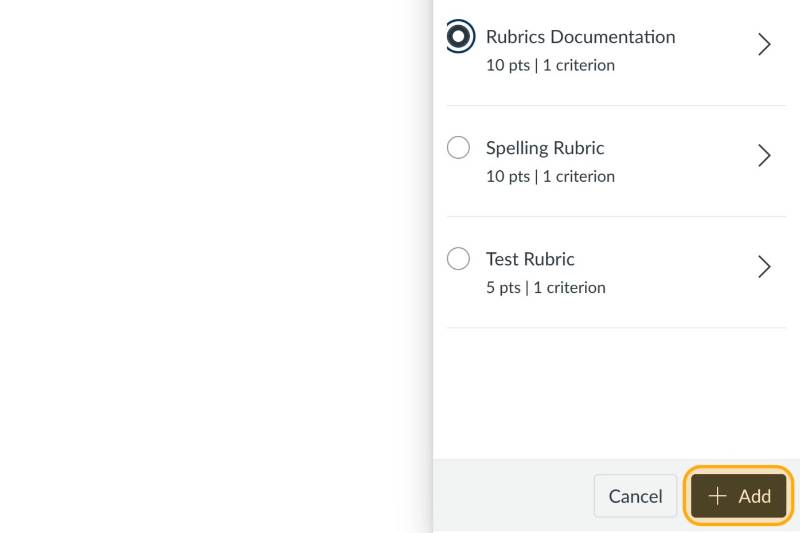
5
Select Use this rubric for assignment grading and click Save Rubric
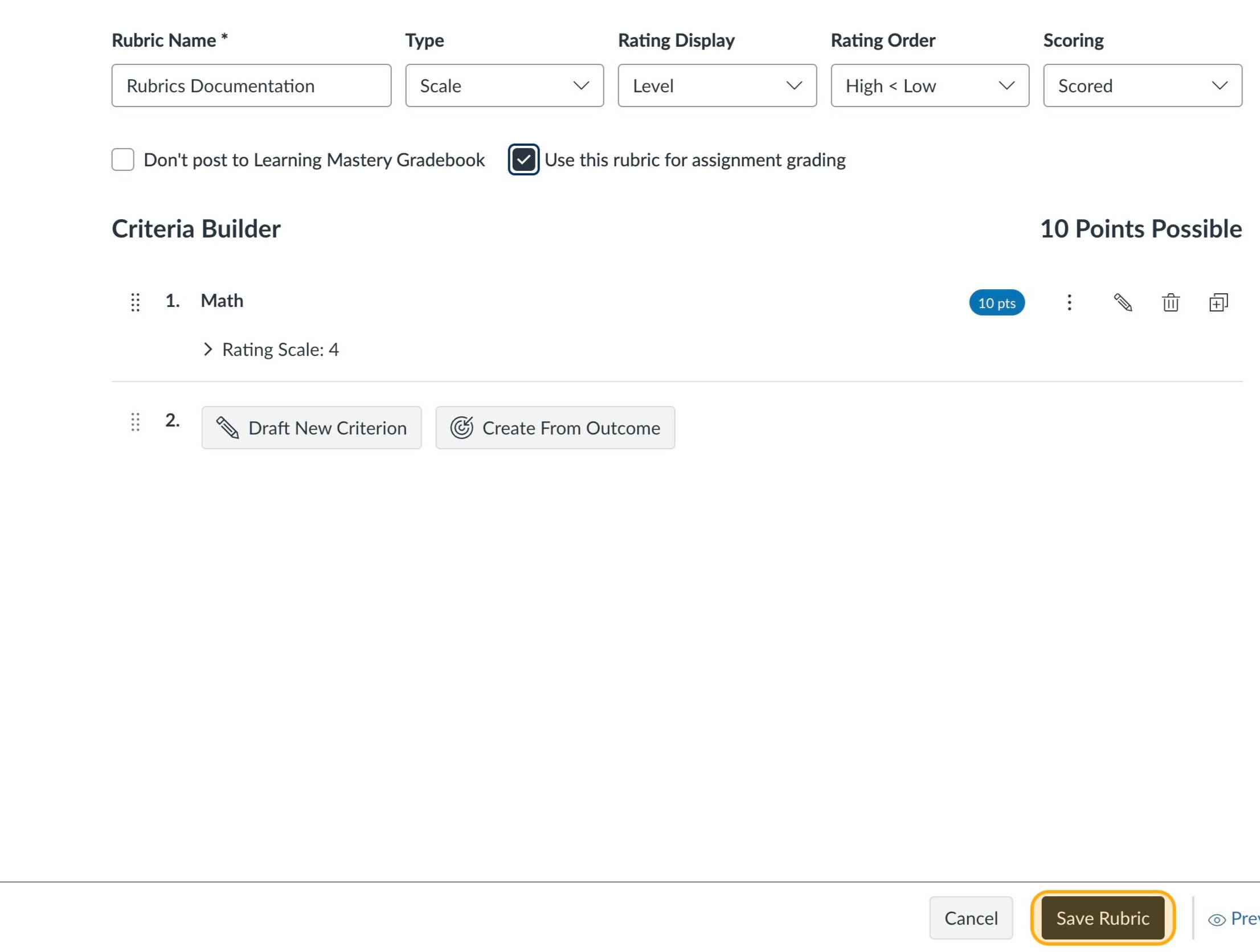
Note: For more detailed instructions see How do I add a rubric to an assignment?
Open External Link
in the Canvas Guides or see our section on attaching rubrics to discussions.
Rubric Settings
There are some optional settings for a rubric that can be selected when the rubric is created or by editing the rubric afterward by clicking on the pencil icon to open the rubric for editing.
I'll write free-form comments when assessing students
This option lets you write comments for each criterion instead of using the ratings scale. Those comments can be saved and re-used for multiple submissions. If you selected this option, you cannot give partial credit. You can still use the rubric for grading if you select both this option and the "Use this rubric for assignment grading" option.Use this rubric for assignment grading (Recommended)
This option tallies the total points on the rubric and automatically inserts the final score for the assignment in the SpeedGrader. (Without this checked you will need to manually enter the final assignment score.)Hide score total for assessment results
This option hides the total score of the rubric from students when they view the rubric from the Grades page. You should only select this option for formative feedback.