Missing Discussion Posts in SpeedGrader
Navigating group assignment in Canvas can be a bit tricky. These guides are designed to help you troubleshoot and set up discussion groups on Canvas for SpeedGrader.
Locate Student Discussion Posts Missing in SpeedGrader
Important: When students are not assigned to discussion groups, their posts will not appear in SpeedGrader.
If you attempt to grade a discussion in SpeedGrader and find no submissions, despite the discussion having submissions, it means you have created a group discussion but have not assigned students to the groups. Use this work around to grade the submissions. For any additional discussions throughout the course, remember to assign students to groups.
In your Canvas course, select Discussions in the left side navigation bar
On the discussions page, select the group discussion

Within the group discussion select the menu (three dots) on the right side (1) then Open in SpeedGrader (2)
Open the discussion in SpeedGrader

Click view the full discussion at the top of the discussion window
All discussion replies will now be visible

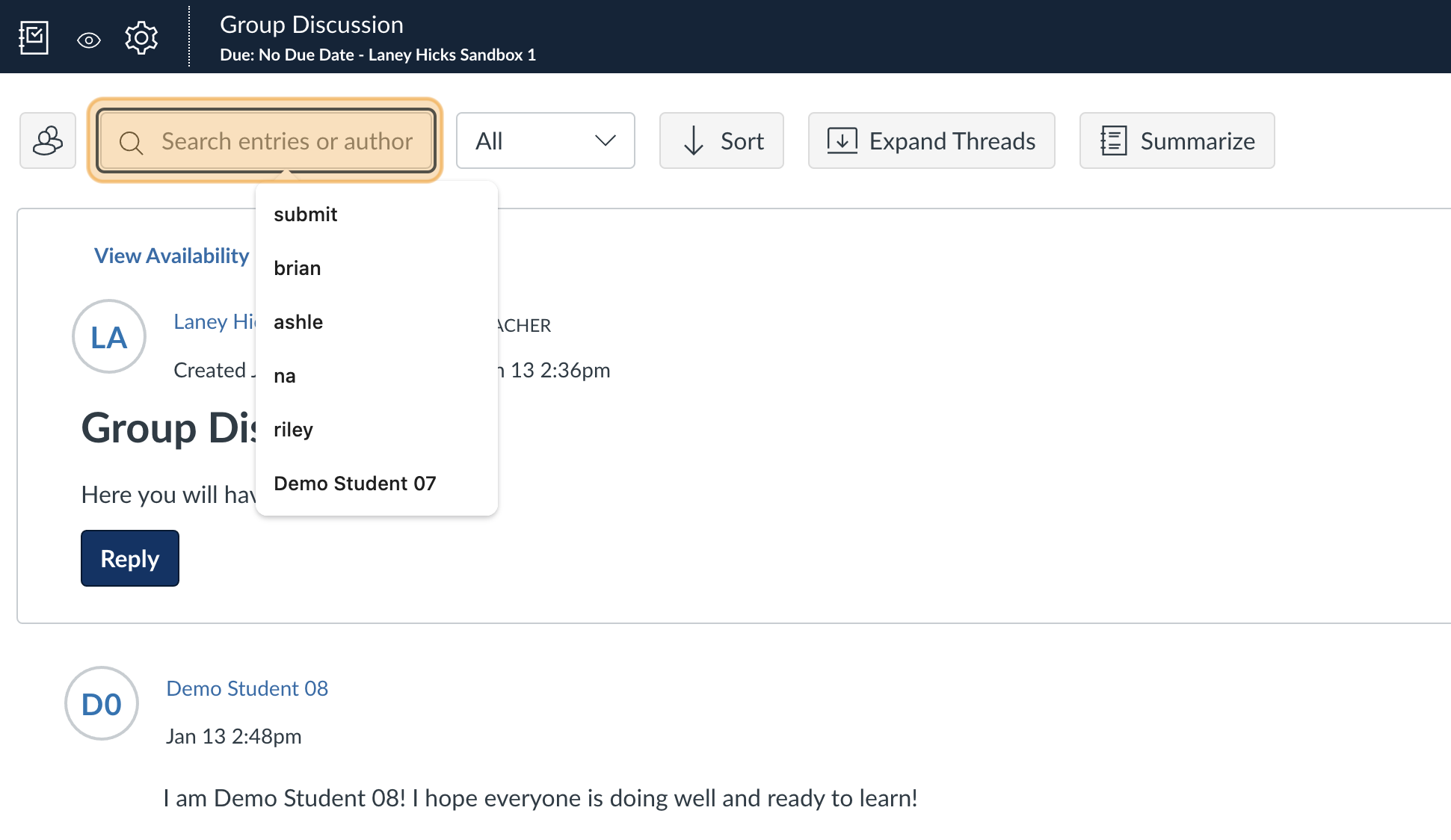
Search for the student you are grading using the search bar
8
Posts mentioning or written by the student will be shown, allowing you to grade each student individually

Manually Assign Students to Groups for Future Group Discussions
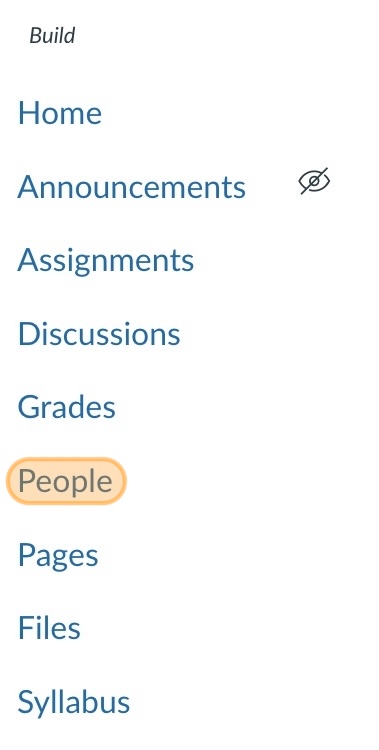
Select People on the left navigation bar

Select a tab for group set...

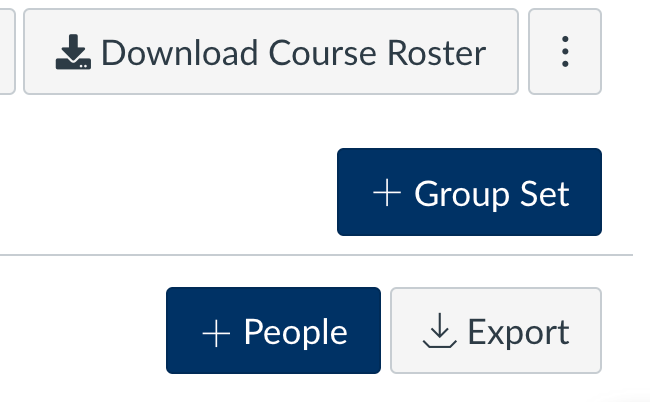
...or add a new group using the + Group Set button
Click on the group name to view group members

Assign each student to a group by dragging their name to a group on the right

You will now see students assigned to each group

Automatically Assign Students to Random Groups
To avoid assigning students individually, create a new group set and let Canvas randomly assign students to groups.
Go to people page
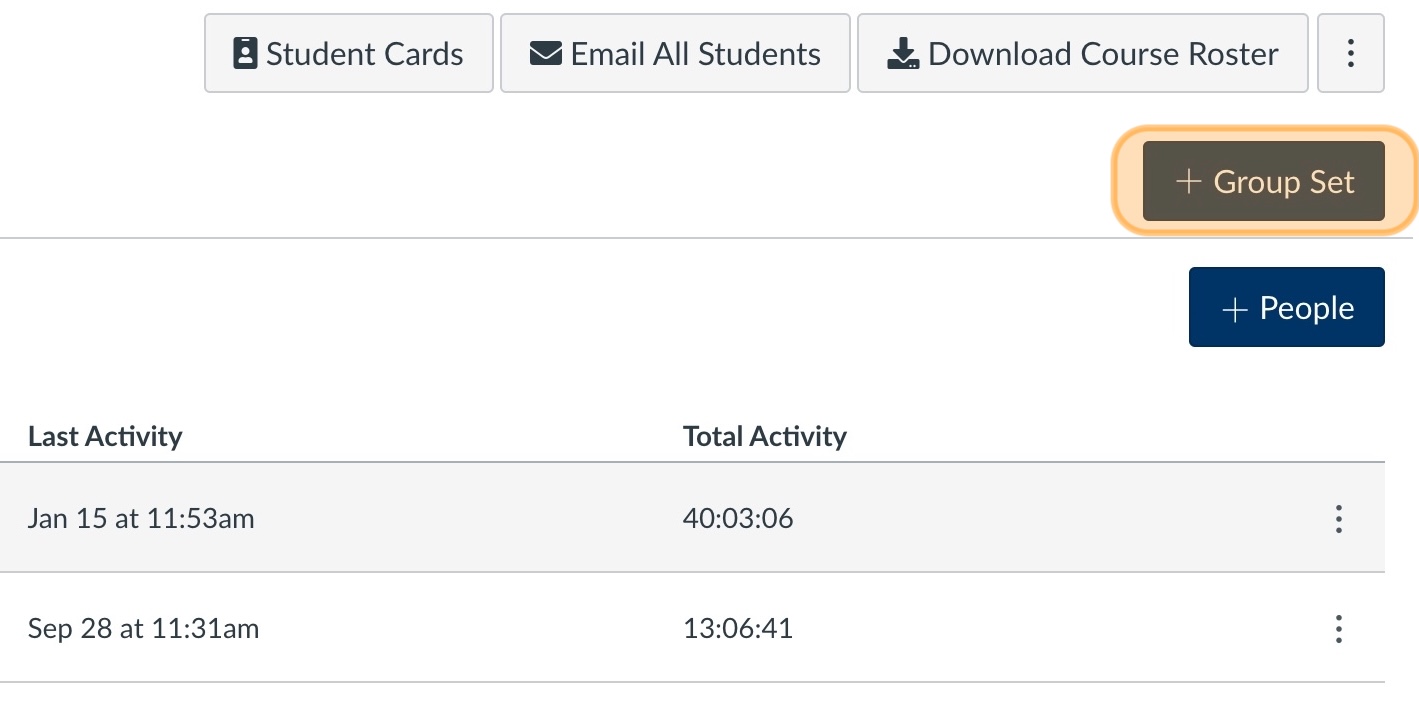
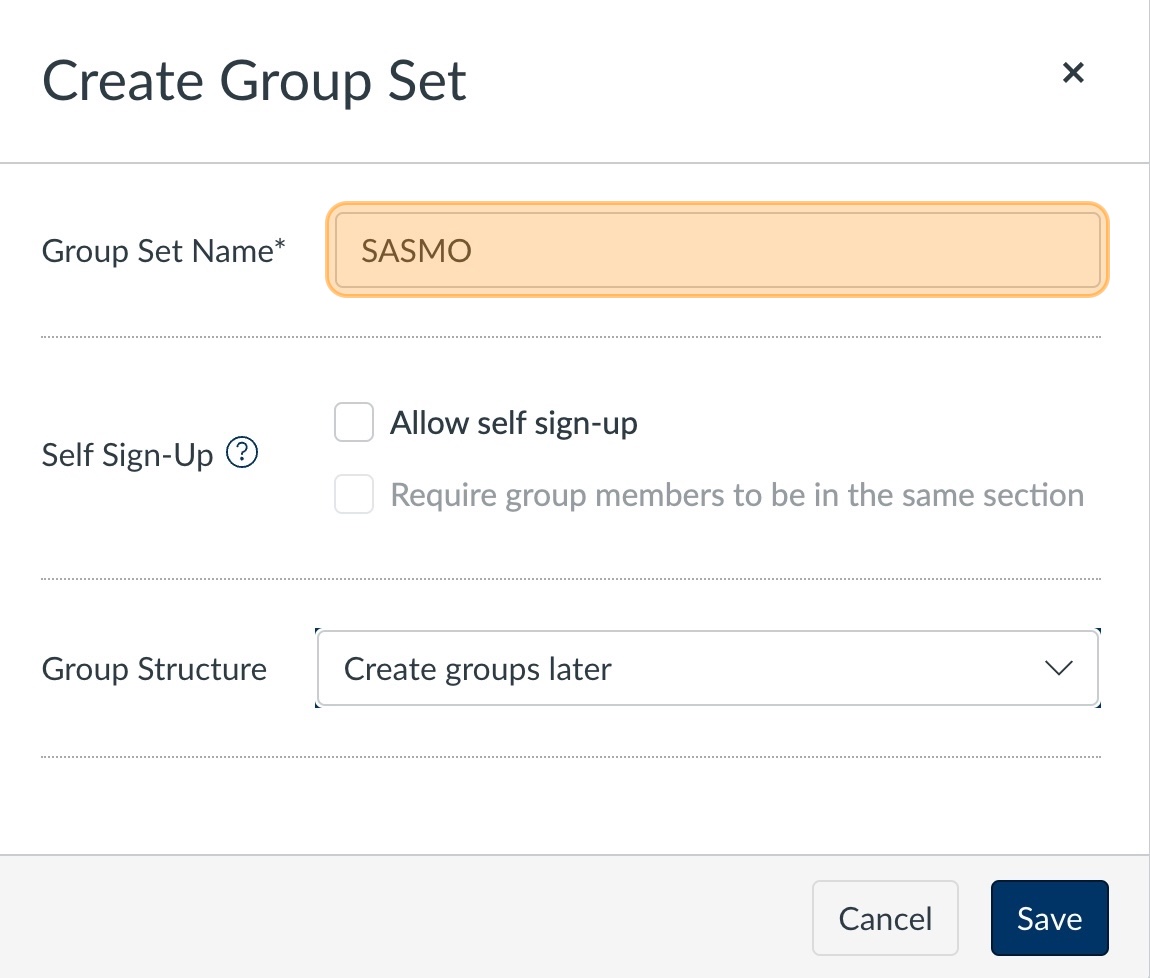
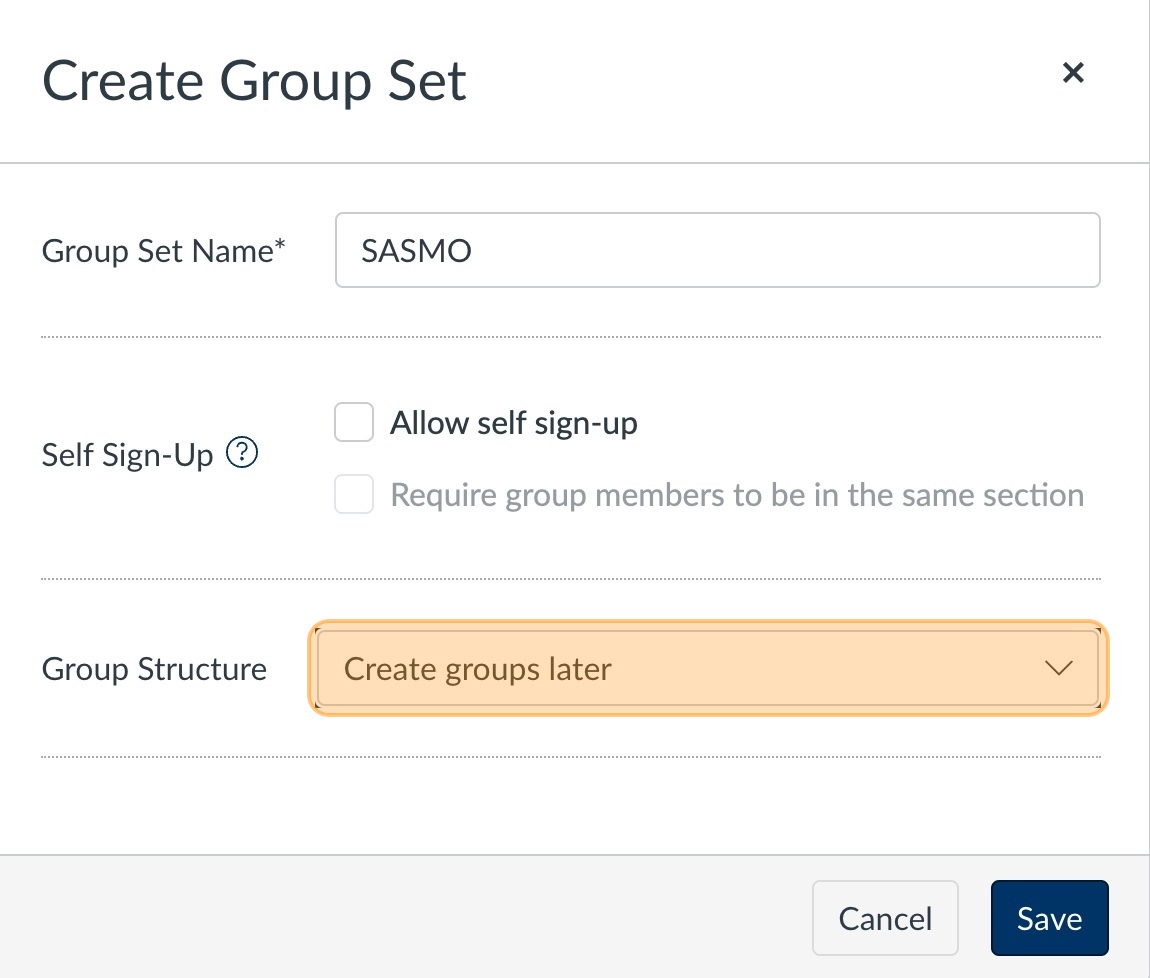
Then select a Group Structure from the drop down menu
Choose from split students by number of groups or split number of students per group
Enter a number of groups or a number of students per group
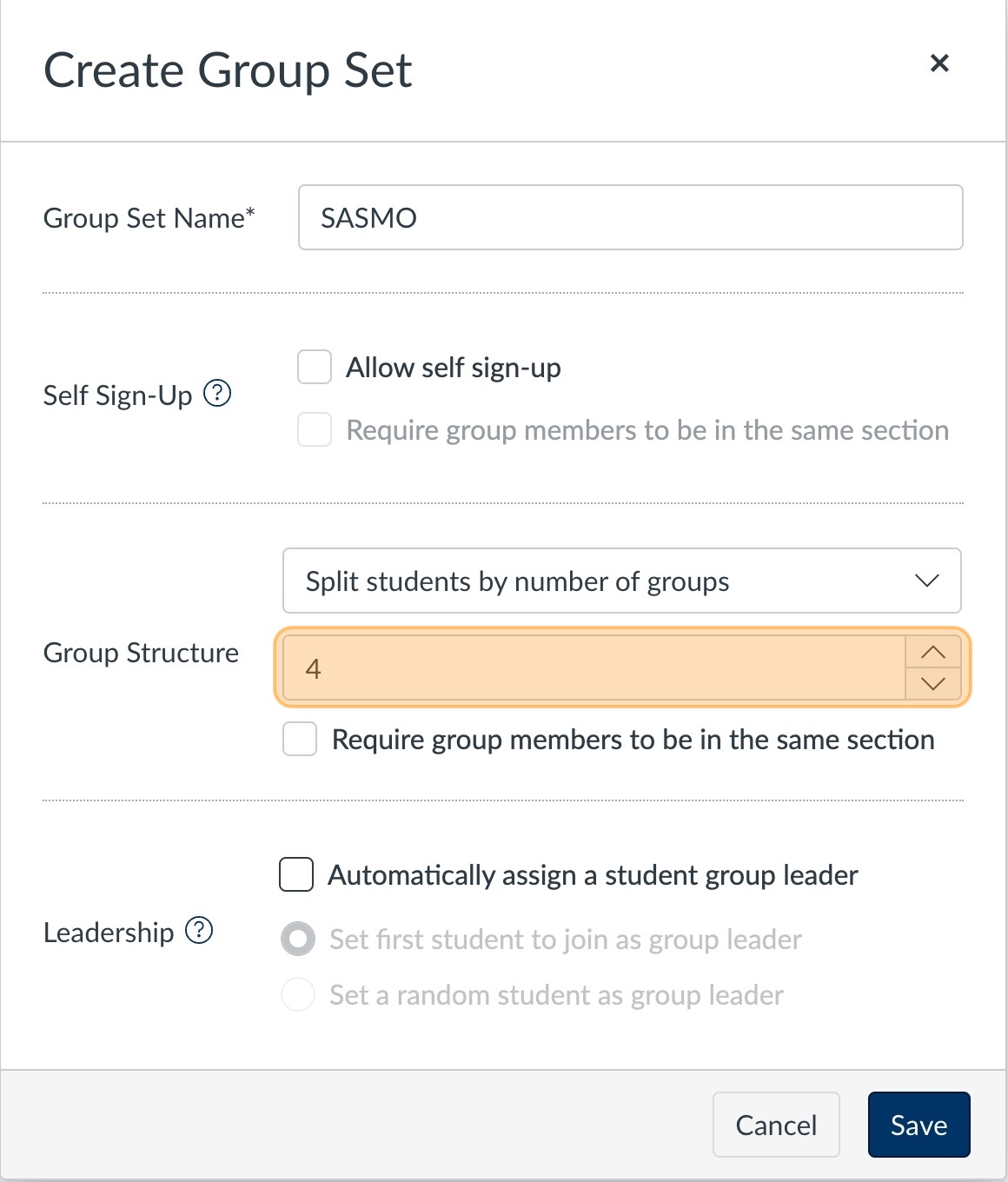
Click Save

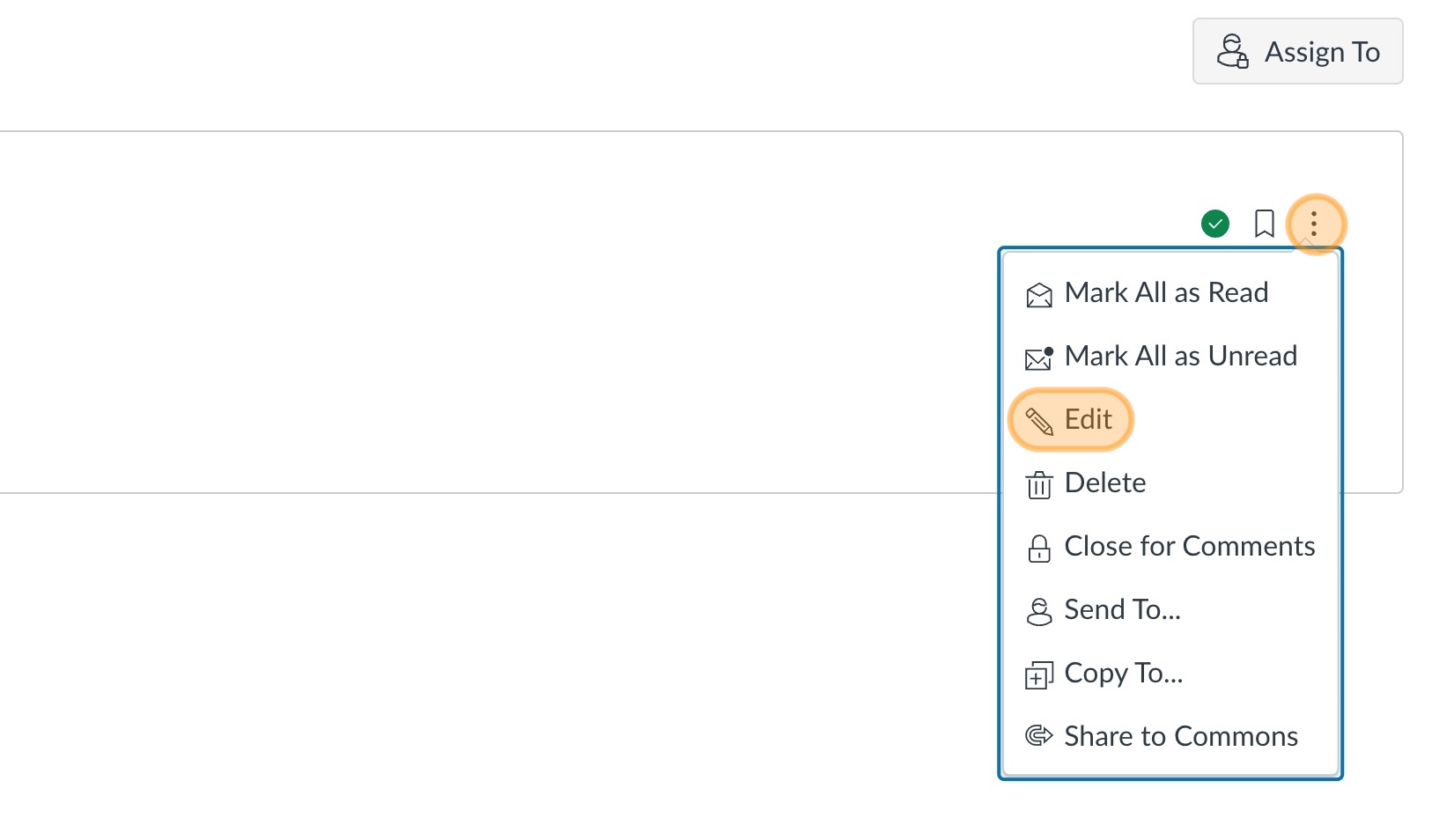
Click the menu (3 dots) icon on the right, then select Edit
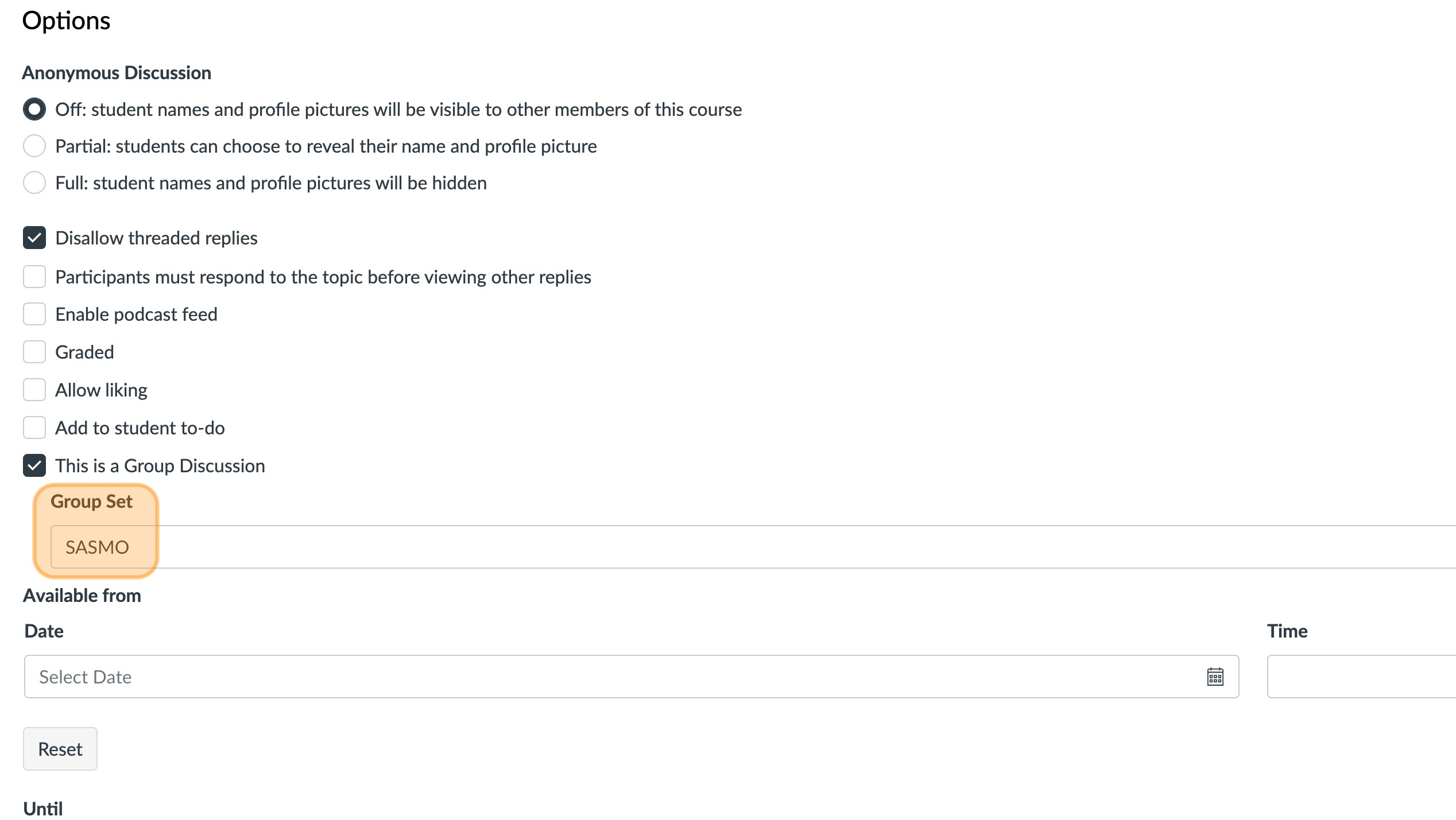
Select This is a Group Discussion from the list of properties
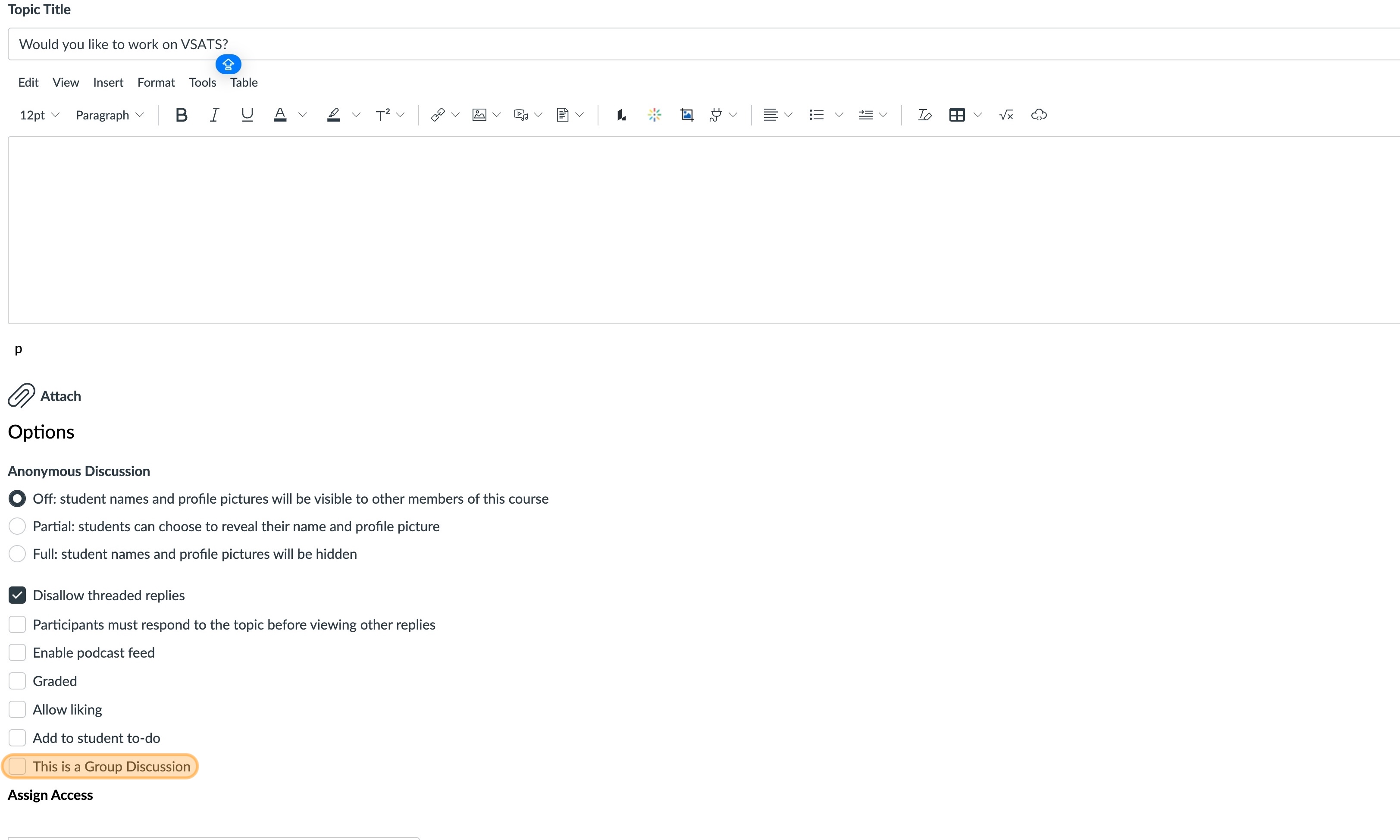
Now you may select the newly created group set