
Variable Due Dates
The Assign Access tool allows you to adjust availability and due dates based on specific students or groups.
Some cases where this tool may be useful for individual students include
- A student going out of town and needing an earlier access and due date than the rest of the class
- A student experiencing prolonged illness and requiring a due date extension
- A student attending a wedding out of town and needing an extension
A couple of other special cases exist:
- Assign Access can be used for Group Assignments. When different groups have different due dates (such as when they are presenting different weeks in class), they can be assigned these due dates using the Assign Access tool. This helps students to keep track of the when their project is due and get a reminder at the appropriate time
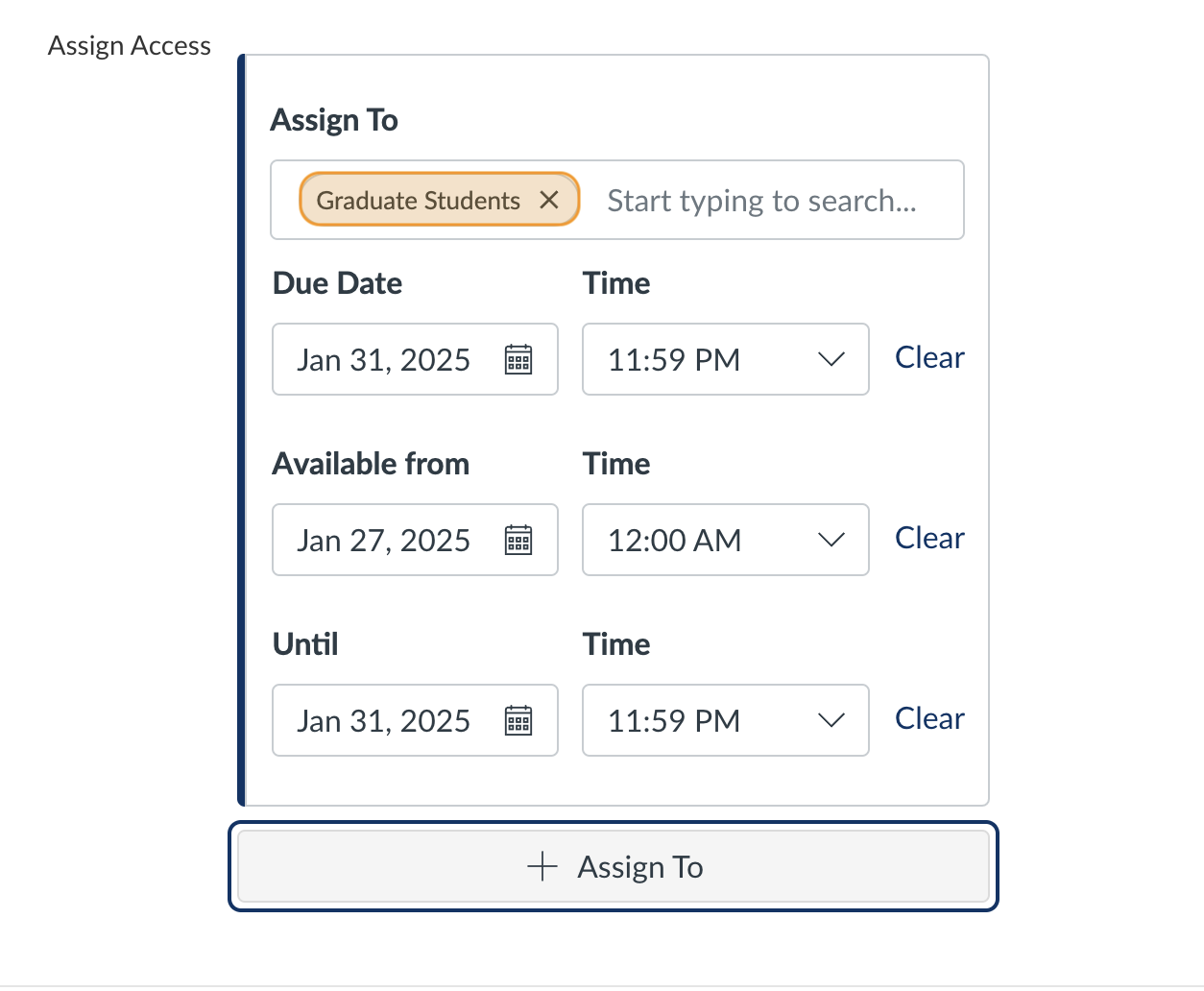
- Assign Access can be used for different Sections of Canvas courses. You can assign due dates and availability dates based on Section. An example of a use case for this is a class that includes both graduate and undergraduate students, but only graduate students are required to submit a specific assignment. The Assign Access tool can be used to only assign the assignment to the graduate student section
Assign Access
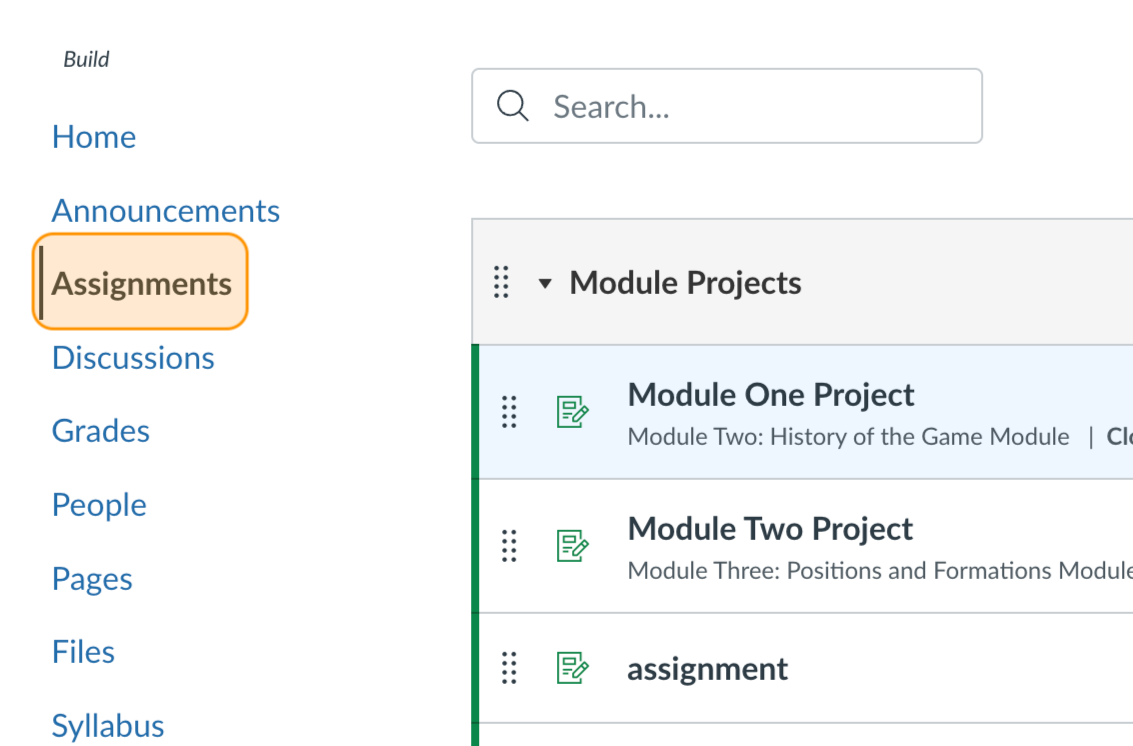
To implement Assign Access, go the Assignment tab
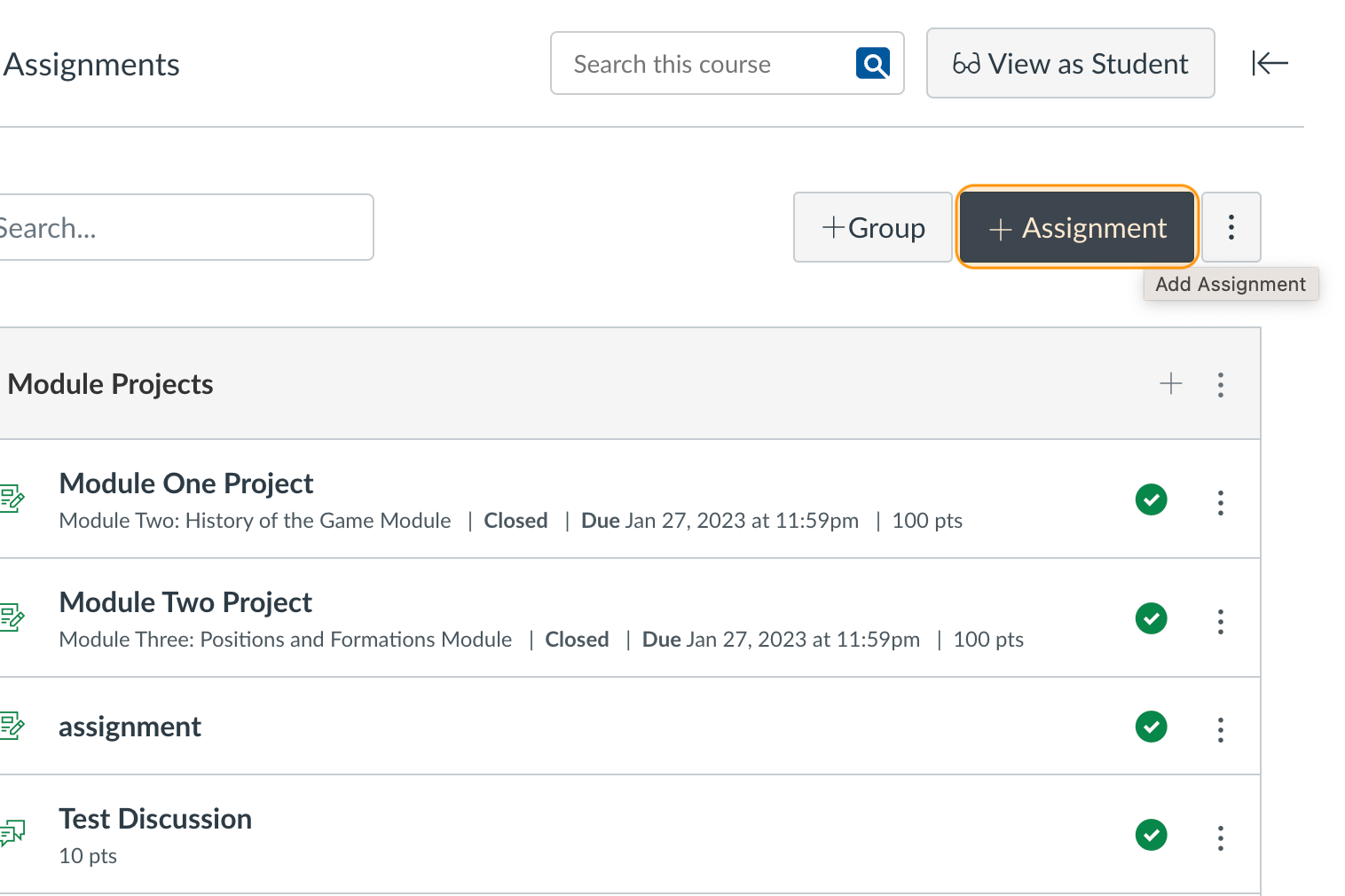
Select + Assignment
This will create a new assignment
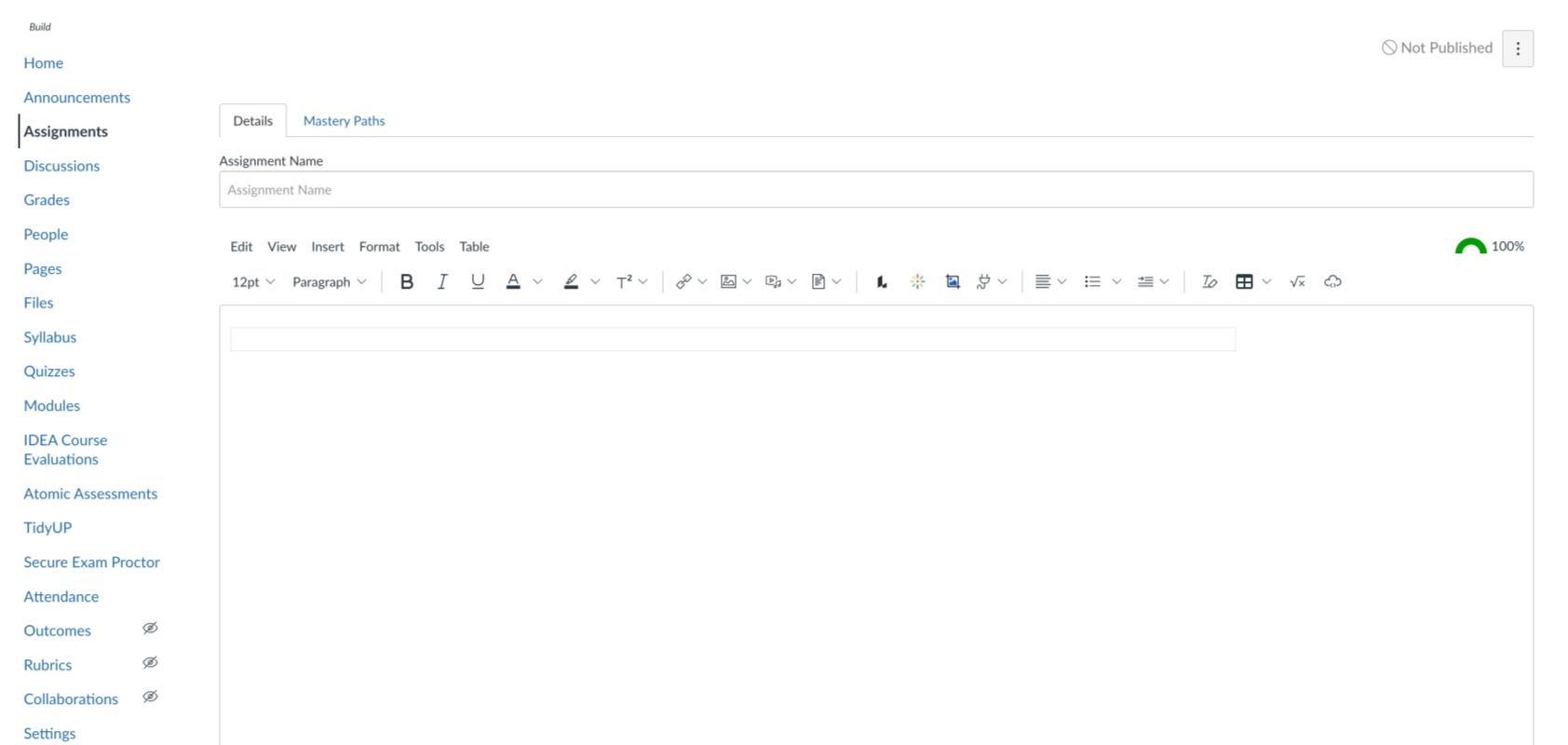
Scroll down to the bottom of the page, until you see the Assign Access section
There should be a box Assign To at the top

To add a different assignment case, click the + Assign To button at the bottom
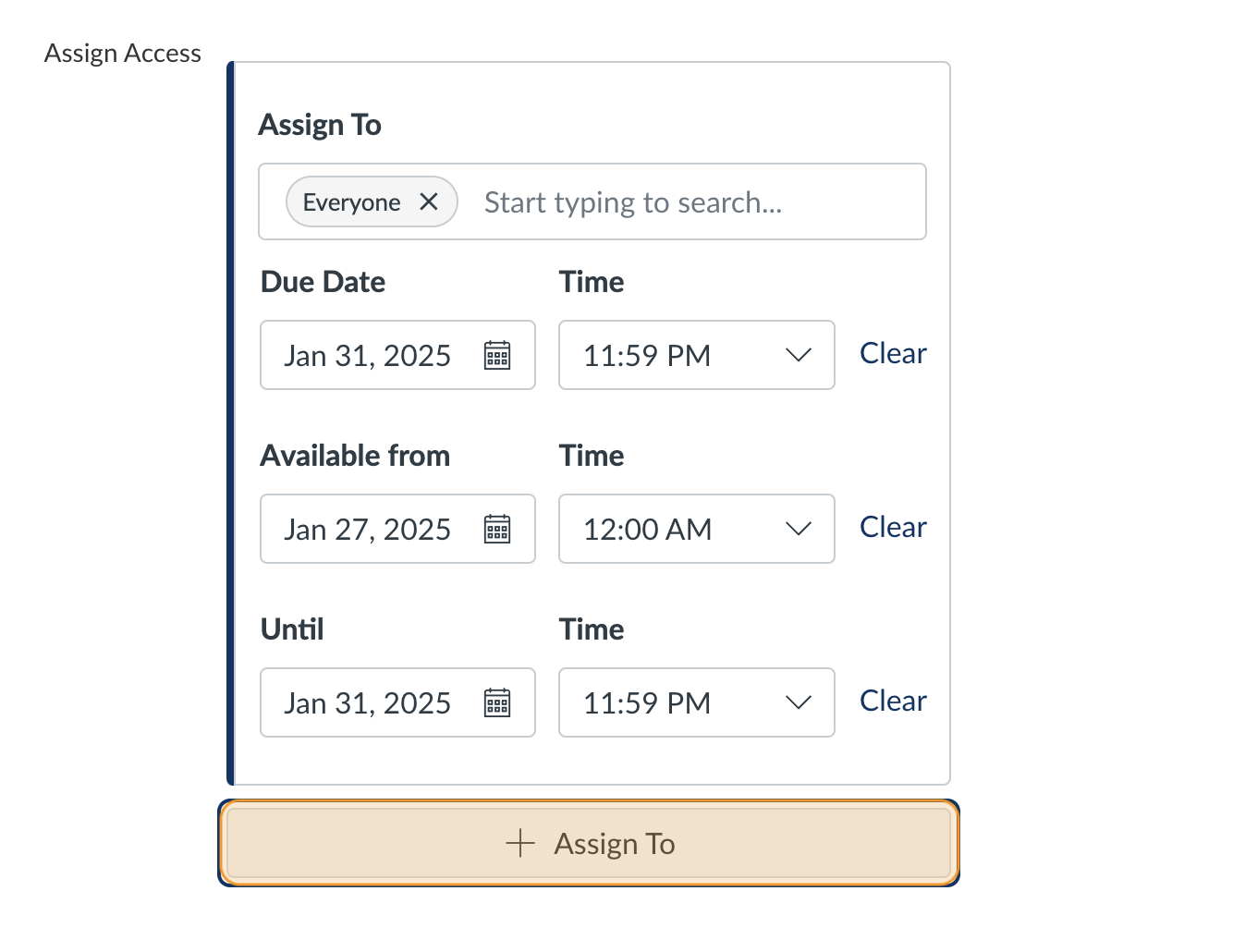
To change the assignment due date and availability date for one student, add the students name to the line under Assign To and modify the rest of the details accordingly
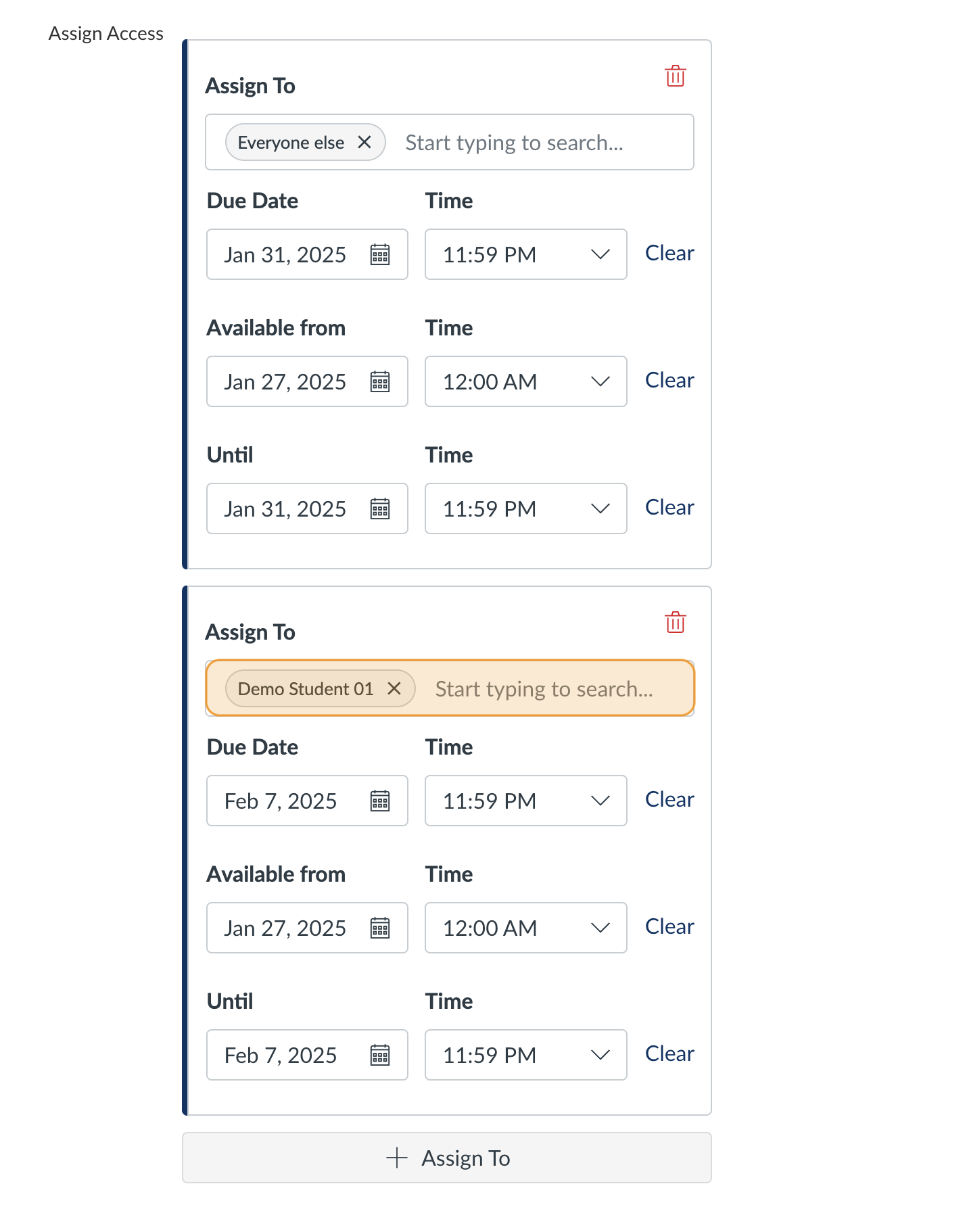
If the circumstances also apply to other students and they need the same changes, you can add additional student’s names
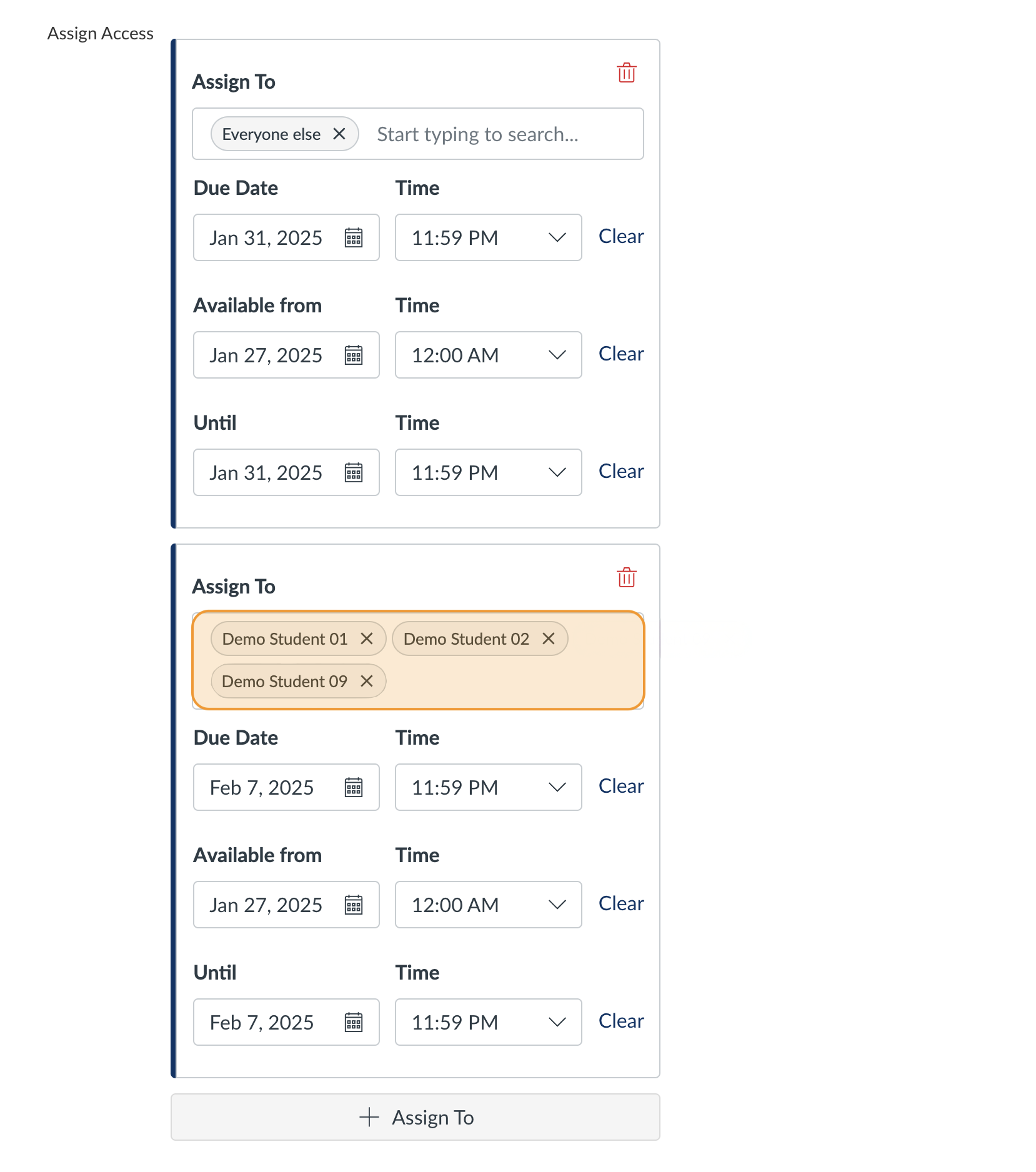
You can also select a different due date than the rest of the class

This can work with multiple students

Sections
To assign the assignment to only one section of the class, click on the line under the Assign To box and delete Everyone
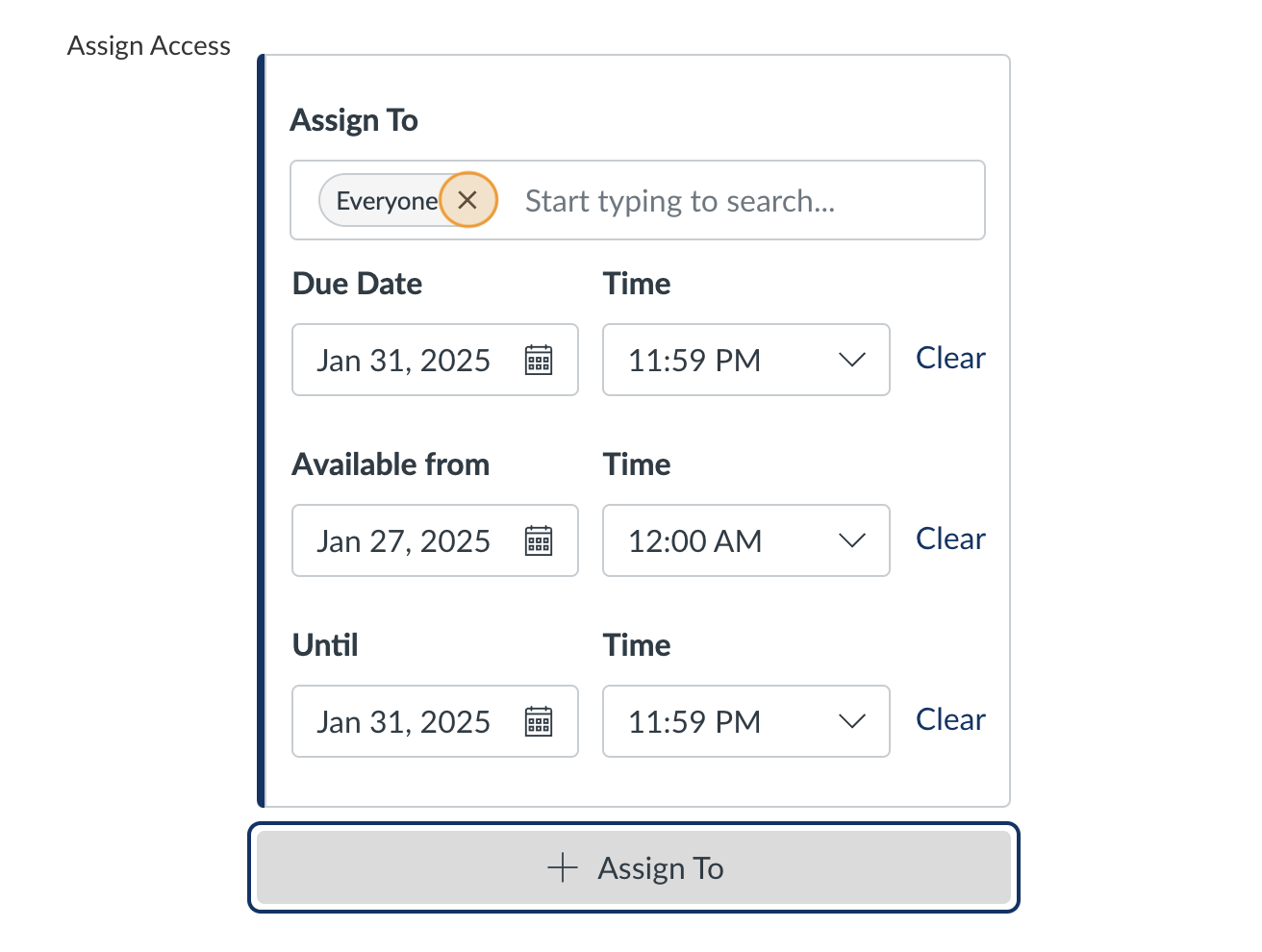
Type in the name of the section in the bar under Assign To and select it from the dropdown
Groups
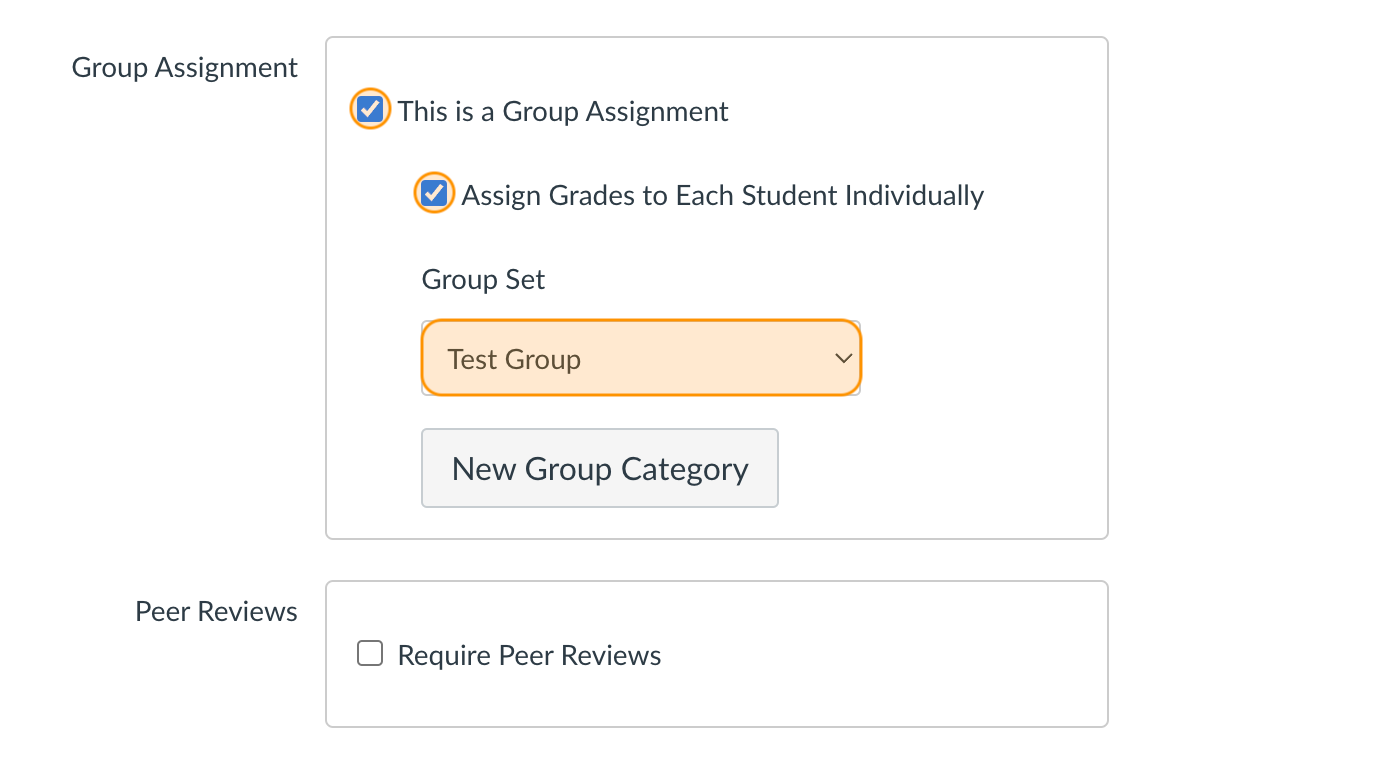
To assign due dates to a specific group, you first need to make the assignment a group assignment
Scroll to the Group Assignment box. Click on the checkbox that says “This is a Group Assignment”
Then click on the checkbox that says “Assign Grades to Each Student Individually"
From there, under Group Set, select the correct group
Next, scroll down to Assign Access
In the line under Assign To, delete Everyone and type in the group name, then click on it in the dropdown
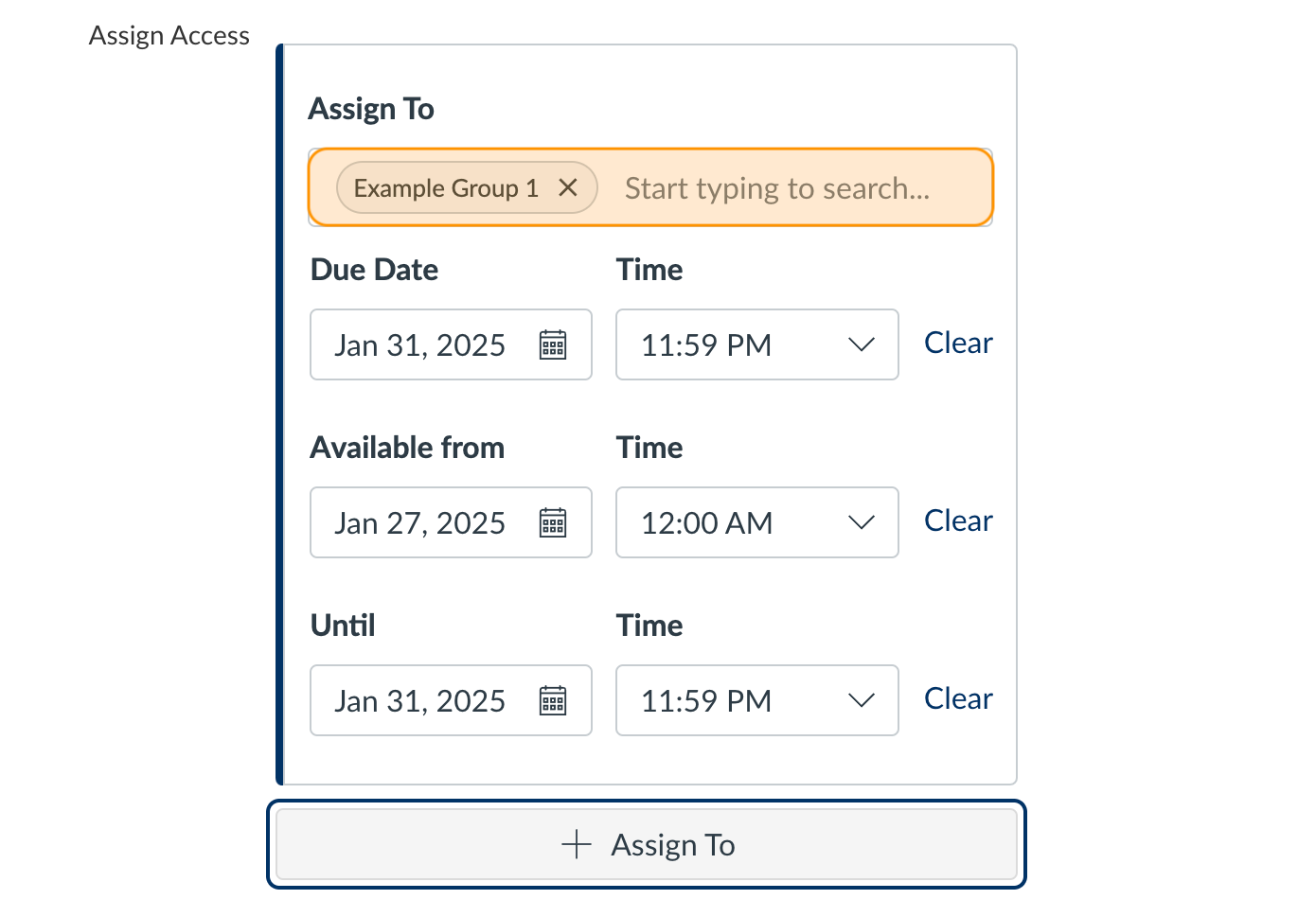
You can now change the dates as needed to fit that group’s assignment date
To add an additional group, click on the + Assign To button
Add the next group following the steps described previously, modifying the dates as necessary
