
Import Content from Another Canvas Course
Getting ready for the new semester and have content from this semester you'd like to reuse? Great! You can import content from another Canvas course.
Here are some steps to ensure everything is ready to go:
Log into Canvas and click on the Dashboard to locate the new course in the list of Unpublished Courses
In the new course, import content from the previous course
(As part of this process be sure to use the "Adjust events and due dates option
If you are using Atomic Assessments, import all Atomic Assessment data
- Click on any Atomic Assessment assignment in the new course.
- Select the source course.
- Import all Atomic Assessment data.
Use the Multi-Tool Due Date Modifier to view and edit all course dates on a single page
- Click on the course Settings.
- On the Navigation tab, drag Multi-Tool from the list of hidden items at the bottom section.
- Be sure to click the Save button.
- Click on the Multi-Tool that now appears in the course navigation menu.
- On the Multi-tool main page, click Due Date Modifier.
- On the Due Date Modifier page, add or change dates by typing a new date or selecting the date from the pop-up calendar.
- Click the Update button.
For more details see the CidiLabs User Guide about the Due Date Modifier.
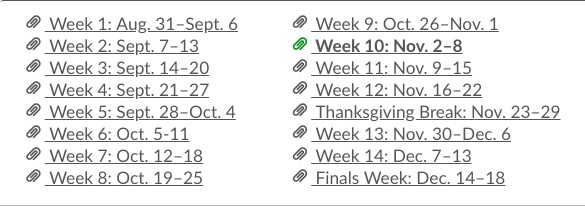
If you have the modules listed on your home page, as in the example below you will want to
Validate Links in Content